
Tilemaps
Estella renders tile layers in the C++/WebAssembly core, batched per tileset
texture and stored in chunks. Paint levels directly in the editor, load a whole
map from a Tiled file with the Tilemap component,
or build and edit layers yourself with the Tilemaps resource — including
multi-tileset layers, per-tile animation, and infinite streaming maps.
How it works
Section titled “How it works”There are three entry points. The editor’s Tilemap mode authors layers
visually, backed by a .estileset tileset asset. The Tilemap component
points an entity at a Tiled JSON file and, at load, spawns one TilemapLayer
entity per layer. The Tilemaps resource is the imperative API for creating
and editing layers from code. Every way the data ends up in the same runtime
layer model. Tile ids are 1-based (0 = empty). Orthogonal, isometric,
staggered, and hexagonal maps are all first-class — author any orientation
natively in the editor, or import it from a Tiled file with no extra setup.
Paint in the editor
Section titled “Paint in the editor”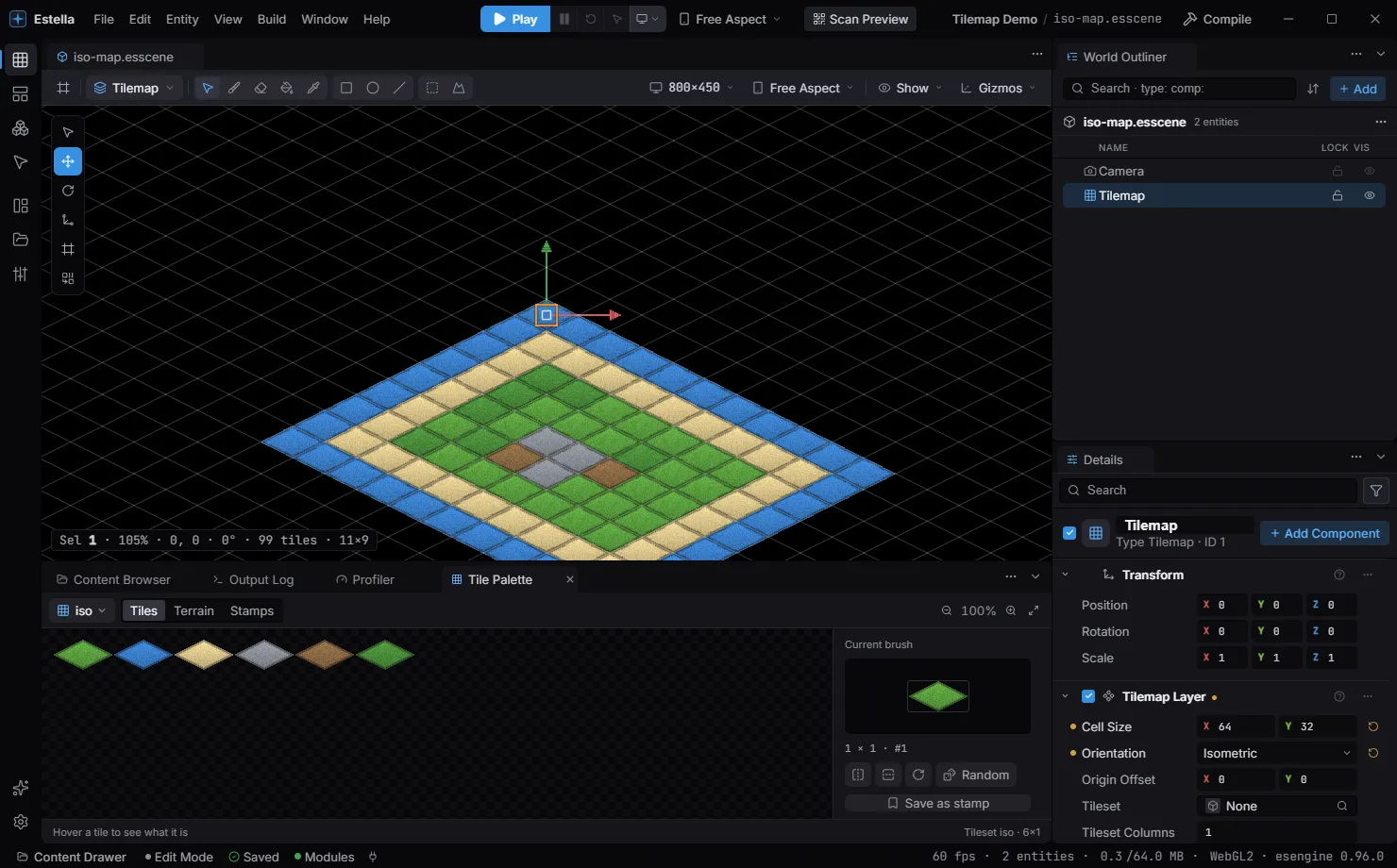
Select a TilemapLayer and the editor enters Tilemap mode: the paint tools and the active layer sit in the viewport toolbar, and the Tile Palette opens in the bottom dock with the tileset. Paint straight into the viewport.
Select an entity with a TilemapLayer component — the editor suggests Tilemap mode, or
click its icon in the Activity Bar — and the Tile Palette panel opens beside the Content
Browser with the tileset. Pick a tool from the viewport toolbar and paint directly in the
viewport — a stamp ghost previews every stroke:
| Tool | Key | What it does |
|---|---|---|
| Brush | B |
Paint the current stamp; drag for strokes. Alt+click eyedrops. |
| Erase | E |
Clear tiles. |
| Rectangle | U |
Fill a dragged rectangle with the stamp pattern. Shift squares it, Alt paints the outline only. |
| Ellipse | O |
Drag a bounding box, fill its inscribed ellipse. Shift makes a circle, Alt a ring. |
| Line | L |
Lay the stamp along a straight line. Shift constrains to horizontal / vertical / 45°. |
| Bucket | G |
Flood-fill the connected region of matching tiles. |
| Select | M |
Marquee a region — mod + C / X copy / cut it, Delete clears it, mod + V pastes it as the brush; drag from inside the marquee to move the block (one undo step, Esc cancels). |
| Eyedropper | I |
Pick the stamp from tiles already on the layer. |
| Terrain | T |
Autotile brush — paints a terrain and fixes up the neighbors. |
While a paint tool is active, H / V flip the stamp and R rotates it 90°.
Q, W, or Esc leave paint mode and hand the keys back to the transform tools.
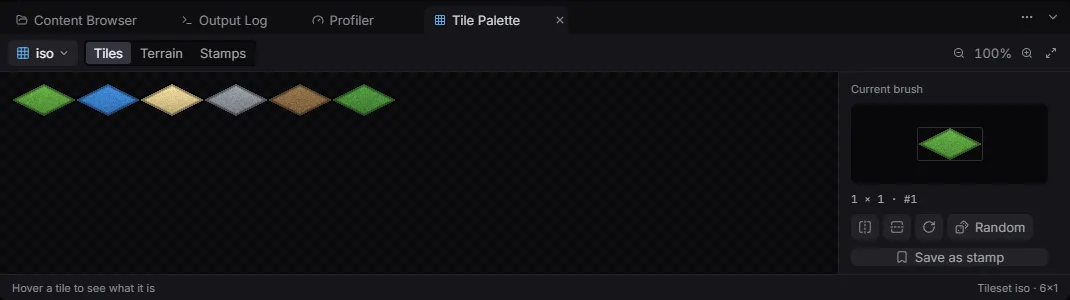
The Tile Palette up close: the tileset picker and the Tiles / Terrain / Stamps tabs on top, the atlas you stamp from, and the Current brush with flip, rotate, Random and Save as stamp. The paint tools themselves (brush, erase, rectangle, ellipse, line, bucket, select, eyedropper, terrain) are in the viewport toolbar.
- Multi-tile stamps — drag across the palette to grab a block of tiles as one stamp. The palette is keyboard-friendly too: arrow keys move the selection, Shift + arrows grow it into a stamp.
- Saved stamps — Save as stamp, under the current brush, saves it into a
per-project stamp library; the Stamps tab lists them — click one to bring a
pattern back,
×deletes it. Identical patterns deduplicate. - Random mode — toggle Random (or press
Dwhile painting) and each painted cell samples one tile at random from the stamp instead of repeating the pattern — quick scatter for grass, rubble, and other variation. Sampling honors each tile’s probability weight from the tileset editor’s Properties mode (default 1; 0 = never scattered). - Layer picker — when the scene has several tilemap layers, the layer picker in the viewport toolbar switches the active layer; its menu shows, hides, locks, renames, duplicates and deletes layers, and moves them up or down to reorder them.
Map orientations
Section titled “Map orientations”Orientation is a property of each TilemapLayer, not an import artifact. The
New Tilemap dialog picks it up front — orthogonal, isometric (diamond),
staggered (staggered-isometric), or hexagonal — along with the stagger
axis/index and hex side length where they apply, and the Inspector edits the
same fields afterwards. The viewport follows the layer: the grid overlay,
brush ghost, hover/selection highlights, and every paint tool work on the
diamond or hex grid exactly as they do on squares.
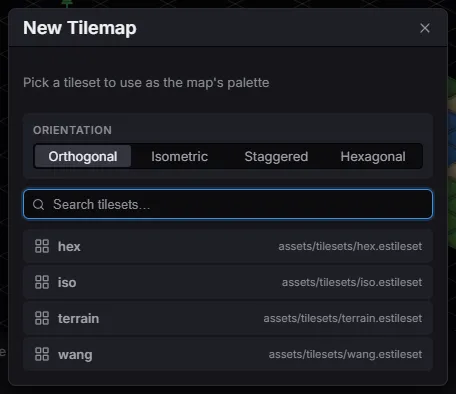
The New Tilemap dialog picks the orientation and the tileset up front.
The same map painted on a hexagonal and a staggered grid:
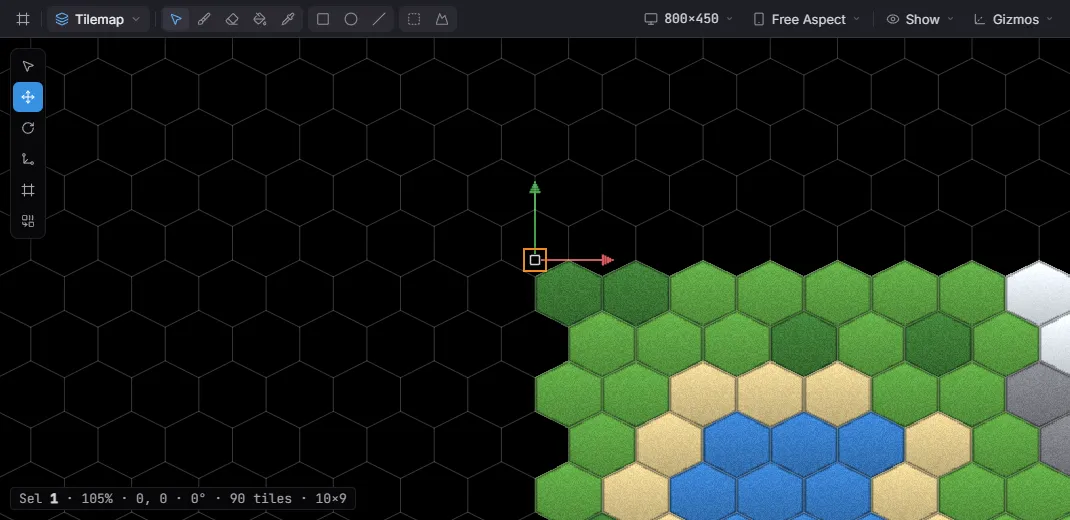
Hexagonal — the grid, brush ghost, and every tool follow the hex layout.
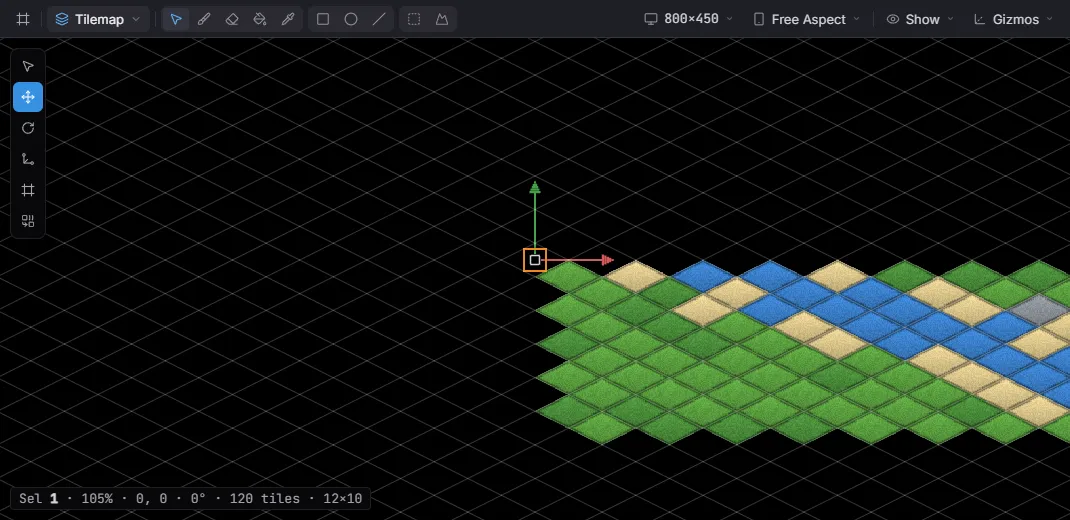
Staggered isometric — alternate rows shift by half a cell.
TilemapLayer field |
Values | Description |
|---|---|---|
orientation |
Orthogonal / Isometric / Staggered / Hexagonal | Grid layout of the layer. |
staggerAxis |
Y / X | Staggered & hex: Y shifts alternate rows, X shifts alternate columns. |
staggerIndex |
Odd / Even | Which rows/columns carry the half-cell shift. |
hexSideLength |
px | Hexagonal only: flat side length (0 = regular pointy hex, tileHeight / 2). |
Tiled maps of any orientation import into the same fields — including staggered
maps’ staggeraxis / staggerindex, so an imported staggered map places tiles
exactly as Tiled shows it. examples/ ships three painted showcases: an
isometric island, a staggered patchwork, and a pointy-top hex strategy map.
Load a Tiled map
Section titled “Load a Tiled map”The Tilemap component loads a .tmj map (Tiled’s JSON format — in Tiled, use
File → Export As → JSON) via its one field:
import { defineSystem, Commands } from 'esengine';import { Tilemap } from 'esengine/tilemap';
const loadLevel = defineSystem([Commands()], (cmds) => {  cmds.spawn().insert(Tilemap, { source: 'assets/maps/level.tmj' });});
Tilemap field |
Type | Default | Description |
|---|---|---|---|
source |
asset | '' |
The Tiled map file (tilemap asset). |
Grid tilesets (one atlas image), external .tsj tilesets, and image-collection
tilesets (Tiled’s “collection of images” — one loose image per tile) all load.
Collection tiles are folded into a single grid atlas at load time, so they render
exactly like a hand-authored tileset; each image must match the map’s tile size
(anything else fails loud with the fix).
The TilemapLayer component
Section titled “The TilemapLayer component”Each layer (loaded from Tiled, or spawned by you) carries its visual metadata. The
renderer reads these live, so animating tintColor / opacity is lag-free.
| Property | Type | Default | Description |
|---|---|---|---|
cellSize |
Vec2 | {32, 32} |
Tile size in world units. |
originOffset |
Vec2 | {0, 0} |
Shifts the layer’s grid, in world units. Applied per frame beside the layer’s parallax, so dragging it moves the tiles at once and rebuilds no chunk. |
tileset |
asset | none | Tileset texture (single-tileset layers). |
tilesetColumns |
number | 1 |
Columns in the tileset atlas. How many rows it holds comes from the texture, and a tile past the last one draws nothing. |
renderLayer |
number | 0 |
Sorting layer for draw order. |
tintColor |
Color | {1,1,1,1} |
Multiplied over every tile. Animatable. |
opacity |
number | 1 |
Layer transparency, 0..1. Animatable. |
parallaxFactor |
Vec2 | {1, 1} |
Parallax scroll factor relative to the camera. |
visible |
boolean | true |
Show / hide the layer. |
Plus the orientation fields above — orientation,
staggerAxis, staggerIndex, hexSideLength.
Build a layer in code
Section titled “Build a layer in code”Spawn an entity, initialise a layer, then fill it:
import { defineSystem, Commands, Res, Transform } from 'esengine';import { Tilemaps } from 'esengine/tilemap';
const build = defineSystem([Commands(), Res(Tilemaps)], (cmds, tilemap) => {  const layer = cmds.spawn().insert(Transform, { position: { x: 0, y: 0, z: 0 } }).id();
  tilemap.initLayer(layer, 32, 32, 16, 16);           // 32×32 tiles, 16px cells  tilemap.setTiles(layer, new Uint16Array(32 * 32));  // bulk load  tilemap.setTile(layer, 5, 3, 7);                    // one tile (x, y, id)  tilemap.fillRect(layer, 0, 0, 32, 1, 2);            // a row of tile 2});
Editing & transforms
Section titled “Editing & transforms”tilemap.getTile(layer, 5, 3); // read a tile idtilemap.flipTile(layer, 5, 3, true, false, false); // flipH, flipV, flipDiagonaltilemap.rotateTile(layer, 5, 3, 90); // degreestilemap.tileToWorld(layer, 5, 3, 0, 0); // → { x, y }tilemap.worldToTile(layer, wx, wy, 0, 0); // → { x, y }Multiple tilesets
Section titled “Multiple tilesets”One layer can draw from several tilesets. Give it a slot table — each slot maps a
firstId range to a texture and its column count (one draw call per texture):
tilemap.setTilesets(layer, [ { firstId: 1, textureHandle: grassTex, columns: 8 }, { firstId: 256, textureHandle: propsTex, columns: 8, margin: 4, spacing: 8 },]);Optional margin (border before the first tile) and spacing (gap between tiles),
both in pixels, describe atlases that pad their cells — each tile then samples its
own texels instead of bleeding toward its neighbour. They default to 0, so a
gapless atlas needs neither (a slot also takes an extrude, also 0 by default); the Tiled/.estileset importer fills them in
automatically from the tileset’s own margin/spacing.
Tile animation
Section titled “Tile animation”Author animated tiles in the Tileset editor: open the .estileset, switch the
mode control to Animation, click the tile to animate, then click other atlas
tiles to append frames. A strip below the toolbar shows a live looping preview,
per-frame duration inputs (in milliseconds), and remove/clear actions; animated
tiles carry a ▶ mark in the atlas. The frames are saved into the .estileset, and
every layer that uses the tileset plays them automatically — in the editor viewport
and at runtime, no code required.
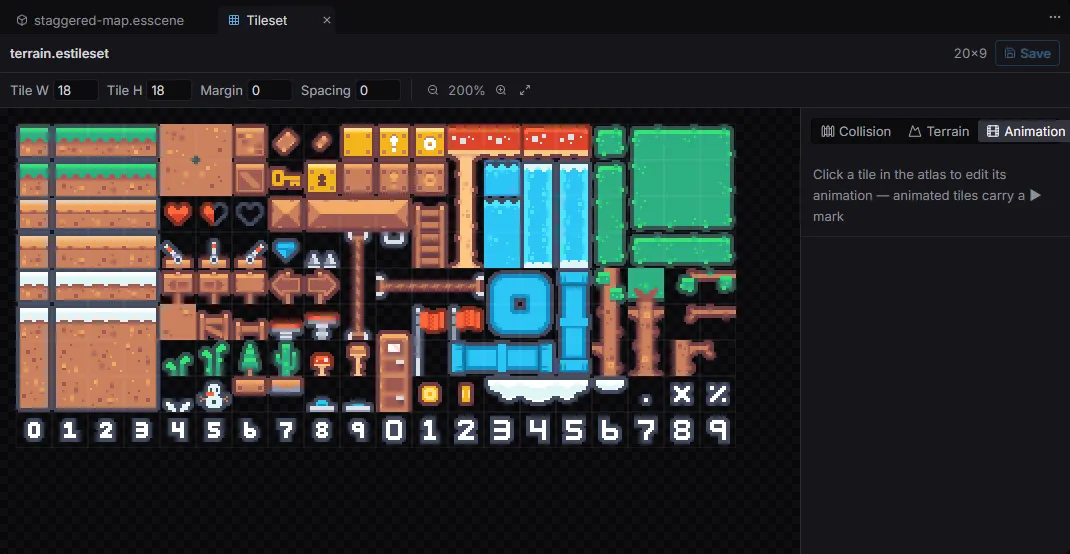
Animation mode: pick a tile (here #34), click atlas tiles to append frames, and set each frame’s duration in ms. The strip loops as a live preview.
For procedural layers, setTileAnimation does the same from code — the plugin
advances it every frame:
tilemap.setTileAnimation(layer, 10, [ { tileId: 10, duration: 100 }, // durations in ms { tileId: 11, duration: 100 },]);Infinite (chunked) maps
Section titled “Infinite (chunked) maps”For large or streaming worlds, use an infinite layer and write chunk by chunk;
exportChunks / importChunks serialize the sparse chunk data:
tilemap.initInfiniteLayer(layer, 16, 16);tilemap.setChunkTiles(layer, chunkX, chunkY, tiles, 16, 16);tilemap.removeChunk(layer, chunkX, chunkY); // a chunk the player has walked away fromA chunk is 16 by 16 tiles. A layer’s tile rows run down from its origin, as in Tiled, so tile row ty lies at world y -ty * tileHeight: a chunk whose world
square spans [y, y + 288) for 18-pixel tiles is chunk row -(floor(y / 288)) - 1. removeChunk takes the tiles out and the drawn mesh with them, so a layer that
follows a walker holds the chunks near it and not every one it has held. Streaming a 2D world through ProceduralChunks (see Streaming) with
plane: 'xy' can use either one layer and removeChunk, or a small layer entity per chunk that it despawns on release.
Terrain autotiling
Section titled “Terrain autotiling”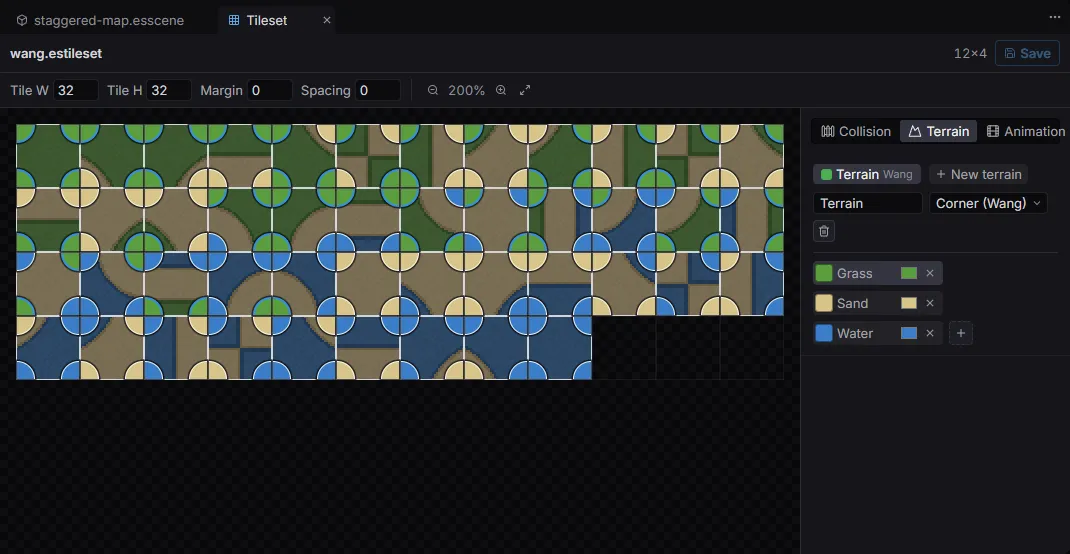
Terrain mode with a corner-Wang set: define terrain colors (Grass / Sand / Water), then paint each tile’s corners — the T brush later resolves the right tile from the neighbours.
Terrains make the T brush paint meaning instead of specific tiles — you say
“grass here” and the resolver picks the tile whose edges match the neighbors.
Author terrains in the Tileset editor’s Terrain mode; a terrain set uses one
of two models:
- Peering (edge / corner-blob) — the classic single-terrain model: each tile declares which of its edges (16-tile sets) or edges + corners (47-tile blob sets) belong to the terrain, and the brush paints the terrain while fixing up neighbor transitions.
- Corner Wang (multi-terrain) — the modern model from Tiled/Godot: the set carries a palette of colors (grass, sand, water, …) and each tile assigns a color to its four corners. One set blends many terrains, and the brush paints colors on a half-cell corner grid — click between four tiles and the resolver re-tiles all of them by exact corner match (nearest-mismatch fallback), producing smooth marching-squares boundaries. The tileset editor authors the color palette (add / rename / recolor / remove) and the per-tile corners: each quarter of a tile is the click target for its corner — click or drag a stroke to paint the active color, right button erases — and the Tile Palette’s Terrain tab lists the colors to paint with.
The terrain brush dispatches on the set’s model automatically. A
blended-island corner-Wang demo ships in examples/.
Tilesets & collision
Section titled “Tilesets & collision”The engine’s first-class tileset asset is .estileset — it references an atlas
texture and carries per-tile collision, animation, terrain/auto-tile data, and
custom key/value properties.
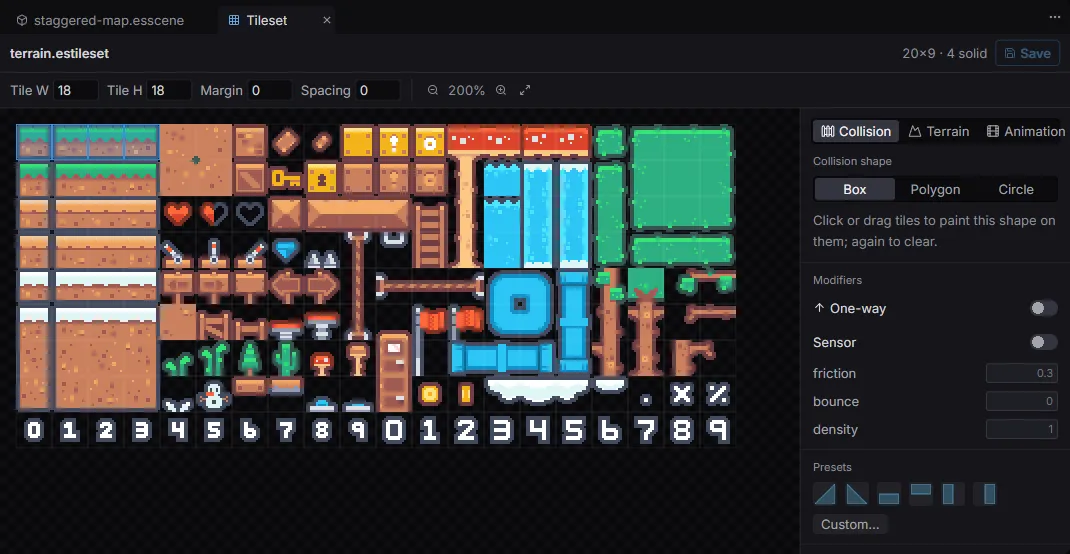
The Tileset editor’s Collision mode: pick a shape (Box / Polygon / Circle), toggle one-way / sensor and set friction / bounce / density, drop slope presets — the green overlay marks each tile’s collider.
Per-tile collision goes well beyond solid squares. In the tileset editor’s Collision mode you author, per tile:
- Shapes — full-cell box (drag-paints), fitted circle (drag-paints), or a freeform polygon via the vertex editor; one-click slope / half-tile presets stamp the common ramps (drag to stamp a run of them).
- Modifiers, riding on whatever shape you paint: one-way (jump-through platforms with a solid-top normal), sensor (overlap events, no contact response), and physics-material overrides (friction / bounce / density).
Plain solid boxes are greedy-merged into large static colliders at spawn; shaped, one-way, sensor, and material tiles spawn one collider each, with tile flip flags reorienting the geometry to match the rendering. The scene viewport draws the selected layer’s whole collision as an overlay (Show Flags → tile collision) — WYSIWYG with what Play spawns.
Tiled maps get the same treatment: shapes drawn in Tiled’s tile collision
editor (rectangles, ellipses, polygons) import into the identical model — a
full-cell rectangle stays a merge-eligible solid box, everything else spawns
one collider per tile — and the tile properties oneway / sensor /
friction / restitution / density apply the same modifiers. The legacy
collision=true tile property still marks a plain solid box.
Collision (obstacle) layers
Section titled “Collision (obstacle) layers”Not every level is a tileset. When your art is a single background image — a
hand-painted room, an exported illustration — you still want walls, floors, and
slopes the player collides with. A collision layer paints exactly that: a
TilemapLayer that draws nothing and instead stamps collider cells over
whatever is behind it.
A collision layer is an ordinary tile layer whose tileset reference is the sentinel
builtin:collision instead of an .estileset. That one change routes it to a fixed
palette of collider brushes, so it reuses the whole painting pipeline you already
know — brush / rectangle / fill tools, chunk storage, flip, and the greedy
box-merge — with no second system to learn. At Play the painted cells spawn static
colliders, exactly like per-tile collision.
The New Collision Layer command (run it from the Command Palette) makes one, seeds a 32 px grid, and opens the Tile Palette with the collision palette instead of a tileset.
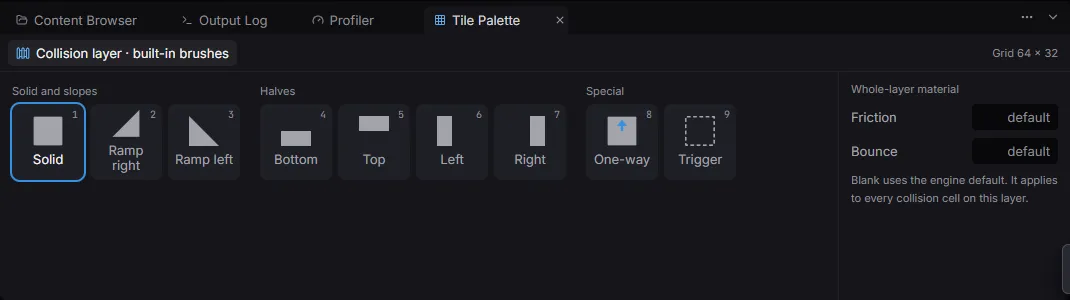
The collision palette replaces the tileset: pick Solid, a ramp or half-tile, One-way ↑, or Trigger, then paint over your background. The Friction and Bounce fields set a physics material for the whole layer.
The brushes:
| Brush | Cell | Use |
|---|---|---|
| Solid | Full box | Walls, floors, ceilings. Greedy-merged into large static colliders. |
| Ramp ◢ / ◣ | Triangle | 45° slopes rising to the right / left. |
| Half (bottom / top / left / right) | Half box | Ledges, low walls, thin floors. |
| One-way ↑ | Solid-top box | Jump-through platforms — solid from above, pass-through from below. Flip to reorient it (a ceiling, a wall). |
| Trigger | Sensor box | A non-solid region that fires overlap events — see Markers & Trigger Areas. |
Paint them like tiles; the collision overlay draws exactly what Play will spawn. Each collision layer can also carry its own physics material (friction / bounce / density), applied to every cell it spawns — set it in the Inspector.
Gameplay code reads a collision layer through the same collision
queries as any painted layer — isTileSolid,
tileCollisionAt, tileCollisionAtWorld — so nothing downstream needs to know the
cells came from the built-in palette.
Destructible tilemaps
Section titled “Destructible tilemaps”setTile changes a cell. A sandbox, mining or survival game needs more to follow it: tiles that take several blows, explosions, edges that re-tile, routes that
change, and a save that remembers it all. createDestructibleTilemap opens any layer to that. The layer stays an ordinary layer.
import { createDestructibleTilemap, peeringRetile } from 'esengine/tilemap';
const ground = createDestructibleTilemap(app, layer, {  hardness: id => (id === BEDROCK ? Infinity : 3),  // or a `hardness` property on the tile  replaceWith: id => (id === STONE ? RUBBLE : 0),   // what a destroyed tile leaves  retile: peeringRetile(tileset),                   // neighbours re-resolve their edges});
ground.dig(x, y, 1); // one blow: { damage, hardness, destroyed }ground.digAtWorld(wx, wy); // by world position; no power means any hardnessground.explode(wx, wy, 64, 10, { shielded: true }); // radius in world units, then forceground.set(x, y, BRICK); // build; also setMany and fillRectground.subscribe(edits => { /* drops, dust, light: every change of one operation */ });| What changes | How it follows |
|---|---|
| Drawing | The chunk’s mesh is rebuilt. A row of chunks being edited is held in pieces of four, so a dug tile uploads one piece rather than the whole row; the row becomes one draw again 1800 collects after its last change. |
| Collision | Only colliders whose shape actually changed are replaced, so a body resting on the rest sees no contact end and stays asleep. A destroyed floor wakes what stood on it. |
| Autotiles | retile runs over the changed cells and their eight neighbours. peeringRetile answers edge and corner terrains; a Wang terrain paints corner colours, so a game using one gives its own function. |
| Navigation | ground.createNavGrid({ width, height }) places a grid where the layer is drawn and keeps it in step, one cell per change; agents plan again by themselves. syncNavGrid(grid) does the same for a grid you made. A tile blocks by the layer’s collision, a sensor does not. |
Collision outline. A destructible layer generates its plain boxes for exposed tiles only: a tile with a plain box on all four sides has none. Solid ground costs no bodies, and a tunnel dug
below the surface leaves the surface’s colliders alone. Nothing stops a body placed inside the ground, since the shell is all there is. Pass collisionOutline: false
to keep merged ground, or call TilemapRuntime.setCollisionOutline(layer, on) for any layer. It applies to orthogonal layers; other orientations keep their merged boxes.
Saves. toJSON() holds only the cells that differ from the map the layer started as, and the damage standing on any other, so its size follows what the player changed and not what the
map holds. It is plain JSON for SaveManager. load() puts this session’s changes back first, restores the save exactly without re-tiling, and refuses a damaged save whole, returning false.
Streamed worlds. Pass streamed: true and publish chunks through the layer instead of setChunkTiles. What the generator made is laid under the player’s changes,
so a chunk let go and made again comes back as it was left, and a save loaded before a chunk arrives waits for it:
ground.publishChunk(cx, cy, generatedTiles);ground.releaseChunk(cx, cy);A chunk not yet published is not empty ground: nothing can be dug or written there.
Object layers
Section titled “Object layers”Tiled object layers (spawn points, triggers, region shapes) load with the map. The
modern way to read them is Query(Marker): on load, point objects converge into
Marker entities and shape objects into Trigger Area
regions — the very same entities you author by hand — so one query reads objects
whether they came from Tiled or the Estella editor.
The raw group data is still available by the map’s source path with tilemapSource
— each group carries its objects with position, size, type (Tiled’s class), shape,
and custom properties:
import { defineSystem, Res, Assets } from 'esengine';import { tilemapSource } from 'esengine/tilemap';
const readSpawns = defineSystem([Res(Assets)], (assets) => {  const src = tilemapSource(assets, 'assets/maps/level.tmj');  for (const group of src?.objectGroups ?? []) {    for (const obj of group.objects) {      if (obj.type === 'spawn') spawnPlayer(obj.x, obj.y);    }  }});
Objects that carry a tile reference (a gid — tiles stamped onto an object layer in Tiled) render as sprite children of the map, honoring Tiled’s horizontal, vertical, and diagonal flip flags.
An object group whose name is collision (case-insensitive) or that carries a
collision=true property also spawns static colliders in play mode — rectangles,
ellipses, polygons, and polylines become the matching Box2D shape, on the same
origin / pixels-per-unit / play-mode lifecycle as tile collision.
Tilemaps API reference
Section titled “Tilemaps API reference”| Method | Description |
|---|---|
initLayer(layer, cols, rows, tileW, tileH) |
Create a fixed-size layer. |
initInfiniteLayer(layer, tileW, tileH) |
Create a chunked, unbounded layer. |
setTiles(layer, Uint16Array) |
Bulk-load a fixed layer’s tiles. |
setTile(layer, x, y, id) / getTile(layer, x, y) |
Write / read one tile. |
fillRect(layer, x, y, w, h, id) |
Fill a rectangle with a tile id. |
flipTile(layer, x, y, h, v, d) |
Flip a tile (horizontal / vertical / diagonal). |
rotateTile(layer, x, y, degrees) |
Rotate a tile (90° steps). |
tileToWorld(layer, tx, ty, ox, oy, rotation?) / worldToTile(layer, wx, wy, ox, oy, rotation?) |
Convert coordinates; ox/oy is the layer’s world origin and the optional rotation its world Z angle in radians. |
setTilesets(layer, slots) |
Assign a multi-tileset slot table. |
setTileAnimation(layer, tileId, frames) |
Animate a tile id. |
setChunkTiles(layer, cx, cy, tiles, w, h) |
Write a chunk (infinite layers). |
removeChunk(layer, cx, cy) |
Take a chunk out of the layer, its mesh with it. |
exportChunks(layer) / importChunks(layer, data) |
Serialize / restore chunk data. |
setTint(layer, r, g, b, a, opacity) / setVisible(layer, on) / setRenderProps(...) |
Live visual overrides. |
setTileProperty(...) / getTileProperty(...) |
Per-tile custom key/value properties. |
setGridType(layer, type) / setHexParams(...) |
Orientation (orthogonal / isometric / hex). |
destroyLayer(layer) |
Tear a layer down. |
Tile collision queries run against the resolved collision data (no physics
raycast needed): tileCollisionAt(layer, x, y) returns the tile’s resolved
shape + modifiers (or null), isTileSolid(layer, x, y) is true for any
non-sensor collision (one-way platforms count — check .oneWay to treat them
specially), and tileCollisionAtWorld(...) addresses in world pixels.
Best practices
Section titled “Best practices”- Paint hand-authored levels in the editor (or import from Tiled with
Tilemap+.tmj); use theTilemapsAPI for procedural or runtime-generated maps. - Batch by tileset: fewer tileset textures per layer = fewer draw calls; atlas your tiles.
- Use
setTiles/setChunkTilesfor bulk writes instead of per-tilesetTilein a loop. - Infinite layers for streaming worlds; write only the chunks near the player.
- Author collision and tile animation in the
.estilesetso they stay data-driven and survive re-imports.
See also
Section titled “See also”- Markers & Trigger Areas — place gameplay points and trigger zones over your level as real, queryable entities.
- Physics — tile colliders participate in the physics world.
- Assets — loading
.tmjmaps and.estilesettilesets. - Scenes — tilemap layers serialize with the scene.