
Animation
Estella has three animation systems, each for a different job:
- Sprite animation — frame-by-frame sprite-sheet playback (
SpriteAnimator). - Tweens — interpolate any property over time with easing (
Tween). - Animator state machine — character animation driven by parameters (
Animator).
They compose: a state machine can drive sprite clips, and tweens can juice a UI element while a sprite loops.
Sprite animation
Section titled “Sprite animation”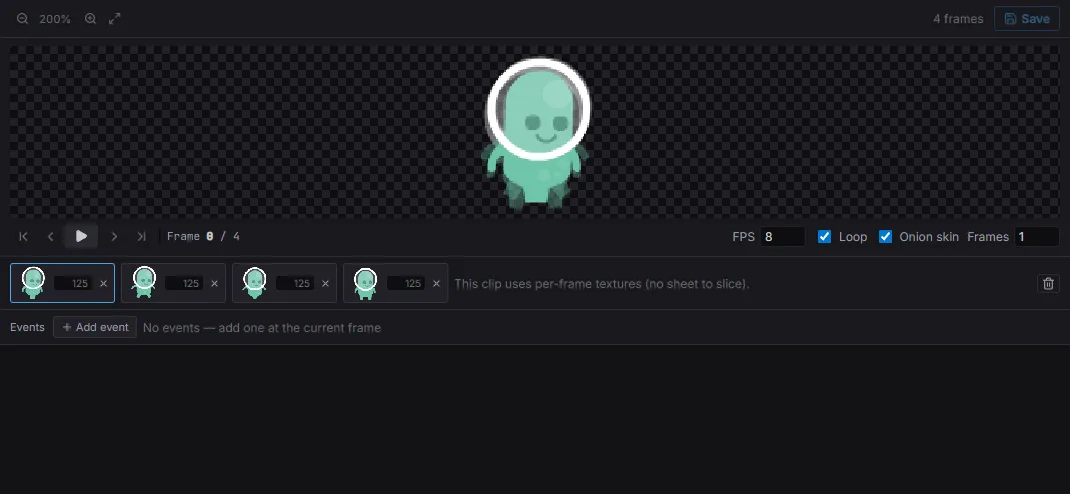
The flipbook editor: a 4-frame walk clip, per-frame durations, and a live preview with FPS / loop / onion-skin.
The SpriteAnimator component plays named sprite-sheet clips (authored as
anim-clip assets). Switch clips by writing the component through a Mut query:
import { defineSystem, Query, Mut, SpriteAnimator } from 'esengine';
const setClip = defineSystem([Query(Mut(SpriteAnimator))], (q) => { for (const [entity, animator] of q) { animator.clip = 'walk'; animator.speed = 1.5; animator.playing = true; }});| Property | Type | Default | Description |
|---|---|---|---|
clip |
asset | '' |
Current clip (an anim-clip asset name). |
speed |
number | 1 |
Playback speed multiplier. |
playing |
boolean | true |
Whether playback is advancing. |
loop |
boolean | true |
Loop the clip vs. hold the last frame. |
enabled |
boolean | true |
Disable to freeze the animator. |
finished |
boolean | false |
Read-only: latched when a one-shot clip completes. Raising playing on a finished animator replays from frame 0. |
currentFrame |
number | 0 |
Read-only: the frame index being shown. |
frameTimer |
number | 0 |
Read-only: time accumulated on the current frame. |
For finer control, the SpriteAnimation resource jumps to a specific frame or a
named label and registers clips at runtime:
import { defineSystem, Query, Mut, Res, SpriteAnimator, SpriteAnimation } from 'esengine';
const jump = defineSystem([Query(Mut(SpriteAnimator)), Res(SpriteAnimation)], (q, sprites) => { for (const [entity, animator] of q) { sprites.gotoFrame(animator, 0, true); // frame index, and play sprites.gotoLabel(animator, 'attack', true); // named label, and play }});| Method | Description |
|---|---|
gotoFrame(animator, index, andPlay?) |
Jump to a frame index (optionally start playing). |
gotoLabel(animator, label, andPlay?) |
Jump to a named label in the clip. |
registerClip(clip) |
Register a SpriteAnimClip at runtime. |
getClip(name) |
Look up a registered clip. |
Frame events
Section titled “Frame events”Clips carry frame events (SpriteAnimEvent — { frame, name, data? }) that
fire when playback reaches a frame: a footstep sound, the hit frame of an attack,
the moment a coin flips. Author them on the Events track of the Flipbook
editor — pick a frame, Add event, name it; the frame strip marks which frames
carry one. Then subscribe:
import { defineSystem, Res, SpriteAnimation } from 'esengine';
const listen = defineSystem([Res(SpriteAnimation)], (anim) => { anim.onEvent(playerEntity, (e) => { if (e.name === 'footstep') audio.playSFX('assets/sfx/step.wav'); });});| Method | Description |
|---|---|
onEvent(entity, handler) |
Listen to one entity’s frame events. Returns an unsubscribe function. |
onEventGlobal(handler) |
Listen to every entity’s — the handler receives the entity too. |
Authoring clips in the editor
Section titled “Authoring clips in the editor”Clips are .esanim assets you author visually — no JSON by hand:
- Either right-click a texture and choose Create Sprite Animation —
the Flipbook editor opens with the sheet under a slicing grid (the cell size
is guessed from the image; adjust cell width/height, margin, and spacing in
the toolbar) — or select several images and choose Create Sprite
Animation from N Images, which lines them up in file-name order (counting
numerically, so
run_2precedesrun_10). - Click or drag across cells to append frames, or drop images onto the timeline to insert them. A block on the timeline is as wide as its frame is long: drag its right edge to retime, drag the block itself to reorder. The viewport draws the current frame at its true size against the clip’s anchor, with the neighbouring frames ghosted in their own places.
- Save, then right-click the
.esanim→ Create Animated Sprite (or drag it into the viewport). You get aSprite+SpriteAnimatorentity posed at frame 0 — it plays in Play mode with zero code.
Selecting an animated sprite loops its flipbook in the viewport while editing (toggle with the Preview FX show flag). If the clip is open in the Flipbook editor at the same time, frame edits animate live as you make them.
Re-slicing the grid moves every frame consistently — frames reference grid cells, not pixel rectangles. Frames that fall outside the current grid are flagged red in the strip.
The frame under the playhead has its own section in the Details inspector — duration, size, offset, anchor — alongside the clip’s fps, loop mode, and the two switches below.
From an Aseprite file
Section titled “From an Aseprite file”Drop a .aseprite (or .ase) into the project and the import writes the products
for you: the composited sheet as a .png beside it, and one .esanim per tag —
hero_walk.esanim, hero_jump.esanim — carrying each frame’s own duration and the
direction the tag plays in. A tag with no repeat count loops; one that counts its
plays does not. A file with no tags gets a single clip over every frame.
What is composited is what the artist sees: every layer they left visible, with its blend mode and opacity, and nothing from a group they switched off. A tilemap layer is drawn from a tileset rather than from pixels and is reported instead of silently arriving blank.
The sheet’s texture arrives set to nearest filtering with compression off —
the two settings pixel art always wants and never gets by default — and with its
cell grid filled in, so a Sprite can pick a frame of it straight away. Change
either setting and it stays changed; the grid is re-derived on every import,
because it is the source’s canvas size rather than a preference.
Editing the file and saving it re-imports it in place: same uuids, same refs, new pixels. Right-click → Reimport does the same on demand.
Per-frame sizes and offsets
Section titled “Per-frame sizes and offsets”A sheet’s cells are all the same size, so one Sprite.size fits every frame of
it. Separate images are not: a 96×64 attack frame and a 48×96 idle frame drawn
at one size are both wrong. Tick Frame Sizes and the clip owns Sprite.size
during playback — each frame draws at its own natural size (its texture’s
pixels, or its sheet cell), or at a size you give it.
That also unlocks offsets. An offset shifts a frame’s artwork, in the same units as the size, and is folded into the frame’s anchor when the clip loads — so nothing downstream has to know about it. Authoring the shift in units rather than as a raw anchor is the point: the same offset is the same visual shift on frames of any size, which a normalized anchor cannot be. Drag the frame in the viewport to set one, or type it in the inspector.
// step.esanim — three images of different sizes, one of them nudged right{ "version": "1.5", "fps": 6, "frameSizing": "frame", "pivot": { "x": 0.5, "y": 0 }, "frames": [ { "texture": "@uuid:…" }, { "texture": "@uuid:…", "offset": { "x": 20, "y": 0 } }, { "texture": "@uuid:…", "duration": 0.35 } ]}A clip that declares neither leaves Sprite.size exactly as the entity set it,
so clips written before this existed play unchanged. Unticking the switch drops
the mode and every per-frame size and offset, which is the way back to that.
Per-frame anchors
Section titled “Per-frame anchors”An anchor is the point a sprite sits, rotates and scales about — Sprite.pivot,
normalized inside the frame, (0,0) bottom-left and (0.5,0.5) centered. When the
artwork shifts inside its cell from frame to frame, one entity-wide anchor makes the
character slide around; anchoring per frame pins whatever has to hold still —
feet on the ground, a hand on a weapon.
Tick Anchor in the Flipbook editor’s preview bar and a crosshair appears over the current frame. Drag it (or type the X / Y beside it) to anchor that frame. The hairlines run the width of the stage, so with onion skin on you can line each frame’s feet up against its neighbours. A frame anchored on its own gets an amber dot in the strip, and × clears that override so the frame falls back to the clip’s anchor — which lives in the Details inspector as Default Anchor.
Resolution order: the frame’s own anchor, else the clip’s, else centered. A clip that
authors no anchor at all leaves Sprite.pivot exactly as the entity set it, so
existing projects are untouched until you tick the box; unticking clears the clip
anchor and every frame override and returns to that hands-off behaviour.
// walk.esanim — the clip stands on its feet, one frame leans back{ "version": "1.4", "fps": 10, "pivot": { "x": 0.5, "y": 0 }, "frames": [ { "cell": 0 }, { "cell": 1, "pivot": { "x": 0.47, "y": 0 } } ]}Anchors are the clip’s business only while it plays a frame: nothing stops a
Transform or a tween from moving the entity as usual.
Clips from code
Section titled “Clips from code”The .esanim document is plain data, so a clip can also be built at runtime:
createAnimClip starts a sheet-sliced clip, you append { cell } frames,
parseAnimClipData resolves it into a runtime SpriteAnimClip, and
registerClip makes the name available to every SpriteAnimator:
import {  defineSystem, Res, Assets, SpriteAnimation,  createAnimClip, parseAnimClipData,} from 'esengine';
const registerRun = defineSystem([Res(Assets), Res(SpriteAnimation)], async (assets, sprites) => {  const tex = await assets.loadTexture('assets/textures/run-sheet.png');
  // A 32×32 grid over the sheet; frames reference grid cells (row-major).  const data = createAnimClip('assets/textures/run-sheet.png', 32, 32, tex.width, tex.height);  data.fps = 10;  for (let cell = 0; cell < 6; cell++) data.frames.push({ cell });
const handles = new Map([['assets/textures/run-sheet.png', tex.handle]]); sprites.registerClip(parseAnimClipData('run', data, handles)); // Any SpriteAnimator can now set clip = 'run'.});| Helper | Description |
|---|---|
createAnimClip(texture, cellWidth, cellHeight, pageWidth, pageHeight) |
A fresh sheet-sliced AnimClipAssetData (fps 12, loop: true, margin/spacing 0, no frames yet). |
createAnimClipFromTextures(textures) |
A fresh clip over a sequence of per-frame textures — no sheet, and owning size from the start. |
parseAnimClipData(name, data, textureHandles, textureSizes?) |
Resolve asset data into a runtime SpriteAnimClip — each frame gets its texture handle, UV window, and (for a clip that owns size) the size it draws at. Pass textureSizes so a per-texture frame has a natural size to fall back on. |
parseAnimClipAsset(json) / serializeAnimClip(data) |
Parse / write the .esanim JSON document (the pair round-trips). |
animClipCellRect(sheet, cell) / animClipCellUv(sheet, cell) |
Pixel rect / UV window of a grid cell — what a Sprite shows for that frame. |
animClipFramePivot(data, frame, size?) |
The anchor a frame renders with — its own, else the clip’s, else centered, with the frame’s offset folded in when a size is given. null when the clip authors none (leave Sprite.pivot alone). |
animClipDrivesPivot(data) |
Whether the clip authors anchors at all. |
animClipFrameSize(data, frame, natural?) |
The size a frame draws at — its own, else the natural one you pass. null when the clip does not own size (leave Sprite.size alone). |
animClipDrivesSize(data) |
Whether the clip owns Sprite.size — set outright, or implied by any frame’s size or offset. |
Driving clips from a state machine — no code
Section titled “Driving clips from a state machine — no code”The FSM/BT built-ins drive flipbooks as data. An action’s
optional argument carries the clip, so idle/run/attack switching is pure
.esfsm on the existing state-machine canvas:
| Name | Kind | Description |
|---|---|---|
spriteAnim.play |
action | Play. With a clip argument, switch to that clip (rewinds to frame 0). Safe on onUpdate — same-clip play while playing is a no-op. |
spriteAnim.restart |
action | Unconditional rewind + play (re-trigger a one-shot mid-flight). |
spriteAnim.stop |
action | Pause playback. |
spriteAnim.finished |
condition | True once a one-shot clip completed — onEnter: spriteAnim.play + a spriteAnim.finished transition is a self-contained attack state. |
Tweens
Section titled “Tweens”The Tween resource interpolates a property from one value to another over a
duration. to(entity, target, from, to, duration, options?) returns a handle:
import { defineSystem, Res, Tween, TweenTarget, EasingType, LoopMode } from 'esengine';
const animate = defineSystem([Res(Tween)], (tween) => {  tween.to(entity, TweenTarget.PositionX, 0, 200, 1.0, {    easing: EasingType.EaseInOutQuad,    delay: 0.2,    loop: LoopMode.PingPong,    loopCount: 3,          // -1 = forever  });});
Targets
Section titled “Targets”TweenTarget selects the property to drive:
| Group | Values |
|---|---|
| Position | PositionX, PositionY, PositionZ |
| Scale | ScaleX, ScaleY |
| Rotation | RotationZ |
| Color | ColorR, ColorG, ColorB, ColorA |
| Size | SizeX, SizeY |
| Camera | CameraOrthoSize |
Options
Section titled “Options”| Option | Type | Default | Description |
|---|---|---|---|
easing |
EasingType |
Linear |
Easing curve (see below). |
delay |
number | 0 |
Seconds to wait before starting. |
loop |
LoopMode |
None |
None / Restart / PingPong. |
loopCount |
number | 0 |
Number of loops; -1 = forever. |
EasingType covers Linear, the quad/cubic/back/elastic families
(EaseIn* / EaseOut* / EaseInOut*), EaseOutBounce, Step, and CubicBezier
— use a custom bezier with the handle’s .bezier(p1x, p1y, p2x, p2y).
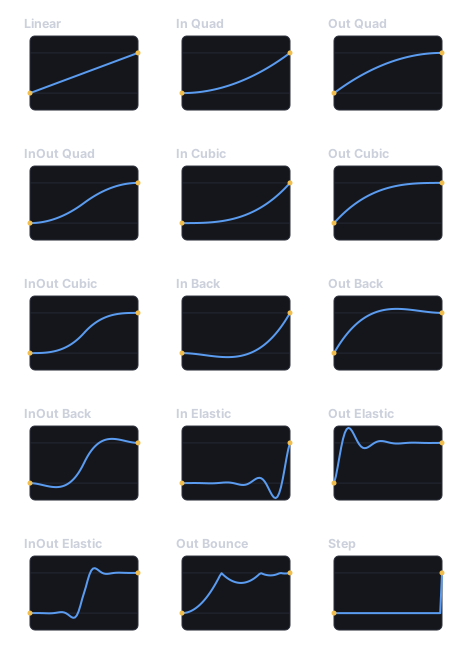
Each easing plotted (progress t left→right, eased value bottom→top) — these are the engine’s exact curves. Back and Elastic overshoot past the 0–1 band; Step holds until the end.
Sequencing & control
Section titled “Sequencing & control”The returned TweenHandle chains and controls playback:
// Chain: run one after another (a squash-and-stretch pop).tween.to(e, TweenTarget.ScaleX, 1, 1.4, 0.15)  .then(tween.to(e, TweenTarget.ScaleX, 1.4, 1, 0.15))  .bezier(0.2, 0, 0, 1);
tween.parallel([...]);      // run several at once (a group)tween.sequence([...]);      // run tween factories in ordertween.delay(0.5);           // a timed gap
tween.cancel(handle); // stop onetween.cancelAll(entity); // stop everything on an entity| Method | Description |
|---|---|
to(entity, target, from, to, duration, opts?) |
Tween a component property; returns a TweenHandle. |
value(from, to, duration, cb, opts?) |
Tween a plain number, delivered to cb each frame. |
parallel(tweens) |
Run several tweens together as a group. |
sequence(factories) |
Run tween factories one after another. |
delay(seconds) |
An empty timed gap (for use in sequences). |
cancel(handle) / cancelAll(entity) |
Stop one tween, or all on an entity. |
TweenHandle has .then(next), .bezier(...), .pause(), .resume(), and
.cancel().
Composition handles
Section titled “Composition handles”tween.parallel returns a TweenGroup and tween.sequence a TweenSequence —
parent-level handles over their members. Both expose state (a TweenState),
pause() / resume() / cancel() that fan out to every member, and
onComplete(cb):
const popX = tween.to(e, TweenTarget.ScaleX, 1, 1.3, 0.2);const popY = tween.to(e, TweenTarget.ScaleY, 1, 1.3, 0.2);tween.parallel([popX, popY]).onComplete(() => spawnSparkles());
tween.sequence([  () => tween.to(e, TweenTarget.PositionY, 0, 60, 0.3),  () => tween.delay(0.2),  () => tween.to(e, TweenTarget.PositionY, 60, 0, 0.3),]).onComplete(() => landDust());
Always create groups and sequences through the Tween resource — the
resource registers them with its internal poller (TweenCompositionManager),
which is what fires onComplete and advances a sequence to its next factory. A
hand-constructed new TweenGroup(...) is never polled.
tween.value(...) and tween.delay(...) return a ValueTweenHandle — the same
control surface (state, .pause() / .resume() / .cancel(), .bezier(...))
plus .then(next), which chains another value tween or anything
pausable/resumable (a group, a sequence). TweenHandle.then likewise accepts a
ValueTweenHandle, so property tweens and value tweens mix freely in one chain.
Reach for the shorthand helpers (tween.parallel / tween.sequence /
tween.delay / handle .then) first; the classes are what those calls hand
back — you only name TweenGroup / TweenSequence / ValueTweenHandle when
storing a handle to pause, cancel, or observe the composition later.
Animator state machine
Section titled “Animator state machine”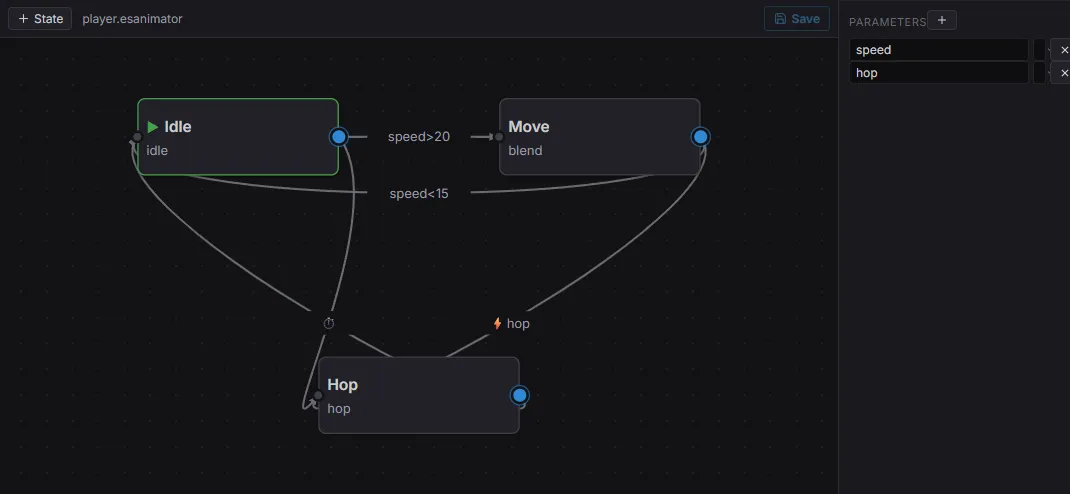
The animator: states (Idle / Move / Hop), transitions with conditions (speed>20, the hop trigger), and the Parameters panel that drives them.
For character animation, an animator controller holds states, transitions, and
1D blend trees driven by named parameters. Author it in the editor (or
register one in code), attach an Animator component naming the controller, then
set parameters each frame through Res(AnimatorController) — the controller
resolves the current state, clip, and blend.
A controller is an .esanimator asset: create one from the Content Browser’s
New menu, double-click to open the graph editor above — states with positions,
transitions with conditions, and a Parameters panel — and point the Animator
component’s controller field at it with the asset picker. The scene preloads it,
so it is registered before the first tick. Assigning a plain string instead
resolves against controllers registerController(...) put there from code; both
kinds coexist.
import { defineSystem, Query, Res, Animator, AnimatorController } from 'esengine';
const drive = defineSystem([Query(Animator), Res(AnimatorController)], (q, anim) => {  for (const [entity] of q) {    anim.setFloat(entity, 'speed', 4.2);     // drives a 1D blend / transition    anim.setBool(entity, 'grounded', true);    anim.setTrigger(entity, 'jump');         // one-shot; resetTrigger to clear    const speed = anim.getFloat(entity, 'speed');  }});
Animator field |
Type | Default | Description |
|---|---|---|---|
controller |
string | '' |
An .esanimator asset ref (what the editor writes) or a name passed to registerController in code. |
currentState |
string | '' |
Active state, as a /-separated path for nested machines (seeded from the controller’s initial state). |
enabled |
boolean | true |
Disable to freeze the state machine. |
AnimatorController method |
Description |
|---|---|
setFloat(entity, name, value) |
Set a float parameter (blends / transition conditions). |
setBool(entity, name, value) |
Set a bool parameter. |
setTrigger(entity, name) |
Fire a one-shot trigger. |
resetTrigger(entity, name) |
Clear a trigger before it’s consumed. |
getFloat(entity, name) / getBool(entity, name) |
Read a parameter back. |
The controller can drive both sprite and Spine animations, so one state machine handles a whole character.
Parameters come in three types (AnimatorParamType): 'float', 'bool', and
'trigger'. Conditions compare them with gt / lt / eq / neq (numeric,
with a value), true / false (bool), or trigger (fires once and is
consumed). There is no separate int type — drive whole numbers through a float
parameter and eq / neq.
Blend trees
Section titled “Blend trees”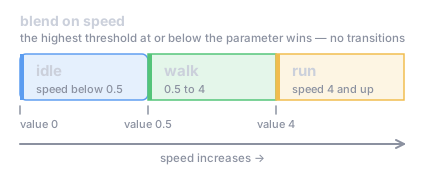
A 1D blend: a float parameter picks the clip whose threshold is the highest one at or below it — here idle / walk / run as speed rises, with no transitions between them.
A state can carry a 1D blend instead of a single clip: a float parameter
selects between AnimatorBlendThreshold stops. Because the sprite channel plays
one clip at a time, this is a selection by threshold — the stop with the
greatest value at or below the parameter wins (below all stops, the first one
plays) — not a weighted pose blend. Each threshold is
{ value, clip, speed?, loop? }; per-threshold speed / loop override the
state’s own. The selection re-evaluates every frame, so a rising speed
parameter walks idle→walk→run with no transitions:
import { defineSystem, Res, AnimatorController, type AnimatorControllerDef } from 'esengine';
const movement: AnimatorControllerDef = {  parameters: [{ name: 'speed', type: 'float', default: 0 }],  initialState: 'move',  states: [{    name: 'move',    blend: {      parameter: 'speed',      thresholds: [        { value: 0,   clip: 'idle' },        { value: 0.5, clip: 'walk' },        { value: 4,   clip: 'run', speed: 1.2 },      ],    },    transitions: [],  }],};
const setup = defineSystem([Res(AnimatorController)], (anim) => {  anim.registerController('movement', movement);});
The pure helper selectBlendClip(blend, value) returns the threshold a value
selects — handy for tooling or tests.
For skeletal characters, a state can instead carry a spine motion
(AnimatorSpineMotion, { animation, loop? }): on entry the controller sets
that Spine animation (loop defaults true) and leaves
track playback and mixing to the Spine runtime — it never touches
SpriteAnimator. States are exclusive: exactly one of clip, blend, spine,
or stateMachine.
Sub-state machines
Section titled “Sub-state machines”A state carrying a stateMachine (AnimatorSubMachine) is a container: it
plays no motion of its own. On entry the machine descends into the sub-machine’s
initialState; the container’s own transitions are the exit edges,
evaluated from every leaf inside it. A sub-machine can declare its own
anyStateTransitions, checked from all of its sub-states. Animator.currentState
holds the full /-separated path (STATE_PATH_SEP), e.g. locomotion/run:
import { defineSystem, Res, AnimatorController, type AnimatorControllerDef } from 'esengine';
const player: AnimatorControllerDef = {  parameters: [    { name: 'speed', type: 'float', default: 0 },    { name: 'jump', type: 'trigger' },  ],  initialState: 'locomotion',  states: [    {      name: 'locomotion',                    // container: no motion of its own      stateMachine: {        initialState: 'idle',        states: [          { name: 'idle', clip: 'idle', transitions: [            { to: 'run', conditions: [{ param: 'speed', op: 'gt', value: 0.1 }] },          ] },          { name: 'run', clip: 'run', transitions: [            { to: 'idle', conditions: [{ param: 'speed', op: 'lt', value: 0.1 }] },          ] },        ],      },      // Exit edges — leave the whole machine from idle OR run.      transitions: [{ to: 'jump', conditions: [{ param: 'jump', op: 'trigger' }] }],    },    { name: 'jump', clip: 'jump', loop: false, transitions: [      { to: 'locomotion', conditions: [], hasExitTime: true },   // back in at idle    ] },  ],};
const setup = defineSystem([Res(AnimatorController)], (anim) => {  anim.registerController('player', player);});
Entering locomotion lands on locomotion/idle; the jump trigger exits from
either leaf; when the one-shot jump clip ends, hasExitTime re-enters the
container at its initial state. Transition priority, highest first: top-level
any-state → each enclosing machine’s any-state (outermost in) → the leaf’s own
transitions → container exit edges (innermost out).
The path machinery is exposed as pure functions (an AnimatorScope is the shape
shared by the top-level controller and every sub-machine):
import { enterStatePath, leafStateOf, evaluateAnimatorPath } from 'esengine';
enterStatePath(player, 'locomotion'); // ['locomotion', 'idle']leafStateOf(player, 'locomotion/run')?.clip; // 'run'evaluateAnimatorPath(player, 'locomotion/idle', { speed: 3 }, new Set());// → { nextPath: 'locomotion/run', consumedTriggers: [] }| Helper | Description |
|---|---|
enterStatePath(scope, name) |
Descend from a state to its concrete leaf; returns the path segments. |
leafStateOf(def, path) |
The motion-bearing leaf state of a path, or null. |
evaluateAnimatorPath(def, path, params, triggers, clipFinished?) |
One pure evaluation step over a path → { nextPath, consumedTriggers }. |
STATE_PATH_SEP |
The path separator, '/'. |
Animation events
Section titled “Animation events”A clip can name the moments inside it. A customEvent track in an
.estimeline carries { time, name, payload }, and the animator reports each
one on the frame whose step crossed it — never the frame that landed on it,
which a fixed timestep does not do. They arrive on the AnimatorEvent bus:
import {  defineSystem, EventReader, GetWorld, Res,  AnimatorEvent, Particle, resolveChildEntity,} from 'esengine';
const footsteps = defineSystem( [EventReader(AnimatorEvent), GetWorld(), Res(Particle)], (events, world, particles) => { for (const event of events) { if (event.name !== 'footstep') continue; const dust = resolveChildEntity(world, event.entity, 'FootDust'); if (dust !== null) particles.play(dust); } }, { name: 'FootstepSystem' },);| Field | Description |
|---|---|
entity |
The animated entity — who this happened to. |
name |
The event’s name as the clip declared it. |
value |
Its numeric payload (payload.value); 0 when the clip states none. |
text |
Its string payload (payload.text); empty when the clip states none. |
What the animator promises:
- An event fires on the interval
(previous, current]a step covered, so a long frame never steps over one and never reports one twice. - A loop wrap is two intervals — the tail of the lap, then the head of the next — so an event near either end fires exactly once per lap.
- Several events in one step fire in the order the clip declares them.
- During a crossfade only the state being entered reports events. The one fading out keeps its clock and says nothing, so an attack cancelled into a dodge does not go on landing its hit.
The animator calls into no particle system, no audio and no gameplay: it states the event, and whoever owns those things answers it.
Root motion
Section titled “Root motion”A clip that animates the entity it is played on is not posing a skeleton — it is saying where the character travels. A state declares that:
{ "name": "Dodge", "motion": { "kind": "timeline", "clip": "dodge.estimeline", "loop": false }, "rootMotion": true, "transitions": [{ "to": "Idle", "conditions": [], "hasExitTime": true }]}The animator then keeps that root track’s position and rotation out of the
pose — the clip never moves the entity — and publishes what it asked for on the
entity’s AnimatorRootMotion component:
| Field | Description |
|---|---|
enabled |
Authoring: whether the request is published at all. |
active |
A state declaring root motion is driving this frame. |
deltaPosition |
The displacement asked for, in world space. |
deltaRotation |
The turn asked for, in the character’s own frame. |
deltaTime |
The seconds the two deltas cover. |
deltaTime comes with the deltas because the animator runs on the frame clock
while a character controller usually steps on a fixed one: form a rate from the
pair. A consumer that simply added the displacement would move twice on a frame
with two fixed steps and not at all on a frame with none.
Read active rather than “is the delta non-zero” — a dodge has a still moment in
the middle, and the stick must not take it back there. Without an
AnimatorRootMotion component the state still refuses to pose the character’s
own transform; the clip simply plays on the spot.
Choosing the right tool
Section titled “Choosing the right tool”See also
Section titled “See also”- Spine Animation — skeletal animation, also driveable by the state machine.
- Timeline — keyframed cutscenes and sequenced events.
- Camera — tween
CameraOrthoSizefor smooth zooms.