
Timeline
A timeline is a Sequencer animation — tracks of keyframes over time that move a
Transform, swap sprites, fire audio, toggle entities, or drive Spine. You author it
in the editor’s Sequencer, attach it with a TimelinePlayer component, and control
playback through the Timeline resource. Because one timeline drives many things at
once, it’s the tool for cutscenes and scripted sequences.
Attach a timeline
Section titled “Attach a timeline”The TimelinePlayer component points an entity at a timeline asset. Usually set in
the editor; in code, insert it with Commands:
import { defineSystem, Commands, TimelinePlayer } from 'esengine';
const attach = defineSystem([Commands()], (cmds) => { cmds.spawn().insert(TimelinePlayer, { timeline: 'assets/timelines/intro.estimeline', playing: true, speed: 1.0, wrapMode: 'once', });});| Property | Type | Default | Description |
|---|---|---|---|
timeline |
asset | '' |
The timeline asset (.estimeline). |
playing |
boolean | false |
The play flag — raise to play, lower to pause. Raising it on a finished clip replays from the top. |
speed |
number | 1 |
Playback rate multiplier. |
wrapMode |
string | 'once' |
'once', 'loop', or 'pingPong' (camelCase — other values silently play once). |
finished |
boolean | false |
Latched true when a 'once' clip completes; cleared on the next play. Runtime, read-only. |
The component flags are the playback control: the engine reconciles them into
its internal clock every frame, so anything that flips playing — your code, the
inspector, an AI action — drives the
clip through the same channel.
Control playback
Section titled “Control playback”Read the Timeline resource to drive an entity’s timeline:
import { defineSystem, Query, Res, TimelinePlayer, Timeline } from 'esengine';
const control = defineSystem([Query(TimelinePlayer), Res(Timeline)], (q, timeline) => { for (const [entity] of q) { timeline.play(entity); timeline.pause(entity); timeline.stop(entity); timeline.setTime(entity, 1.5); // seek to 1.5s const t = timeline.getCurrentTime(entity); const playing = timeline.isPlaying(entity); }});| Method | Description |
|---|---|
play(entity) |
Start or resume playback (a finished clip replays from the top). |
pause(entity) |
Pause, keeping the current time. |
stop(entity) |
Stop, reset to the start, and clear the finished latch. |
setTime(entity, seconds) |
Seek to a time (scrubs all tracks). |
getCurrentTime(entity) |
Current playhead time in seconds. |
isPlaying(entity) |
Whether it’s currently playing. |
These methods write through to the TimelinePlayer flags — timeline.play(e) and
player.playing = true are the same operation on the same channel.
Track types
Section titled “Track types”A timeline is a set of tracks evaluated together each frame:
| Track | TrackType |
Drives |
|---|---|---|
| Property | Property |
Keyframed component fields — position / rotation / scale and any numeric dot-path. |
| Sprite frames | AnimFrames |
Swap sprite-sheet frames over time. |
| Sprite clip | SpriteAnim |
Start a named anim-clip at a time. |
| Audio | Audio |
Fire one-shot sounds at keyframes. |
| Activation | Activation |
Toggle entities on/off over ranges — enabled on a renderer, UINode.display on a UI node (see below). |
| Spine | Spine |
Play Spine animations as clips. |
| Marker | Marker |
Named time markers. |
| Custom event | CustomEvent |
Named events with a payload, for your own systems. |
Activation ranges
Section titled “Activation ranges”An activation track says this child is on for these spans — which is how a chest opens (a closed image hands over to an open one partway through, along with its glow), how a badge appears at the end of a flourish, how any two-state widget is animated.
What it writes depends on what the target is:
- A renderer —
Sprite,SpineAnimation,SpriteAnimator— gets itsenabledfield flipped. - A UI node gets
UINode.display. A UI node has noenabled;displayis its show/hide, and the only one that takes the subtree with it, which is exactly what an activation range means.
Either way the write only happens when the state actually flips, so a track that is not moving does not dirty change detection every frame.
Author in the Sequencer
Section titled “Author in the Sequencer”Double-click an .estimeline (or open the timeline of a selected entity) to author
it in the Sequencer — the editor for keyframe animation. The dope sheet lays
every track and its keys along a shared, scrubbable playhead; add tracks, drag keys,
then Save.
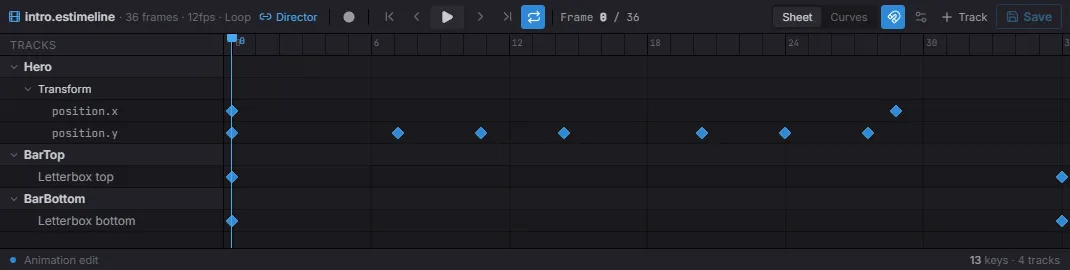
The dope sheet: one row per track (here a Transform’s position.x / position.y plus two letterbox activation tracks), keyframes as diamonds, a scrubbable playhead, and the transport up top.
Switch to the Curves tab to shape the interpolation between keys — drag the value curves and their tangent handles for eases the dope sheet can’t express:
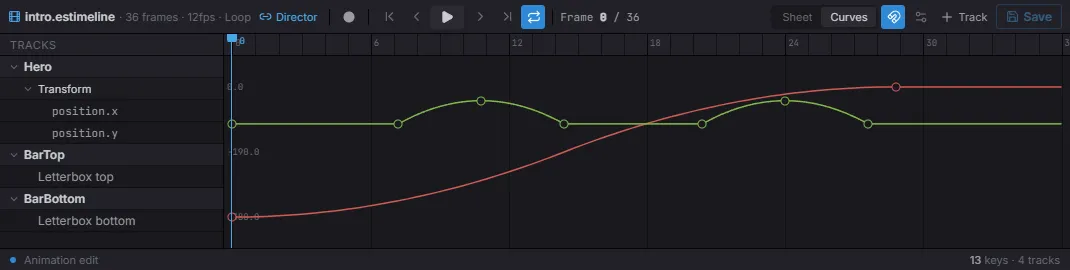
The curve editor: each keyframed channel becomes an editable curve (here position.x easing in, position.y bobbing), with per-key tangent handles.
What the preview animates
Section titled “What the preview animates”Scrubbing or playing in the Sequencer animates the live viewport, not a separate preview window — the sampled pose is written to the open document and restored the moment you unbind, close, or enter Play, so it can never leak into the saved scene.
It animates one entity: the preview root, named on the link button in the
Sequencer’s header. That root is derived, not asked for — it is the entity whose
TimelinePlayer plays this timeline, so double-clicking a clip in the Content Browser
binds to the thing that plays it. Selecting a node inside an effect still previews
the whole effect (the root is found by walking up), and when several entities play the
same timeline the header says so and previews the selected one. With no player anywhere
and nothing selected there is nothing to animate: the button reads Unbound, and the
link button binds it to your selection — which is how you author a new clip onto an
entity that does not play it yet.
Timelines from code
Section titled “Timelines from code”An .estimeline document is plain data — the TimelineAsset type plus the
TrackType / InterpType / WrapMode constants let you build one entirely in
code. Register it on the Timeline resource, and any TimelinePlayer whose
timeline names it plays it like an authored asset — a name registered in code
wins over a loaded .estimeline of the same name:
import {  defineSystem, Commands, Res, Timeline, TimelinePlayer,  TrackType, InterpType, WrapMode, type TimelineAsset,} from 'esengine';
const slideIn: TimelineAsset = {  version: '1.1',  type: 'timeline',  duration: 2,  wrapMode: WrapMode.Once,  tracks: [{    type: TrackType.Property,    name: 'Slide in',    childPath: '',                       // '' = the player entity itself    component: 'Transform',    channels: [{      property: 'position.x',      keyframes: [        { time: 0, value: -200, inTangent: 0, outTangent: 0, interpolation: InterpType.EaseOut },        { time: 2, value: 0, inTangent: 0, outTangent: 0 },      ],    }],  }],};
const attach = defineSystem([Commands(), Res(Timeline)], (cmds, timeline) => {  timeline.registerAsset('code/slide-in', slideIn);  cmds.spawn().insert(TimelinePlayer, {    timeline: 'code/slide-in',    playing: true,    wrapMode: 'once',  });});
A Keyframe is { time, value, inTangent, outTangent, interpolation? }. The
segment starting at a keyframe uses that keyframe’s interpolation:
Hermite (the default — tangent-driven curves), Linear, Step, EaseIn,
EaseOut, or EaseInOut. A property track resolves its target entity by
childPath (child names separated by /; empty = the player entity) and writes
the channel’s dot-path field on the named component.
Wrap modes
Section titled “Wrap modes”Playback uses the player component’s wrapMode string; the numeric
WrapMode constant lives on the asset and in the pure evaluation API. The
mapping and behavior:
WrapMode |
Player string | Behavior past the end |
|---|---|---|
WrapMode.Once (0) |
'once' |
Clamp at duration, stop, latch finished. |
WrapMode.Loop (1) |
'loop' |
Wrap around (time % duration). |
WrapMode.PingPong (2) |
'pingPong' |
Play forward then backward each cycle. |
applyWrapMode(time, duration, mode) is the pure mapping itself — it returns
{ time, stopped } for an absolute clock time.
Sampling and serializing
Section titled “Sampling and serializing”The evaluator is pure TypeScript, shared by playback and the editor’s scrub — you can call it yourself:
| Function | Description |
|---|---|
sampleTimelineInWorld(asset, time, world, rootEntity, opts?) |
Evaluate every property track at time and write the results into the world (the scrub operation). |
sampleTimeline(asset, time, rootEntity, deps, opts?) |
Same, with injected SampleDeps (world / component lookup / child resolver) — for tests and tooling. |
evaluateChannel(channel, time) |
Value of one property channel at time; endpoints clamp. |
serializeTimelineAsset(asset) |
The asset as a JSON-ready object (the .estimeline document shape). |
serializeTimelineToJson(asset, indent?) |
Pretty-printed .estimeline JSON string (indent defaults 2). |
Sampling covers property tracks; event-like tracks (audio, markers, custom events) fire edge-detected during playback, not on a sample.
Best practices
Section titled “Best practices”- Author in the Sequencer — the timeline asset holds the tracks; code just plays and seeks it.
wrapMode: 'once'for cutscenes,'loop'for ambient/idle sequences.- Scrub with
setTimeto preview or sync a cutscene to gameplay state. - Use a timeline (not tweens) when many properties/entities animate in lockstep; reach for tweens for one-off single-property juice.
See also
Section titled “See also”- Animation — tweens and the animator state machine.
- Spine Animation — timelines can drive Spine clips.