
Input
Read input from a system through the Input resource. It tracks held state plus
this-frame edges (pressed / released), so query it every frame — the edges are
only true for the one frame the change happened.
Keyboard
Section titled “Keyboard”import { defineSystem, Res, Input } from 'esengine';
const keys = defineSystem([Res(Input)], (input) => { if (input.isKeyDown('KeyW')) { /* held down */ } if (input.isKeyPressed('Space')) { /* pressed this frame */ } if (input.isKeyReleased('Escape')) { /* released this frame */ }});Keys use DOM code strings: KeyW, KeyA, ArrowUp, Space, Escape, Digit1, …
const mouse = defineSystem([Res(Input)], (input) => { if (input.isMouseButtonPressed(0)) { /* left click this frame */ } const screenX = input.mouseX, screenY = input.mouseY; // screen pixels const wheel = input.scrollDeltaY;});Buttons: 0 = left, 1 = middle, 2 = right.
Mouse in world space
Section titled “Mouse in world space”input.mouseX / mouseY are screen pixels. For world coordinates — to place or hit
entities — read UICameraInfo, which exposes the cursor already projected into the
world:
import { defineSystem, Commands, Res, Input, UICameraInfo, Transform } from 'esengine';
const spawnAtCursor = defineSystem(  [Res(Input), Res(UICameraInfo), Commands()],  (input, camera, cmds) => {    if (!camera.valid) return;    if (input.isMouseButtonPressed(0)) {      cmds.spawn().insert(Transform, {        position: { x: camera.worldMouseX, y: camera.worldMouseY, z: 0 },      });    }  });
Fixed timestep (physics)
Section titled “Fixed timestep (physics)”Systems in the FixedUpdate family run at a fixed cadence — zero times on a frame
shorter than the timestep, several times when catching up. The *Pressed /
*Released edges account for this: an edge is delivered to exactly one fixed
step (the first at or after it arrived), so a jump read from a physics character
controller is never dropped on a fast frame nor fired twice on a slow one — no
buffering on your side.
// Schedule.FixedPreUpdate — the edge is delivered reliably.const jump = defineSystem([Query(Mut(CharacterController2D)), Res(Input)], (players, input) => { for (const [, cc] of players) { if (cc.isOnFloor && input.isKeyPressed('Space')) cc.velocity.y = JUMP_FORCE; }});Input actions (InputMap)
Section titled “Input actions (InputMap)”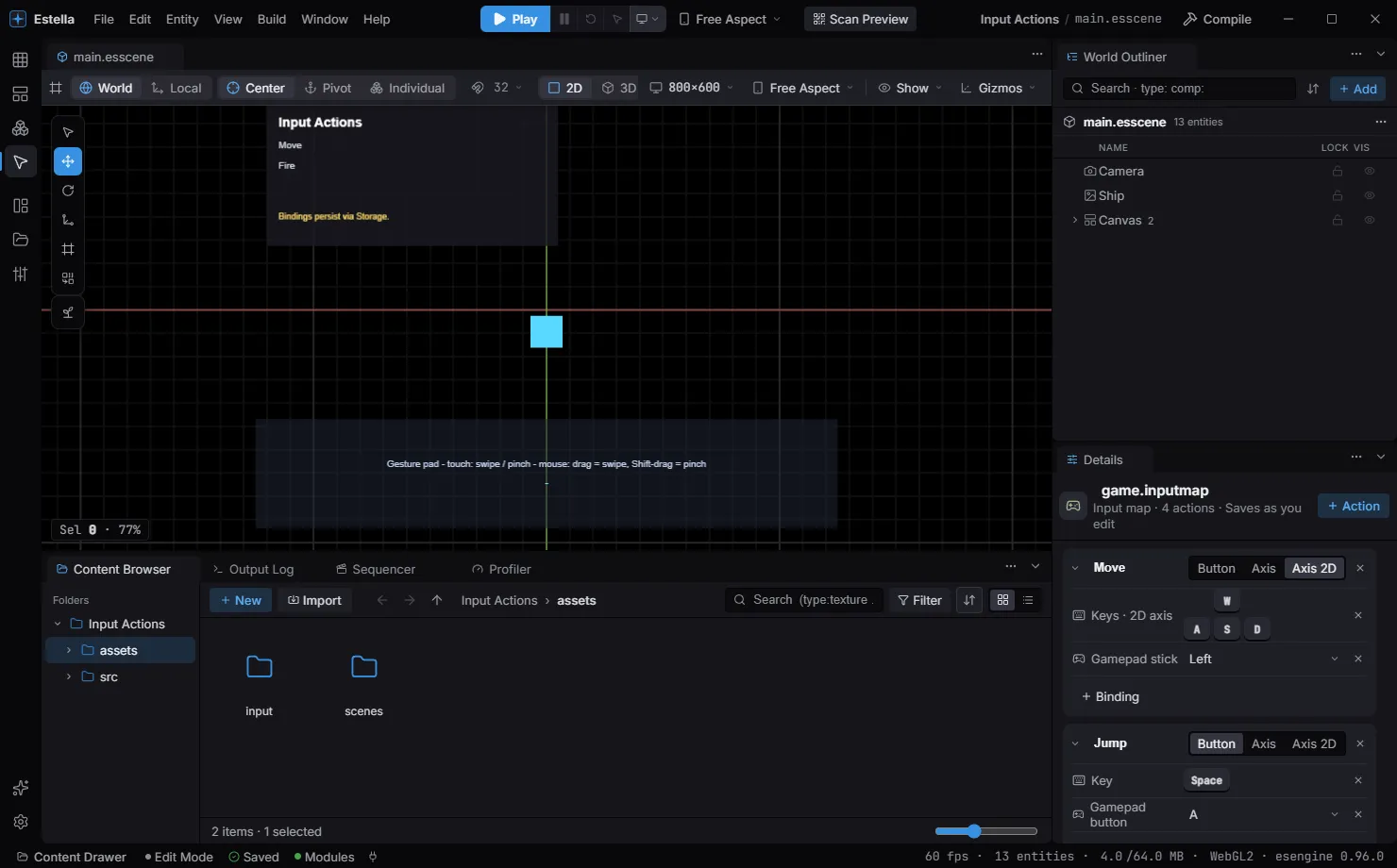
The Input Map editor: named actions (Move / Jump / Fire), each with as many keyboard, mouse, and gamepad bindings as you like.
Hard-coded key checks scatter device knowledge through gameplay code. An input map names each action once — with as many keyboard / mouse / gamepad bindings as you like — and gameplay queries the action by name:
import {  defineInputMap, Button, Axis2D,  Key, Keys2D, Stick, GpButton, GamepadButton,} from 'esengine';
export const Controls = defineInputMap({  Move: Axis2D(Keys2D('KeyW', 'KeyS', 'KeyA', 'KeyD'), Stick('left')),  Jump: Button(Key('Space'), GpButton(GamepadButton.South)),});
defineInputMap registers its own per-frame evaluation (after input is polled,
before Update), so the map is live immediately — import it into any system and
query:
const dir = Controls.axis2d('Move'); // { x, y }, length ≤ 1if (Controls.pressed('Jump')) { /* this-frame edge */ }| Query | Returns |
|---|---|
down(name) |
Held — the action’s magnitude is ≥ 0.5. |
pressed(name) / released(name) |
This-frame edges. |
value(name) |
Button 0..1 · axis -1..1 · axis2d magnitude 0..1. |
axis2d(name) |
{ x, y } direction (normalized when longer than 1). |
An action is Button(…), Axis1D(…), or Axis2D(…); each takes any number of
bindings, so keyboard and gamepad coexist. A Button takes the strongest binding
(clamped to 0..1); Axis1D and Axis2D sum their bindings, then clamp (to -1..1, or to
length 1):
| Binding | Feeds | Meaning |
|---|---|---|
Key(code) |
button / axis | One keyboard key. |
MouseButton(b) |
button / axis | A mouse button (MouseButton.Left / .Middle / .Right = 0 / 1 / 2 — the same names work in input.isMouseButtonDown). |
GpButton(btn, pad?) |
button / axis | A gamepad button (analog value for triggers). |
GpAxis(axis, pad?, scale?) |
axis | A raw gamepad axis. |
Keys1D(neg, pos) |
axis | Two keys → a signed 1D axis. |
Keys2D(up, down, left, right) |
axis2d | Four keys → a 2D direction. |
Stick('left' | 'right', pad?) |
axis2d | A gamepad stick (up = +y, matching Keys2D). |
Virtual(id) |
button / axis / axis2d | A named value the game writes with input.setVirtual(id, x, y) — what an on-screen VirtualJoystick or VirtualButton feeds, so touch controls drive the same action a key does. |
The data model
Section titled “The data model”Those constructors are just sugar over plain, serializable data — Binding is a
tagged union, and an action is a type plus its binding list:
import { type Binding, type ActionDef } from 'esengine';
const jump: ActionDef = {  type: 'button',                          // 'button' | 'axis' | 'axis2d'  bindings: [    { kind: 'key', code: 'Space' },        // Key('Space')    { kind: 'gpButton', button: 0 },       // GpButton(GamepadButton.South)  ],};
Binding kind |
Fields | Constructor |
|---|---|---|
key |
code |
Key |
mouse |
button |
MouseButton |
gpButton |
button, pad? |
GpButton |
gpAxis |
axis, pad?, scale? |
GpAxis |
keys1d |
neg, pos |
Keys1D |
keys2d |
up, down, left, right |
Keys2D |
stick |
stick: 'left' | 'right', pad? |
Stick |
virtual |
id |
Virtual |
Because bindings are data, this one model is also the rebind and persistence
format: toJSON() / loadJSON() round-trip the bindings alone (per-action
Binding[]), while toAsset() serializes the full map — action types included —
as an InputMapAsset ({ version, actions }), the content of an .inputmap
file. loadJSON ignores actions the map doesn’t define, so stale saved data for
a removed action never resurrects it.
Rebinding & persistence
Section titled “Rebinding & persistence”Bindings are plain serializable data, so a controls screen stays small:
// "Press any input…" — captures the next key / gamepad button (mouse is opt-in)await Controls.rebind('Jump'); // replace; { append: true } adds insteadControls.save('controls'); // persist to platform Storage// on boot:Controls.load('controls'); // re-apply saved bindings (if any)rebind / listenForBinding take a ListenOptions choosing which device
families the capture listens to: keyboard and gamepad default on,
mouse defaults off — so the click that pressed the “rebind” button isn’t
itself captured. Axis sources are never captured; rebinding targets discrete
inputs.
getBindings / setBindings inspect and edit bindings programmatically, actions() lists
the action names, isListening() says whether a capture is pending, and
cancelListen() aborts a pending capture (it resolves with null).
Data-driven maps (.inputmap)
Section titled “Data-driven maps (.inputmap)”A whole map also serializes as an asset: create a New Input Map in the
editor’s Content Browser, then build the live map with loadInputMapAsset(asset) (the
parsed InputMapAsset) instead of defineInputMap. toAsset() produces the same format from code.
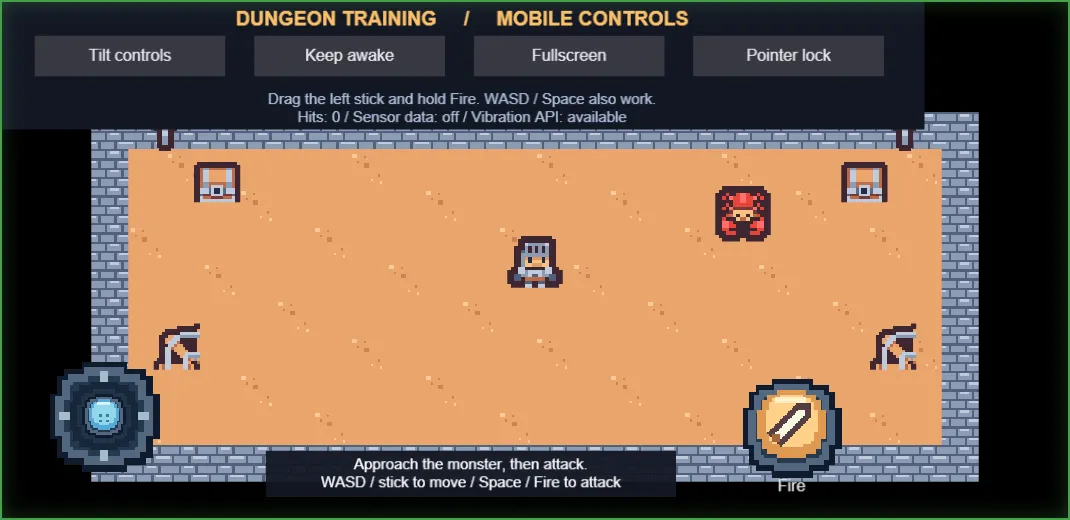
The Mobile Controls example: a VirtualJoystick and a VirtualButton drive the same input actions as the keyboard.
Touch gestures
Section titled “Touch gestures”GestureDetector turns raw touches into tap / long-press / swipe / pinch
callbacks. Construct it over the Input resource and drive it from a system:
import { defineSystem, Res, Input, Time, GestureDetector } from 'esengine';
let gestures: GestureDetector | null = null;
const gestureSystem = defineSystem([Res(Input), Res(Time)], (input, time) => {  if (!gestures) {    gestures = new GestureDetector(input);    gestures.onTap       = (x, y) => { /* screen px */ };    gestures.onLongPress = (x, y) => { /* held ~0.5 s without moving */ };    gestures.onSwipe     = (dir, speed) => { /* 'left' | 'right' | 'up' | 'down' */ };    gestures.onPinch     = (scale, cx, cy) => { /* two-finger zoom factor per frame */ };  }  gestures.update(time.delta);});
A tap is a touch under 0.3 s with less than 10 px of travel; a swipe needs ≥ 50 px at ≥ 200 px/s; pinch reports the frame-to-frame scale of a two-finger spread with its center point.
One finger at a time
Section titled “One finger at a time”Multi-touch is on by default: every finger reaches the UI and the game. To start
a game with it off, untick Project Settings → Game → Runtime → Multi-touch.
A scene that only wants one finger can also turn it off while the game runs. A
call to setMultiTouch wins over the project setting until the game restarts:
const input = app.getResource(Input);input.setMultiTouch(false); // one finger at a timeinput.setMultiTouch(true); // every finger againinput.isMultiTouchEnabled(); // which mode is onWhen it is off, the first finger to go down is handled until it lifts. A finger pressed during that time is ignored until it lifts, by the UI as well as the game, so a second finger cannot press a button or move a joystick while the first is down. If several fingers are down when you turn it off, the first one to go down is kept. The others are cancelled: they end with no release edge, and a button they were pressing lets go without a click. The setting applies on every platform: the web, mini-games and native apps.
Input routing (layers)
Section titled “Input routing (layers)”Before a raw platform event lands in the Input resource, it passes through the
InputRouter — a chain of responsibility with three tiers:
- Editor — tools (gizmos, marquee drags) get first claim.
- UI — widgets and dialogs claim what falls through.
- Game — implicit: the
Inputresource itself. Gameplay only ever sees events no upstream handler consumed.
A handler callback returns true to consume the event — it then neither
updates Input nor reaches later tiers. Returning false / nothing lets it fall
through. Because consumption is per-event (not a global “editor is active” flag),
a tool can claim exactly what it cares about: a marquee drag consumes pointer
moves while pressed but lets the wheel scroll through to the camera; a modal
consumes Escape but ignores the arrow keys.
The engine’s UI plugin already occupies the UI tier — that is what makes
isPointerOverUI() and click-through prevention work. You write a handler when
building tools or embedding the engine in a host app:
import { inputRouter, type InputHandler } from 'esengine';
const modalHandler: InputHandler = {  onKeyDown(code, mods) {    if (code === 'Escape') { closeModal(); return true; }   // consumed  },  onPointerDown(button, x, y, mods) {    return isInsideModal(x, y);   // claim clicks on the modal, pass the rest  },};
const release = inputRouter.setUIHandler(modalHandler);// when the modal closes:release();
inputRouter is a module-level singleton; setEditorHandler / setUIHandler
install one handler per tier and return an unregister thunk (unregistering only
removes your handler, never a newer one). All InputHandler methods are
optional:
InputHandler method |
Signature |
|---|---|
onKeyDown / onKeyUp |
(code, mods) |
onPointerMove |
(x, y, mods) |
onPointerDown |
(button, x, y, mods) |
onPointerUp |
(button, mods) |
onWheel |
(deltaX, deltaY, mods) |
onTouchStart / onTouchMove |
(id, x, y) |
onTouchEnd / onTouchCancel |
(id) |
mods is a Modifiers snapshot — { shift, ctrl, alt, meta } — tracked by
the router from key events (also readable any time as inputRouter.currentMods).
On the key-up edge that releases a modifier, handlers still see it as held,
matching DOM event.shiftKey semantics. A handler that throws is treated as not
consuming, so a broken tool can’t swallow all input.
Reference
Section titled “Reference”| Group | Methods |
|---|---|
| Keyboard | isKeyDown(code), isKeyPressed(code), isKeyReleased(code). |
| Mouse | isMouseButtonDown(b), isMouseButtonPressed(b), isMouseButtonReleased(b); mouseX / mouseY (or getMousePosition()), scrollDeltaX / scrollDeltaY (or getScrollDelta()). |
| Touch | isTouchActive(id), getTouches() / getTouch(id) / getTouchCount(), the touches map of active points, and touchesStarted / touchesEnded for this frame’s edges. |
| Gamepad | isGamepadConnected(pad?), isGamepadButtonDown(btn, pad?), isGamepadButtonPressed/Released(btn, pad?), getGamepadButtonValue(btn, pad?) (analog 0..1), getGamepadAxis(axis, pad?), getGamepads(). |
| Pointer | isPointerOverUI() — the cursor is over a UI element. |
Each *Down reads held state; *Pressed / *Released are the this-frame edges.
Best practices
Section titled “Best practices”- Poll every frame — edges (
*Pressed/*Released) last one render frame, or one fixed step insideFixedUpdate(see above). - Guard world clicks with
isPointerOverUI()so clicking a button doesn’t also hit the game world. - Use
UICameraInfofor world coordinates, not rawmouseX/Y, so picking respects the camera. - Gamepad
paddefaults to 0 — pass an index for local multiplayer.
See also
Section titled “See also”- Camera —
screenToWorldfor arbitrary screen points. - UI — UI consumes pointer input above the game world.
Device capabilities
Section titled “Device capabilities”Device.capabilities() reports the host APIs it exposes. It does not certify
the physical sensor or vibration motor. Requests return ok, unavailable,
denied, or failed; check the result rather than catching unsupported-platform
exceptions.
import { Device } from 'esengine';
const off = Device.motion.onChange(sample => {  if (sample.gravity) console.log(sample.gravity);});// Call from the actual player gesture when the browser requires permission.const result = await Device.motion.start({ accelerometer: true, gyroscope: false, rate: 'game' });await Device.vibrate({ duration: 'short' });await Device.keepScreenOn(true);await Device.fullscreen(true);await Device.pointerLock(true);// Stop subscriptions and requests when the control layer is retired.off();await Device.motion.stop();await Device.keepScreenOn(false);
Rates are game (about 16 ms), ui (60 ms), and normal (200 ms); host sampling
limits still apply. Acceleration and filtered gravity use m/s², gyro uses rad/s,
and filtered Web orientation uses degrees. Missing channels remain null.
Native and mini-game adapters expose raw acceleration/gyro and gravity filtering;
absolute orientation is unavailable there. Device axes are not rotated to the
screen, and no pose fusion is performed.
Web motion permission requests, fullscreen and pointer lock must run inside the
original player event. Use createButton’s userGesture: true option. Motion and
screen wake need HTTPS or localhost. Device.onChange observes fullscreen /
pointer-lock exits and suspension. Motion and requested wake state resume on
foreground; stop() and keepScreenOn(false) revoke that intent.
Vibration is short/long with optional light/medium/heavy short intensity where reported supported. Web vibration cannot control intensity. Older native binaries and platforms without the APIs return unavailable. Native support needs the updated Android/iOS runtime, including its sensor, permission and framework bindings. Use the Mobile Controls example for an end-to-end project.
Platform references: Web motion permission, screen wake, Android sensors, iOS CoreMotion.