
Prefabs
A prefab is a saved entity tree — a template you author once in the editor and spawn
many times (enemies, pickups, bullets). Instantiate one at runtime through the
Prefabs resource. The prefab asset stays the single source of truth; instances can
layer their own values on top.
Authoring in the editor
Section titled “Authoring in the editor”You build a prefab visually, then spawn it from code. Everything in this section happens in the editor; the runtime API follows below.
Create a prefab
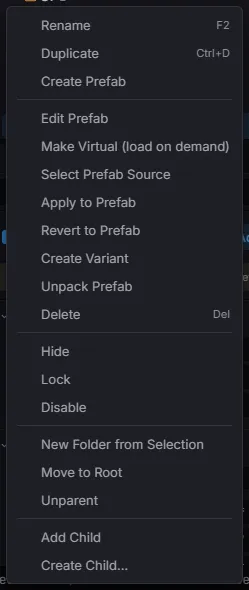
Section titled “Create a prefab”Right-click an entity in the World Outliner → Create Prefab. The editor extracts that
entity and its whole subtree into assets/prefabs/<Name>.esprefab (named after the entity)
and leaves your scene untouched — the originals stay put; they aren’t swapped for an
instance. To place instances, drag the .esprefab from the Content Browser into the scene,
or spawn it from the + Add → Create entity… → Prefabs category.
Edit a prefab — Prefab Mode
Section titled “Edit a prefab — Prefab Mode”Double-click a .esprefab (or, from an instance, Edit Prefab) to enter Prefab Mode:
the prefab opens as its own editable entity tree in the same viewport / Outliner / Details,
framed in a warm accent under an Editing Prefab banner. Add, remove, rename, reparent,
and tune components exactly as in a scene, then Save Prefab — every instance in every
scene picks up the change. Back to Scene returns you where you were.
A UI prefab opens inside a canvas. UI boxes are authored relative to their parent, so on its own a UI prefab would have nothing for its percentages to resolve against and the whole tree would collapse onto the origin. Prefab Mode therefore hosts it in a canvas at the project’s reference resolution — the layout, selection outlines, and gizmos read exactly as they do in a scene. The host isn’t part of the prefab: it never appears in the Outliner and never reaches the saved asset.
Not yet supported in Prefab Mode: editing a nested prefab in place, or a variant whose base isn’t flat. Play and Save As are disabled while you’re editing a prefab.
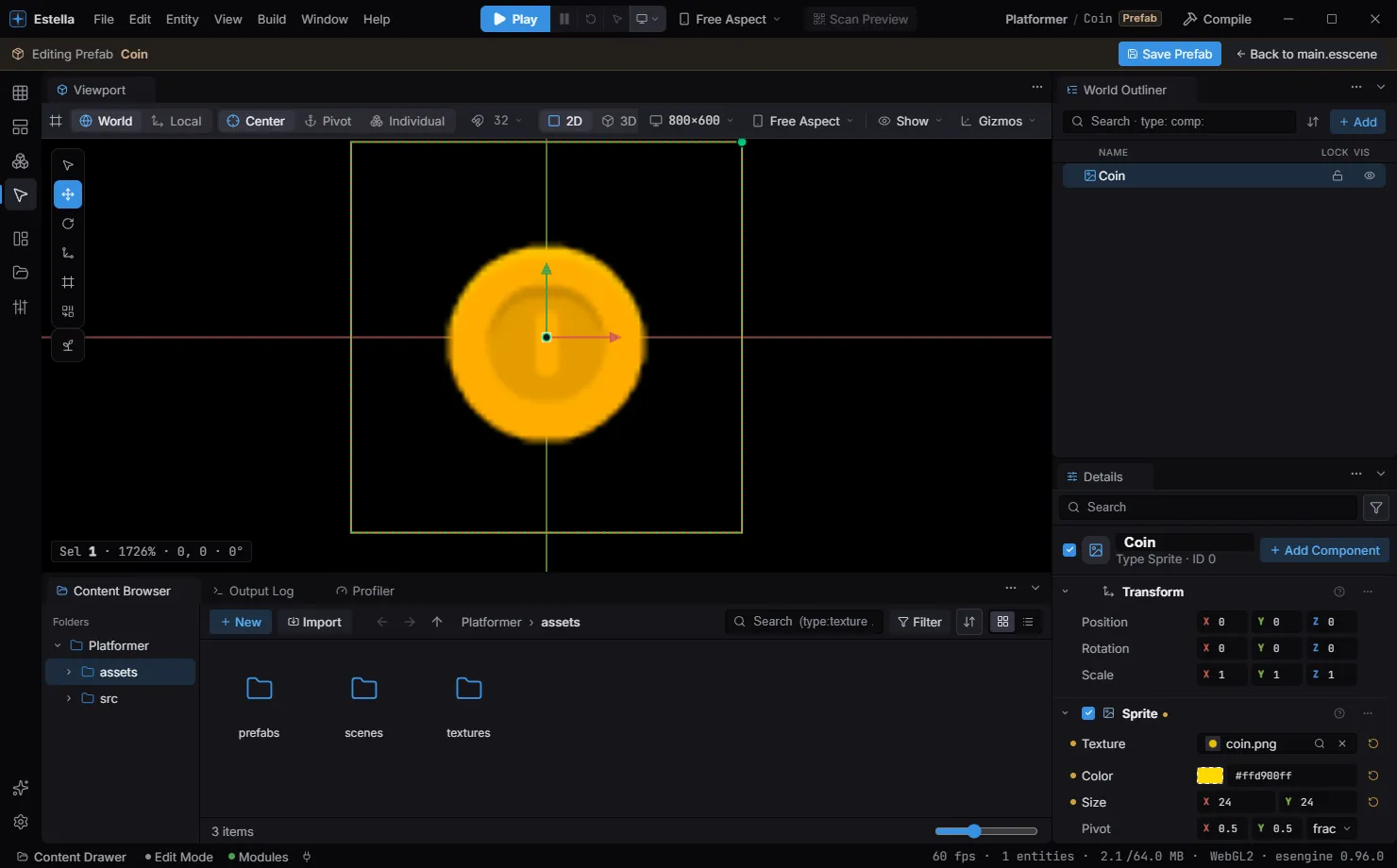
Prefab Mode: the Editing Prefab banner with Save Prefab / Back to scene, the prefab opened as its own entity tree — every instance updates when you save.
Instances & overrides
Section titled “Instances & overrides”Drop an instance into a scene and it stays linked to its source. Change a field on the instance and it becomes an override — a per-instance value layered on top of the prefab. The editor marks overrides so you always know what’s local:
- the instance’s root name is tinted warm in the Outliner;
- an overridden field shows a reset arrow (↺ Reset to default) and its component gets an amber dot;
- an Inspector filter narrows the Details panel to only overridden fields.
Reset a single field with its ↺ button and the value falls back to the prefab’s.
When the prefab changes, the open scene’s instances take the change at once: saved from Prefab Mode, applied from another instance, rewritten on disk by a pull or another tool, or re-baked from the 2D rig it came from. Each instance keeps its overrides and anything the scene parented inside it, and every entity the prefab still has stays the same entity, so the selection and other entities’ references to it hold. The scene is not marked as changed, because its file stores only the overrides.
Apply · Revert · Unpack · Variant
Section titled “Apply · Revert · Unpack · Variant”Right-click an instance in the Outliner (or use the Inspector’s prefab bar) for the identity actions:
| Action | What it does |
|---|---|
| Edit Prefab | Open the source in Prefab Mode. |
| Select Prefab Source | Reveal the .esprefab in the Content Browser. |
| Apply to Prefab | Push this instance’s overrides back to the source — updating the base for every instance. |
| Revert to Prefab | Discard this instance’s overrides and re-sync it to the source. |
| Create Variant | Save a new .esprefab that inherits the base and bakes in this instance’s overrides (a prefab of a prefab). |
| Unpack Prefab | Detach the subtree — its entities become ordinary scene entities and lose every prefab link. Undoable. |
Apply is the one action that rewrites the shared asset, so it always previews an itemized diff first (“Apply changes to prefab?”) — edits in amber, additions in green, removals in red, with structural changes flagged as destructive.
Virtual instances
Section titled “Virtual instances”A screen made of many pages does not need every page’s entities in a running scene. Mark a
prefab instance Virtual (the toggle in the prefab bar of Details, or the Outliner’s context
menu) and the editor still shows and edits it whole, but a running scene makes only its root and
builds the rest when the instance is opened. Use UIPages to open it:
registerDeferred(entity) registers a virtual instance as a page named after its root.

- An instance that adds, removes or re-parents parts is made whole, not virtual.
- Adding
?expand-virtualto the page address makes every virtual instance whole at boot, for a test harness that expects every node (an instance marked as another layout of the same page is left out, as the layouts would stand side by side). deferredEntitiesanddeferredRecordare exported for a game that keeps two layouts this way.
Spawn a prefab
Section titled “Spawn a prefab”instantiate loads the prefab and spawns it. It’s async and returns the spawned
tree — root is the new root entity:
import { defineSystem, Res, Prefabs } from 'esengine';
const spawnEnemy = defineSystem([Res(Prefabs)], async (prefabs) => {  const { root } = await prefabs.instantiate('assets/prefabs/enemy.esprefab');  // `root` is the new entity — move it, tag it, give it a Transform position…});
Parent it & reach its children
Section titled “Parent it & reach its children”Nest the instance under another entity, and use the returned entities map to reach
the spawned children:
const { root, entities } = await prefabs.instantiate('assets/prefabs/turret.esprefab', { parent: mountPointEntity,});// root → the instance root// entities → Map<number, spawned Entity>, keyed by the id the spawn gave each entityPer-instance overrides
Section titled “Per-instance overrides”Pass overrides to change a value for this instance only without editing the
prefab asset — spawn the same enemy with different health or tint. An override
names the component + property, and aims at the prefab’s root unless you say
otherwise:
const { root } = await prefabs.instantiate('assets/prefabs/enemy.esprefab', { overrides: [ { type: 'property', componentType: 'Health', propertyName: 'value', value: 250 }, ],});To reach a child, add its prefabEntityId — the entity’s own string id,
a UUID for editor-authored prefabs. Read it from the .esprefab (an override that names no prefabEntityId aims at the root).
Besides 'property', type can be 'name', 'visibility', 'parent', 'component_added',
'component_replaced', 'component_removed', 'metadata_set', or 'metadata_removed'
(the metadata forms use metadataKey in place of componentType/propertyName).
instantiate reference
Section titled “instantiate reference”| Option | Type | Description |
|---|---|---|
parent |
Entity | Nest the instance under this entity. |
overrides |
override[] | Per-instance component-value changes. |
baseUrl |
string | Base URL for resolving the prefab’s assets. |
scene |
boolean | Default true: what is spawned belongs to the scene live when it landed and goes with it. Pass false for something meant to outlive the area it came from. |
| Result field | Description |
|---|---|
root |
The instance’s root Entity. |
entities |
Map<number, Entity> of every spawned entity, root included, for reaching children. |
Best practices
Section titled “Best practices”- One prefab, many instances — keep shared data in the prefab and vary instances
with
overrides, so a design change updates every instance. - Reach children via the
entitiesmap, not by walking the hierarchy by index. - Parent at spawn (
parent) rather than re-parenting after, so transforms resolve correctly on the first frame. - Apply-to-prefab in the editor to push an instance’s tweaks back to the source when a change should be global.