
The Editor
The Estella editor is a desktop application (Electron + React) with a UE5-style dockable workspace. You build scenes visually, tune components in an inspector, paint tilemaps, wire node graphs, and play the game right inside the editor — in an isolated runtime realm, so play never dirties your scene.
Launching a project
Section titled “Launching a project”When no project is open, the editor shows the Launcher:
- Recent — reopen a project you’ve worked on, with search and grid/list views.
- New project — pick a template, give it a name and location, and create it. Templates come in two groups: Starters (the Blank template — an empty scene with a camera) and Examples (the bundled sample projects, ready to explore and edit).
A project is a folder on disk. The pieces the editor cares about:
| Path | What it is |
|---|---|
project.esproject |
The project manifest — name, default scene, design resolution, enabled features (physics, rendering), packaging. Committed to version control. |
.esengine/workspace.json |
Editor-local state (last-opened scene, panel layout). Gitignored. |
assets/scenes/*.esscene |
Your scenes. |
assets/… |
Textures, materials, tilesets, and other assets, each with a .meta sidecar. |
src/components.ts |
The declaration entry — the editor evaluates this module and everything it imports to learn your components. Declare them anywhere; re-export them from here. See Scripting. |
src/main.ts |
The startup entry — where you register systems. This is what runs the game; the editor never evaluates it. |
Assets are referenced portably by UUID (@uuid:…) rather than by path, so moving or
renaming a file doesn’t break references.
The workspace
Section titled “The workspace”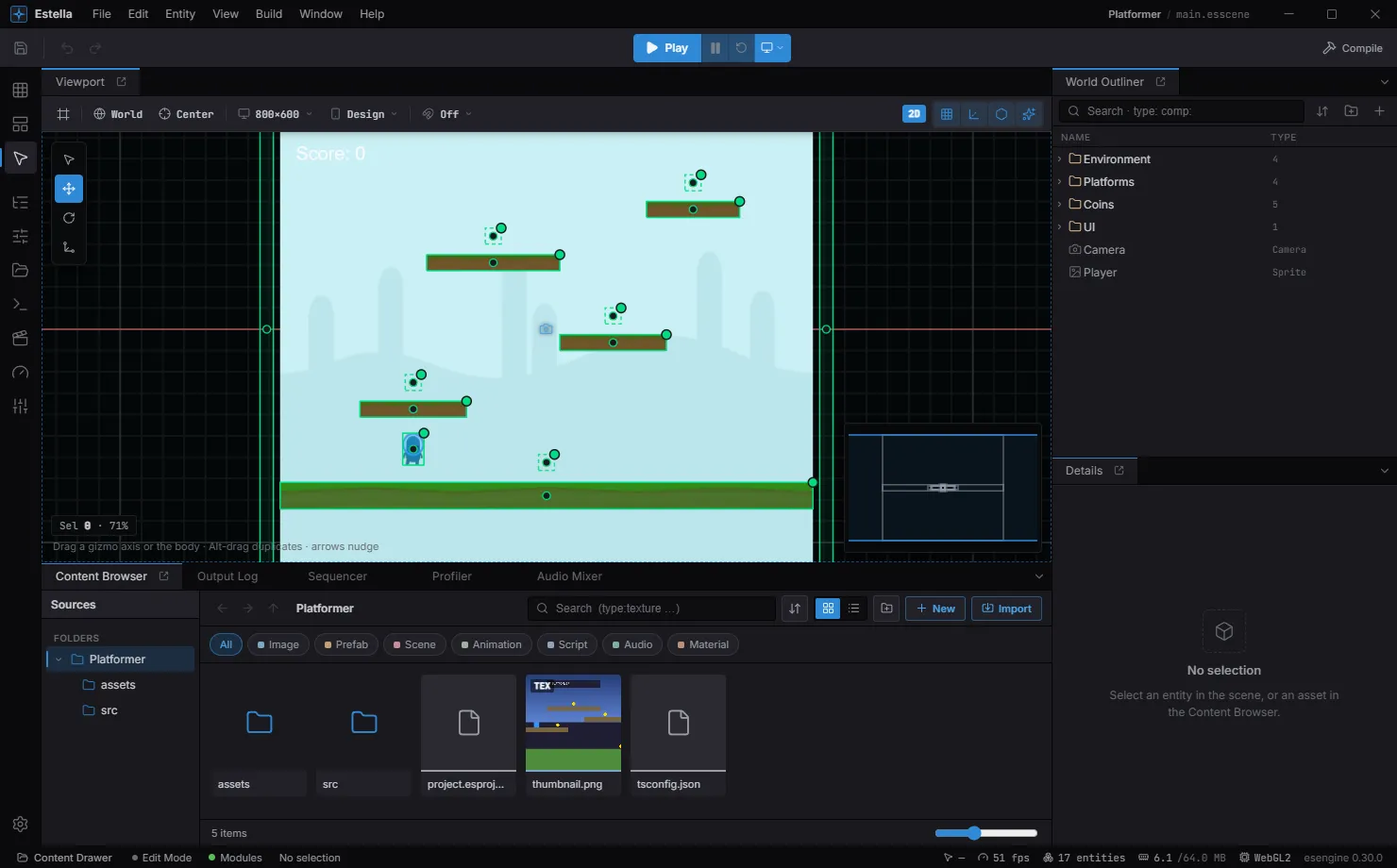
The default workspace: the viewport in the centre, the World Outliner and Details on the right, the Content Browser along the bottom, and the Play controls up top.
The default layout, from the outside in:
- Activity Bar — the far-left icon rail: the editing mode (Scene / UI / Tilemap), side panels, and project settings.
- Menu Bar — File · Edit · Entity · View · Build · Window · Help.
- Toolbar — Save, Undo/Redo, the transform tools, snapping, Show Grid, the Play controls, Show Gizmos, and Build.
- Viewport (center) — the live WebGL scene view.
- World Outliner (right) — the scene’s entity hierarchy.
- Details (right) — the inspector for the current selection.
- Content Browser + Output Log (bottom tabs).
- Status Bar — edit mode, selection, cursor, FPS, draw calls, and the engine version.
Panels are dockable — drag a tab to re-arrange, split, or float it, and the layout is saved automatically. You can also summon the Content Browser as a slide-up overlay from anywhere with Ctrl / ⌘ + Space (the Content Drawer).
The rest of this chapter
Section titled “The rest of this chapter”The tour above is the shape of the tool. The pages below are the parts you come back to.
See also
Section titled “See also”- Scenes — what a
.essceneholds and how it loads. - Scripting — project components appear in the inspector automatically.
- Prefabs — reusable entity templates with per-instance overrides.
- Building & Exporting — ship the project to web, WeChat, or a playable ad.