Building a scene
Creating entities
Section titled “Creating entities”There are several ways to add an entity:
- Entity → Add Entity (or the toolbar) drops a blank Transform entity.
- Create… opens a command-palette that spawns entities: the built-ins — Empty,
Sprite, Camera, Particles, Light, Tilemap, Spine, Audio,
Text, Shape, Mesh, Trail, and the UI widgets (Canvas plus
controls) — your own project components, and any
.esprefabprefab in the project. Every create path (this menu, drag-and-drop, and the automation surface) runs the same pipeline, so each spawn is a single undo step. - Right-click in the Outliner for the same actions in context, plus folders, parenting, and prefab creation.
- Drag from the Content Browser — drop an image to spawn a Sprite, or a
.esprefabto instantiate it.
The World Outliner
Section titled “The World Outliner”The Outliner is the scene’s hierarchy. You can:
- Reparent by dragging entities onto one another, and organize with folders.
- Type to jump — with the tree focused, type the first letters of a name to jump to the matching entity.
- Rename with
F2, Duplicate with Ctrl/⌘ + D, Delete with Delete. - Hide/Show and Lock/Unlock entities (independent of whether the component is enabled at runtime). Hiding takes the entity out of the edit viewport — sprites, skeletons, tilemaps, particles, lights and all — without editing the scene the game loads. Locking leaves it visible and selectable but gives it no handles: the viewport won’t pick it, and the transform gizmo won’t appear for it.
- Create Prefab from a selection, then drop instances back into the scene.
The Details panel
Section titled “The Details panel”Details is the inspector for the selection. It lists every component on the entity and its fields — driven by the engine’s reflection metadata, so ranges, units, enums, and tooltips come straight from the component definition. Add components, edit values, and they’re written back to the scene live. Fields enforce their constraints as you edit: a required field is flagged when left empty, a numeric field is clamped to its declared range on write, and dropping an asset onto a slot is rejected unless its type matches.
Each component is a collapsible section, and the panel remembers what you fold —
across reselects and editor restarts — so an inspector stays as tidy as you leave it.
Rarely-touched “chrome” (a widget’s Focusable and ThemeStyle tags) starts folded.
Where a visual control beats a row of raw numbers, Details shows a purpose-built widget — most of them for UI nodes:
- an anchor control for absolutely-positioned
UINodes: a clickable 3×3 grid for the nine point anchors (Left / Centre / Right × Top / Middle / Bottom) plus a Stretch toggle per axis; - a flex (auto-layout) widget for
FlexContainers: Direction (row / column and their reverses), a 3×3 alignment grid that sets main- and cross-axis alignment in one click, main-axis Distribute (Packed / Between / Around / Evenly), and Wrap / Stretch toggles — with padding edited as a four-edgesidescontrol; - an inline Controllers strip that pulls per-node state authoring into the inspector: pick a state page and gear a field to bind it, all without leaving the panel (see UI controllers);
- for a material, a Shader picker to swap the bound shader — a built-in template or
a project
.esshader— see Materials & Shaders.
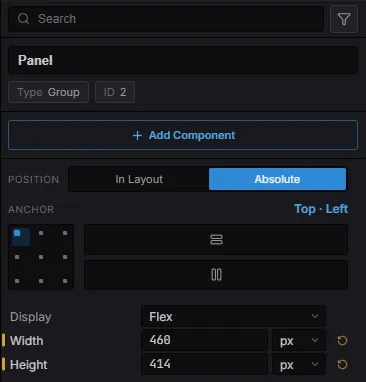
A UI node’s inspector: the In Layout / Absolute toggle, the clickable 3×3 anchor grid (with per-axis Stretch), and Display: Flex — visual controls in place of raw numbers.
Details also serves as the asset inspector: select an asset in the Content Browser to edit its import settings or, for a material, its parameters.
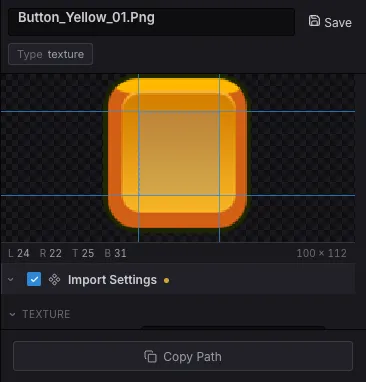
Dragging a 9-slice border. A texture’s slice border decides where a NineSlice panel
keeps its corners crisp, and typing four numbers means guessing at them. Select the
texture and drag the four guides directly on the preview instead — the numeric fields stay
in sync, so you can nudge one edge exactly after eyeballing the rest.
Import settings describe the asset, not the scene that happens to use it, and they now reach every place the texture is drawn: the edit viewport, Play (in the viewport and in the Game panel), and a packaged build. A frame that slices correctly while you author it slices correctly in the shipped game.