
Building & Exporting
One Estella project ships to six targets — Web, Desktop, WeChat MiniGame, a single-file Playable Ad, and native Android / iOS apps — all from the editor. The export uses the same runtime you played in the editor, so what you shipped is what you tested (play == ship).
Exporting from the editor
Section titled “Exporting from the editor”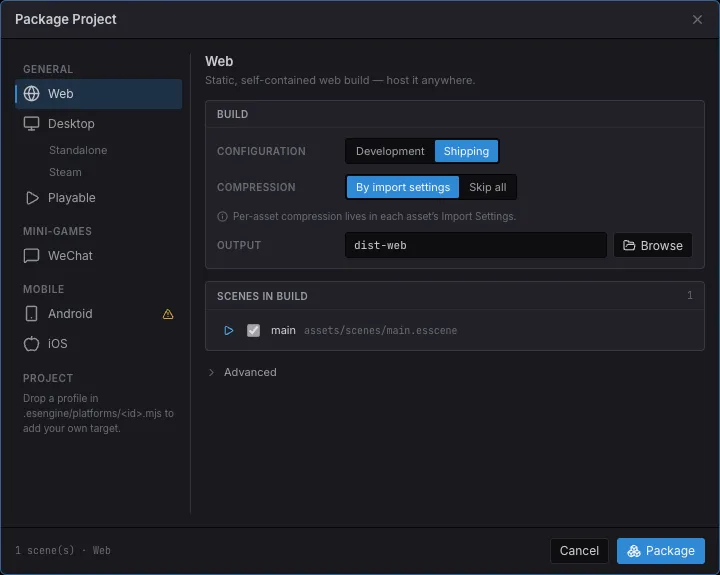
The Package Project dialog: pick a target from the categorized list, a configuration, the output folder, and the cook options — then Package.
- Open File → Build… to bring up the Package Project dialog.
- Pick a target from the list — grouped as General (Web / Desktop / Playable), Mini-games (WeChat and any the project added), and Mobile (Android / iOS). A target that ships to more than one place lists them beneath it: Desktop branches into Standalone and Steam.
- Fill in that target’s own settings, shown on its page — what the app is called and identified by, and anything the store it goes to needs.
- Choose a build config — Development or Shipping (Shipping minifies) — an output folder, source maps, and the asset cook options.
- Check the Scenes in build list — untick scenes you don’t want to ship, and pin a different startup scene if needed (see below).
- Click Package and watch the live build log. When it finishes, the output folder opens (there’s a checkbox to turn that off), and Web / Playable builds offer Preview over http.
Your choices are saved into project.esproject, so the dialog remembers them next
time.
Scenes in build
Section titled “Scenes in build”Every scene in the project’s scenes folder ships with the export and becomes a
SceneManager.switchTo target — see Scenes for how a game
script switches between them. The dialog’s Scenes in build list controls the
set:
- The startup scene is pinned first with a play badge. It always ships — move the pin to another scene by clicking its play button, or right-click any scene in the Content Browser and choose Set as Startup Scene.
- Untick a scene to leave it out of the build (saved as
packaging.excludeScenesinproject.esproject). Excluded scenes stay fully editable and playable in the editor; assets referenced only by excluded scenes are not cooked into the build. - Playable ships the startup scene only — it’s a size-capped single file.
Preview an export
Section titled “Preview an export”After a Web or Playable build, click Preview over http — the editor
serves the output folder on a local loopback server (http://127.0.0.1:<port>/)
and opens it in your browser.
The targets
Section titled “The targets”| Target | What it produces | Output | Next step |
|---|---|---|---|
| Web | A static, self-contained web build. | dist-web/ |
Preview over http, or upload the folder to any static host. |
| Desktop | A runnable native app per installed desktop template — a .app on macOS, a <Name>/ directory holding <Name>.exe on Windows or <Name> on Linux. No Chromium and no npm project. |
dist-desktop/ |
Double-click it. Selecting the Steam channel also writes the depot scripts and a STEAM.md with this build’s own values — see Steam. |
| A WeChat MiniGame package. | dist-wechat/ |
Open the folder in WeChat DevTools and set your AppID. See WeChat MiniGame. | |
| Playable | One self-contained index.html with everything inlined — no external requests, as ad networks require. |
dist-playable/ |
Preview over http (its real surface is an ad-network iframe). Pick the ad network so the CTA and the size check match where it ships. |
| Android | Content for a native arm64 app (Vulkan) — a real APK, not a WebView. | dist-android/ |
node build-tools/cli.js native --package --content dist-android wraps it in a signed APK. See Android & iOS. |
| iOS | Content for a native arm64 app (Metal), plus the Xcode project when the engine is built for iOS here. | dist-ios/ |
Open the generated Xcode project, pick a signing team, Run. See Android & iOS. |
Desktop, Android and iOS export app content, not a runnable payload: the engine, the SDK and the game runtime live in the app binary. Each is assembled from a runtime template the editor installs, so packaging needs no toolchain of its own — see prerequisites below. Only iOS still needs Xcode, because only Apple can sign for a device.
Playable ad networks
Section titled “Playable ad networks”Every network takes the same single HTML file but disagrees on three things: how big
it may be, what must sit in <head>, and which function sends the player to the
store. Pick the network in the Package Project dialog — it sits with the Playable
target’s own settings — and the export handles all three. Shipping the same game to
several networks is a normal day, so it is a per-build choice rather than a project
property; each network also gets its own output folder (dist-playable/<network>), so
packaging for one never overwrites the last.
Your game code never names a network. Call the CTA once:
import { playableCta } from 'esengine';
// on your end-card button, after the win — wherever the call to action isplayableCta();
The export installs the bridge playableCta() dispatches through. With no network
selected it is a no-op, so the same scene still runs in the editor and on the web.
| Network | Limit | Click-through | Notes |
|---|---|---|---|
| Generic | 2MB | — | No network API. The cap is the strictest we know of, since an unnamed target could be any of them. |
| Meta (Facebook / Instagram) | 2MB for index.html |
FbPlayableAd.onCTAClick() |
Meta’s 5MB figure is the total for a ZIP bundle; a single-file playable is capped by the index.html rule. Forbids any HTTP request. |
| Google Ads (App campaigns) | 5MB | ExitApi.exit() |
Its exit API is a Google-hosted script, which the docs require as a literal <script> in <head> — the export writes it for you. Google uploads a ZIP, so compress the index.html before uploading. |
| MRAID network (generic) | 5MB | mraid.open() |
For any MRAID host. mraid is injected by the webview, so nothing goes in <head>. |
| Unity Ads | 5MB | mraid.open() |
Expects the playable to wait for MRAID’s viewableChange before starting. |
| AppLovin | 5MB | mraid.open() |
Requires every resource embedded — which a single-file playable already is. |
Limits move, so each one is reported against the network it came from: an oversized export names the cap it used and where that number is published, rather than a bare number to trust.
A network we don’t ship
Section titled “A network we don’t ship”Define it yourself — the built-in networks are written against this exact contract,
so nothing is out of reach. Package Project → New platform scaffolds one (pick
Playable ad network), or write .esengine/platforms/<id>.mjs by hand:
export default {  id: 'acme-ads',  kind: 'playable',  label: 'Acme Ads',
  // The size this network accepts, and where that number is published — the export  // quotes the note in its warning.  maxBytes: 5 * 1024 * 1024,  limitNote: 'Acme docs, Creative specs § playable',
  // Optional: markup for <head> (an orientation meta tag, the network's SDK script).  emitHead: (ctx) => `<meta name="ad.orientation" content="${ctx.orientation}">`,
  // Installs the bridge playableCta() dispatches through. Runs before the game.  emitBridge: () => `window.__ESTELLA_PLAYABLE__={cta:function(){AcmeSDK.openStore();}};`,};
It then appears in the dialog’s Ad network dropdown beside the built-in ones, and packages through the same pipeline.
Runtime prerequisites
Section titled “Runtime prerequisites”Web, Desktop and Playable all reuse the engine runtime that ships with the editor, so they export with no setup — a playable inlines that same web runtime (glue as a blob module, wasm as base64) rather than needing a build of its own. WeChat is the exception among the web-based targets: its WebAssembly loader differs, so its runtime is built once:
# only before the first WeChat exportnode build-tools/cli.js build -t wechatThe Package Project dialog reminds you when a target’s runtime is missing, and a
WeChat export fails fast — naming the exact build command — rather than
producing a package that breaks at runtime. WeChat also needs a matching side
module for each engine feature the game uses (physics-wechat, spine-wechat,
basis-wechat for compressed textures) — see
WeChat MiniGame.
The dialog distinguishes two kinds of missing prerequisite, because they don’t block the same amount:
- A missing engine runtime (Web / Playable / WeChat) means the package cannot be produced at all.
- A missing native toolchain (Android / iOS) does not. The export still writes the app’s content; only the final assembly into an installable app needs the toolchain, and that step can run on another machine — an iOS build always does when the editor is on Windows.
Content a target cannot render
Section titled “Content a target cannot render”A target does not necessarily compile every subsystem the editor can author. When one doesn’t, the export names the gap and the scenes that hit it rather than writing a package that is quietly missing half a scene — the warning lists the subsystem (tilemaps, particles, post-processing, physics, Spine, video, text) and the files that authored it.
No target currently has a gap: the native app compiles the whole engine source list, and the three subsystems that are separate side modules on the web are compiled into its binary instead. The check stays because that can change.
Side modules
Section titled “Side modules”Optional engine features ship as separate WebAssembly side modules — an
emscripten <file>.js glue plus <file>.wasm per module — loaded on demand so
the base engine stays small:
| Module | Artifacts | Loaded when |
|---|---|---|
| Physics (Box2D) | physics.js / physics.wasm |
The project declares physics or a scene uses physics components. |
| Spine | spine21 / spine38 / spine41 / spine42 / spine43 .js/.wasm |
A scene uses a Spine skeleton of that format version. |
| DragonBones | dragonbones.js / dragonbones.wasm |
A scene uses a DragonBones armature. One module reads every version. |
| Basis transcoder | basis.js / basis.wasm |
The build shipped KTX2-compressed textures. |
| Video decoder | videodec.js / videodec.wasm |
The wasm video path decodes a clip. |
- Web / Desktop — the artifacts sit as loose files next to
esengine.wasm; the runtime fetches them fromwasmBaseUrl(the directory the engine itself was loaded from) via a fetch side-module host. - Playable — nothing external is allowed, so the exporter inlines the
modules as base64 into the single HTML file; the boot code
(
initPlayableRuntime) is handed an embedded side-module host instead of a URL. - WeChat — side modules are packaged as WeChat-precompiled module
factories (that’s why each feature needs its
*-wechatruntime build, above).
The editor’s own play mode boots through the same shipping runtime
(initPlayRealmRuntime), fetching side modules over the editor origin — so
play == ship covers these modules too. See
App Setup & Lifecycle for the
runtime API.
Build config & source maps
Section titled “Build config & source maps”- Development — an unminified build; pair it with source maps for debuggable output.
- Shipping — minified for size and speed. This is what you release.
- Source maps map the running bundle back to your TypeScript. They’re available for Web and Desktop; leave them off for a release build.
Asset cook options
Section titled “Asset cook options”What the cook does to an individual asset is that asset’s own business — per-asset Import Settings in the Inspector, with a tab per platform, so a texture can be compressed harder for a phone than for the web. The build only picks whether to honor those settings at all:
- Compression → By import settings — each texture and audio clip compresses per
its Import Settings (PNG → KTX2 Basis Universal, Max Size, WAV → MP3), and
textures that share an atlas pack into atlas pages so many small sprites ship as
one texture and batch in one draw call. Membership comes from a
<name>.atlas/folder, or from anatlasesentry in.esengine/asset-groups.json. - Compression → Skip all — ship everything raw, for fast iteration.
KTX2 textures are transcoded by the runtime to the best format each device supports (ASTC → ETC2 → S3TC, falling back to RGBA8), with their mip chains — smaller downloads and less VRAM.
Content addressing is on by default for Web/Desktop (each file named by a hash of its bytes — immutable URLs, automatic dedupe). Advanced holds the CDN root for hot update, source maps, and whether to open the output folder when the build finishes.
Packaging settings
Section titled “Packaging settings”What one target is called, where it goes and what a store knows it by is edited on that target’s page in File → Build…, beside the build it changes:
- WeChat — AppID.
- Desktop — application id override, the product name (which names the app), and the distribution channel (Standalone or Steam).
- Android — version code (the integer Google Play orders builds by), whether the build ends at an installable package or at the Gradle project, and whether an App Bundle is written beside the APK.
What holds for the project whatever it ships to stays in Project Settings → Packaging, and is saved with the project:
- Application ID — the reverse-DNS id the installed app is known by: the Android manifest package, the iOS bundle id, the desktop installer id. Empty derives one from the project name; a published app should set its own, because a store keeps it forever.
- Icon — one square PNG for every installable target.
- Achievements — the ids your game unlocks. Platform-neutral: every store keeps this same list under a different name.
Screen orientation
Section titled “Screen orientation”Orientation is one project-wide setting, not per-target: Project Settings →
Display → Orientation (portrait or landscape), right beside the design resolution.
Every target honors it — the WeChat game.json deviceOrientation, the web build’s
rotate-to-fit prompt (and a best-effort screen.orientation.lock), the desktop
window’s aspect, and the native app’s app.config.json (the engine can letterbox
but cannot rotate a phone). Left unset, it’s derived from the design resolution’s aspect
(wider-or-square ⇒ landscape, taller ⇒ portrait), so a landscape design ships
landscape everywhere with zero configuration.
A playable is the exception, deliberately: it never pins the page. Inside an ad
SDK the container’s size is the SDK’s business, so a rotate-to-fit overlay can hide
the game for good — the player turns the phone and nothing changes, because the media
query was reading the container all along. Playables stay responsive (every network
asks for that), and the orientation is only declared to the platform where one wants
it, e.g. Google’s ad.orientation meta tag. Design for both aspects, or letterbox
with a camera fit so the framing survives either one.
See The Editor for the settings UI.
Package size
Section titled “Package size”A finished export is weighed, and the result appears under the build log: what the package costs a player, what it’s made of, and which files are the largest.
Three figures, because where the bytes sit matters more than how many there are:
- Initial — what a player downloads before the game is playable: the host page,
the engine runtime, your scripts, and the assets in
localgroups. - On demand — subpackages, fetched when the game asks for that group.
- CDN (not packaged) — assets in
remotegroups. Real bytes, but they live on your CDN and cost the package nothing. See Hot Update.
That split is read from the same manifest the runtime loads, so what the report says and what the game does cannot disagree. Moving a level behind a subpackage genuinely removes it from the main package, and the report shows it the moment you do.
Limits
Section titled “Limits”Where a platform publishes a limit, the build is judged against it and the meter says which one and where the number came from — quoted, so you can check it against that platform’s current docs rather than trusting us:
| Target | Limit |
|---|---|
| WeChat MiniGame | 4MB main package, and 30MB across the main package and all subpackages |
| Playable ad | whatever the chosen network accepts — Meta 2MB for a single index.html, Google 5MB for a ZIP, etc. |
| Web / Desktop / Android / iOS | none published; set your own below |
A build over a limit is reported, not blocked — it built and it runs, and whether that’s release-blocking is your call (see the gate below). Past 90% of a limit the meter turns amber, because the pass after that is the one that breaks it.
Your own budget
Section titled “Your own budget”Package Project → Advanced → Size budget sets a ceiling in MB for the selected
target, saved per platform in packaging.sizeBudget. Two reasons to use it: you ship
well under WeChat’s 4MB and want to hear about it before it creeps up, or you target a
host whose cap the editor doesn’t know.
It replaces the target’s primary limit — WeChat’s 4MB main-package figure becomes yours — and is attributed to your project rather than quoted as a platform rule. It’s not a waiver: WeChat’s 30MB total still applies. Clear the field to go back to the platform’s own limit.
Gating a build on size
Section titled “Gating a build on size”The headless exporter carries the same report on its result and can fail on it:
node pipeline/bin/estella.mjs export ./my-game \ --platform wechat --json report.json --enforce-budgetWith --enforce-budget, a package over any limit in force exits non-zero and names
the limit on stderr. Without it, the same facts are reported and the build passes.
The report is result.size in the JSON — the same verdicts the dialog draws, so CI
and the editor never disagree about whether a build fits.
The build CLI (advanced)
Section titled “The build CLI (advanced)”The editor packages your game. The build-tools/cli.js command builds the
engine and SDK themselves — you only need it to produce the WeChat runtime above,
or when working on the engine. Common commands:
node build-tools/cli.js build -t web # build the engine (web target)node build-tools/cli.js build -t wechat # …the WeChat runtimenode build-tools/cli.js sdk # build the SDK onlynode build-tools/cli.js watch # rebuild on change (engine dev)node build-tools/cli.js native --target ios # …the native mobile hostSee also
Section titled “See also”- Android & iOS — the native app: prerequisites, assembling it, and what only bites on a device.
- WeChat MiniGame — subpackage layout and platform-specific quirks.
- Assets — how the cook step bundles and content-addresses assets.
- Profiling & Diagnostics — check frame time and draw calls before you ship.