
Camera
Every scene is rendered through a camera: an entity with a Camera component. A
camera controls zoom, projection, and which slice of the world reaches the screen.
This guide covers configuring a camera, following a target, converting between
screen and world space, shaking and blending the view, and running several cameras
at once.
How it works
Section titled “How it works”You can have many camera entities, but one is active at a time. The engine
picks the active camera by isActive + priority (the highest-priority active
camera wins), and renders the world through it into its viewport (a screen
rectangle). For a 2D game the projection is Orthographic, where orthoSize —
the visible half-height in world units — is your zoom: smaller means zoomed in.
Quick start
Section titled “Quick start”Spawn an orthographic camera and make it active:
import { defineSystem, Commands, Transform, Camera, ProjectionType } from 'esengine';
const spawnCamera = defineSystem([Commands()], (cmds) => {  cmds.spawn()    .insert(Transform, { position: { x: 0, y: 0, z: 0 } })    .insert(Camera, {      projectionType: ProjectionType.Orthographic,      orthoSize: 540,        // half-height in world units → zoom      isActive: true,    });});
Camera rigs from the Create menu
Section titled “Camera rigs from the Create menu”The editor’s Create menu (and an agent’s create op with a template) offers the rigs a scene is usually built
from, as Cinemachine’s create menu does. Each is a Camera with the pipeline stages already in place; pick its target
in the Details.
| Item | Template | What it is |
|---|---|---|
| Follow Camera 2D | camera:follow-2d |
Orthographic camera that frames its target with a PositionComposer: a dead zone it may wander in, a soft zone it never leaves. |
| Tracking Camera | camera:tracking |
Perspective camera that stands behind and above its target (FollowTarget), frames it (LookAtTarget) and keeps it in sight (CameraDeoccluder). |
| Look-At Camera | camera:look-at |
A camera that stays where it is put and turns to its target. |
| Handheld Camera | camera:handheld |
A camera with mild CameraNoise, like one held by hand. |
| Dolly Camera with Track | camera:dolly |
A Spline track and a camera on it (CameraDolly, Track Target) that looks at its target. |
| Target Group Camera 2D | camera:group-2d |
A CameraTargetGroup and an orthographic camera that frames it (PositionComposer, GroupFraming zoom). |
| Target Group Camera | camera:group-3d |
A CameraTargetGroup and a perspective camera that follows, looks at and frames it (GroupFraming dolly then zoom). |
| State-Driven Camera | camera:state-driven |
A StateDrivenCamera: which camera is live by an Animator’s state. |
| Impulse Source | camera:impulse |
A CameraImpulseSource to fire a shake from a place. |
| Camera Brain | camera:brain |
The scene’s CameraBrain, so a change of camera blends instead of cutting. |
The Camera component
Section titled “The Camera component”The SDK defaults are tuned for 2D (Orthographic, active, orthoSize 540). Move
the camera by moving its entity’s Transform.
| Property | Type | Default | Description |
|---|---|---|---|
projectionType |
ProjectionType |
Orthographic |
Orthographic (2D) or Perspective. |
orthoSize |
number | 540 |
Visible half-height in world units (Orthographic) — your zoom. Animatable. |
fov |
number | 60 |
Field of view in degrees (Perspective only; 1–179). |
nearPlane |
number | 0.1 |
Near clip distance (Perspective only). |
farPlane |
number | 1000 |
Far clip distance. Orthographic has no near plane and renders a symmetric ±farPlane box, so this is its reach in both directions. |
aspectRatio |
number | 1.77 |
Width / height. 0 = auto from the viewport. |
isActive |
boolean | true |
Whether this camera is eligible to be the active one. |
priority |
number | 0 |
Tie-breaker among active cameras (higher wins). |
viewport |
Vec4 | {0,0,1,1} |
Screen rect x, y, w, h in 0–1 (split-screen / PiP). |
clearFlags |
ClearFlags |
ColorAndDepth |
What to clear first: Nothing / Color / Depth / ColorAndDepth. |
pixelPerfect |
boolean | false |
Snap to the world pixel grid for crisp pixel art (Orthographic). |
cullingMask |
number | all layers | Bitmask of sorting layers this camera renders (bit i = layer i). |
renderTarget |
number | 0 |
RenderTexture handle this camera draws into instead of the screen (0 = screen) — a minimap or mirror; set from a script at run time. |
showFrustum |
boolean | false |
Editor-only: draw this camera’s whole view volume, near face to far. Off, its gizmo outlines what it frames on the content plane — which is empty for a camera aimed away from it. |
Zoom & projection
Section titled “Zoom & projection”orthoSize is the zoom control — halve it to double the on-screen scale. Because
it’s animatable, the smoothest way to zoom is a tween:
import { defineSystem, Res, Tween, TweenTarget } from 'esengine';
const zoomIn = defineSystem([Res(Tween)], (tween) => {  tween.to(cameraEntity, TweenTarget.CameraOrthoSize, 270, 0.5);   // zoom to 2×});
Use Perspective only for pseudo-3D layered scenes; leave 2D games on
Orthographic so sizes stay constant with depth.
Design-resolution fit
Section titled “Design-resolution fit”A shipped game runs on screens of every aspect. Each frame the engine resolves a
fit source and, when one is active, adapts the main camera to the actual screen
aspect: orthoSize is the camera’s half-height at the design aspect, and the
scale mode decides what happens on a wider or narrower screen (keep the height, keep
the width, expand, shrink or match). The fit source is, in order:
- the
ScreenScalingresource (Settings → Project → Game → Display → Camera fit), when itsscaleModeis a real mode (≥ 0); - else the scene’s
Canvascomponent, if one exists; - else none — the camera renders its raw
orthoSize.
orthoSize stays the zoom under a fit — the tween above works with a Canvas in the
scene. UI does not follow the zoom: the box UI lays out in is the design resolution
fitted to the screen, so zooming the camera never reflows it, and screen-space UI is
drawn through its own projection.
Set orthoSize to designResolution.y / 2 to show exactly the design frame (the
default 540 matches the default 1080-high design). Up to 0.97 a fit ignored
orthoSize and always used designResolution.y / 2; a scene that authored another
value under a fit now shows that value. Scale modes, worked letterbox
examples, and the ScreenScaling fields are covered in
Screen & Design Resolution.
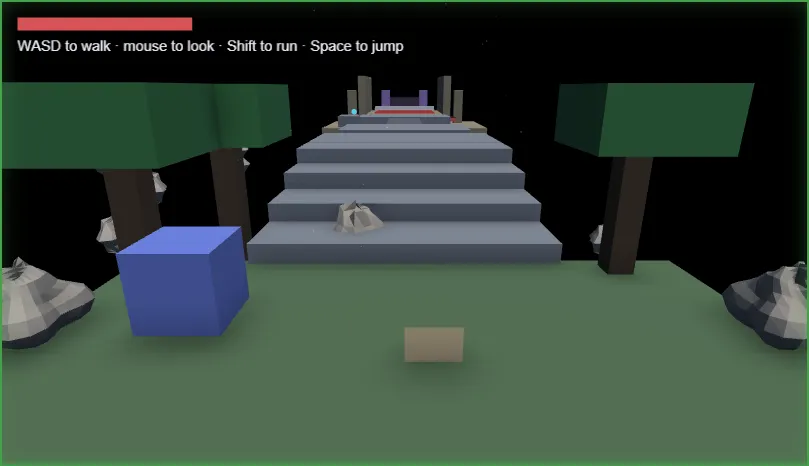
The Third Person example: a camera that follows the character from behind.
Follow a target
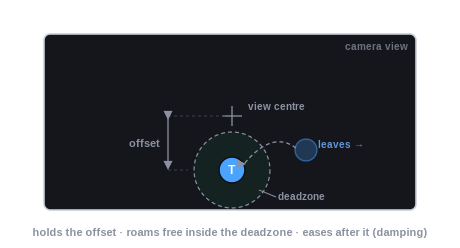
Section titled “Follow a target”Add a FollowTarget to the camera and point it at an entity. The follow is a
frame-rate-independent damped move with a dead zone, so the camera drifts smoothly
and ignores tiny movements:
import { defineSystem, Query, Commands, Camera, FollowTarget } from 'esengine';
const follow = defineSystem([Query(Camera), Commands()], (cameras, cmds) => { for (const [cameraEntity] of cameras) { cmds.entity(cameraEntity).insert(FollowTarget, { target: playerEntity, // the Entity to follow offsetY: 40, deadzone: 24, damping: 0.25, }); }});| Property | Type | Default | Description |
|---|---|---|---|
target |
Entity | 0 |
Entity to follow (0 = none; a -1 from an older scene reads as none too). |
offsetX |
number | 0 |
World-space X offset from the target (in the world even under a parent). |
offsetY |
number | 0 |
World-space Y offset from the target. |
offsetZ |
number | 0 |
World-space Z offset from the target (used by 3D follow). |
followZ |
boolean | false |
Follow the target’s depth too. Off for a flat scene, where the camera’s z is how far back it stands. |
deadzone |
number | 0 |
Radius (world units; a sphere in 3D) the target may roam before the camera moves. |
damping |
number | 0.25 |
Smoothing time-constant in seconds (larger = slower; 0 = snap). |
The data shape is exported as the FollowTargetData type. The follow system writes
the camera’s Transform directly (so the director blends already-followed views)
and runs in play mode only — the editor’s navigation view is never dragged
around by it.
Frame a target by moving the camera
Section titled “Frame a target by moving the camera”PositionComposer frames a target the way LookAtTarget does, on the screen, but moves the camera instead of turning
it: Cinemachine’s Position Composer, and the usual 2D camera. The target is held at a screen point; inside the dead zone
it may wander with the camera still; past it the camera catches up, eased by damping; and the soft zone is as far as
it ever gets: past its edge the camera moves at once. A 3D camera also keeps cameraDistance from the target along
where it looks.
import { PositionComposer } from 'esengine';
cmds.entity(cameraEntity).insert(PositionComposer, { target: player, screenX: 0.4, screenY: 0.4, // a little left of and below centre: room to see ahead deadzoneWidth: 0.1, deadzoneHeight: 0.2, // walking about does not move the camera softzoneWidth: 0.6, softzoneHeight: 0.6, // a dash never takes the player past here damping: 0.25,});| Property | Type | Default | Description |
|---|---|---|---|
target |
Entity | 0 |
Entity framed (0 = none). |
offsetX / offsetY / offsetZ |
number | 0 |
Point framed, as a world-space offset from the target. |
screenX / screenY |
number | 0.5 |
Where the target is held: 0 left or bottom edge, 1 right or top. |
deadzoneWidth / deadzoneHeight |
number | 0 |
Share of the screen the target may move in with the camera still. |
softzoneWidth / softzoneHeight |
number | 0.8 |
Share of the screen the target is kept inside; past its edge the camera moves at once. |
damping |
number | 0.3 |
Seconds to catch up most of the way across the screen (0 = at once). |
cameraDistance |
number | 0 |
3D: how far in front of the camera the target is kept. 0 keeps whatever distance it has. |
depthDamping |
number | 0.3 |
3D: seconds to catch up most of the way to that distance. |
The camera slides across its own screen, its right and up, so a turned camera moves like a dolly. An orthographic
camera’s screen is orthoSize tall at any depth. It is a position stage of the camera pipeline: a camera uses it,
FollowTarget or CameraDolly. The viewport preview draws its dead and soft zones, and the Follow Camera 2D preset is
one.
Look at a target
Section titled “Look at a target”FollowTarget decides where a camera stands; LookAtTarget decides where it looks. Add it to a perspective camera
and point it at an entity: the camera turns so the target sits at a chosen point of the screen, the way Unity
Cinemachine’s Rotation Composer frames a shot. The target may drift inside a dead zone around that point without the
camera turning, and outside it the camera turns only enough to bring it back to the zone’s edge, eased by damping.
import { LookAtTarget } from 'esengine';
cmds.entity(cameraEntity).insert(LookAtTarget, { target: hero, offsetY: 160, // the head, not the feet screenX: 0.5, // held in the middle... screenY: 0.6, // ...a little above centre deadzoneWidth: 0.1, // free to move across a tenth of the screen deadzoneHeight: 0.1, damping: 0.2,});| Property | Type | Default | Description |
|---|---|---|---|
target |
Entity | 0 |
Entity to look at (0 = none). |
offsetX / offsetY / offsetZ |
number | 0 |
Point looked at, as a world-space offset from the target. |
screenX |
number | 0.5 |
Where the target is held across the screen: 0 left edge, 0.5 centre, 1 right edge. |
screenY |
number | 0.5 |
Where the target is held up the screen: 0 bottom edge, 0.5 centre, 1 top edge. |
deadzoneWidth / deadzoneHeight |
number | 0 |
Share of the screen the target may move in without the camera turning. |
damping |
number | 0.1 |
Seconds to turn most of the way to the target (0 = at once). The same at any frame rate. |
The camera turns about world up and its own right, so it never rolls. A camera under a parent is turned in the world
and its own rotation is worked out through the parent’s. An orthographic camera is left alone: it draws a plane, and
turning it would show the plane’s edge. The screen point is measured on the view the camera actually draws, its
viewport share of the screen, so a shot holds the same framing on a phone and on a wide monitor.
Composition guides
Section titled “Composition guides”Select a camera with a LookAtTarget and its preview in the viewport draws the composition over what it sees: the
screen point the target is held at and the dead zone around it, as Cinemachine’s Game Window Guides do. Drag the point
to move screenX/screenY, or an edge of the dead zone to resize it about the point; each drag is one undo step.
The camera pipeline
Section titled “The camera pipeline”Every Camera is a virtual camera: a view the scene describes. Each frame, before any view is chosen, every camera is
moved by the components it carries, always in this order:
| Stage | Component | Cinemachine | Unreal |
|---|---|---|---|
| 1. Position: where it stands | FollowTarget, CameraDolly or PositionComposer |
Position Control (Follow, Spline Dolly, Position Composer) | camera rig position node |
| 2. Rotation: where it looks | LookAtTarget |
Rotation Control (Rotation Composer) | camera rig look-at node |
| 3. Finalize: limits on the result | GroupFraming, CameraDeoccluder, CameraBounds |
Extensions (Group Framing, Deoccluder, Confiner) | spring arm probe, camera modifiers |
| 4. Noise: drift on the drawn view | CameraNoise |
Noise (Basic Multi-Channel Perlin) | camera shake |
The pipeline runs after the game’s own Update systems, as Cinemachine’s Brain runs in LateUpdate, and reads where each
target is this frame. Each stage decides in the world and writes through the camera’s parent, and reads what the stages before it wrote, so
a camera that follows and looks at the same character aims from where it stands this frame. Noise moves only the drawn
view, per camera, before the blend. The camera director then picks one live camera and blends into it (below): Cinemachine’s
Brain and Unreal’s PlayerCameraManager. The camera-shots example puts every stage together: a tracking shot on a
rail, a crane on an orbit and a wide shot, with no camera code. Camera shake is applied after that, to the drawn view only, never to a
camera’s Transform, as a Cinemachine Impulse and an Unreal camera shake are. The pipeline runs in play mode only.
Ride a track
Section titled “Ride a track”A CameraDolly puts a camera on a track: a Spline entity laid in the scene, like a dolly on rails. It is the other way
to say where a camera stands (FollowTarget is the first); a camera uses one of the two. mode picks the place on the
track:
- Fixed (
DollyMode.Fixed): atposition, for a script or an animation to move. - Track Target (
DollyMode.TrackTarget): at the point of the track nearesttarget, moved along byoffset: a camera that runs beside what it films. - Speed (
DollyMode.Speed): moving atspeed, round and round a closed track or to the end of an open one.
import { CameraDolly, DollyMode, LookAtTarget } from 'esengine';
cmds.entity(cameraEntity) .insert(CameraDolly, { spline: railEntity, mode: DollyMode.TrackTarget, target: runner, offset: -150, damping: 0.4 }) .insert(LookAtTarget, { target: runner });| Property | Type | Default | Description |
|---|---|---|---|
spline |
Entity | 0 |
The entity whose Spline is the track. |
mode |
number | Fixed |
How the place on the track is chosen (DollyMode). |
position |
number | 0 |
Where on the track the camera is, in world units from its start. Written back every frame, in every mode. |
target |
Entity | 0 |
What a Track Target dolly keeps level with. |
offset |
number | 0 |
World units ahead of (or, negative, behind) the point nearest the target. |
speed |
number | 0 |
World units a second along the track, for Speed; negative runs backwards. |
damping |
number | 0.3 |
Seconds for a Track Target dolly to catch up most of the way; 0 is at once. |
Distances are along the curve in world units, so a scaled spline is longer. On a closed track a Track Target dolly takes
the short way round, so a target crossing the seam does not send the camera round the loop. The track is the same curve a
PathFollower rides.
Handheld noise
Section titled “Handheld noise”A CameraNoise makes a camera drift and nod like one held by hand, or sway like one on a boat: six channels of smooth
Perlin noise, three moving the view across, up and along itself and three turning it about the same axes, as Cinemachine’s
Basic Multi-Channel Perlin does.
import { CameraNoise } from 'esengine';
cmds.entity(cameraEntity).insert(CameraNoise, { rotation: 0.5, frequency: 0.3 }); // handheldcmds.entity(carCamera).insert(CameraNoise, { amplitude: 4, rotation: 1.5, frequency: 2 }); // on a vehicle| Property | Type | Default | Description |
|---|---|---|---|
amplitude |
number | 0 |
How far the view drifts, in world units. |
rotation |
number | 0.5 |
How far the view turns, in degrees. About 0.5 is a camera held by hand. |
frequency |
number | 0.3 |
How often the drift changes direction, in Hz: about 0.3 by hand, 2 on a vehicle. |
seed |
number | 0 |
Which drift; 0 takes one from the entity, so no two cameras move alike. |
Noise moves the view that is drawn and never the camera’s Transform, so it does not build up, and follow, dolly and
look-at work from where the camera really is. It is applied to each camera before the director blends between them, so a
blend from a shaky camera to a steady one settles. A 2D camera drifts across the screen and rolls. Noise follows the game
clock: it stops when the game is paused.
Frame several targets
Section titled “Frame several targets”Two players on one screen, a boss and the hero: a CameraTargetGroup makes several entities one target, as
Cinemachine’s Target Group does. Each frame its entity is put at the members’ centre, so any stage that takes a target
(FollowTarget, LookAtTarget, PositionComposer, CameraDolly) frames the whole group when given the group’s entity.
GroupFraming on the camera then sizes the shot: the box about the members, each a sphere of the group’s radius, is
made to fill framingSize of the screen, by zooming or by dollying.
import { CameraTargetGroup, GroupFraming, PositionComposer, FramingAdjustment } from 'esengine';
const players = cmds.spawn()  .insert(Transform, {})  .insert(CameraTargetGroup, { members: [p1, p2], weights: [1, 1], radius: 40 })  .id();
cmds.entity(cameraEntity)  .insert(PositionComposer, { target: players })  .insert(GroupFraming, { framingSize: 0.7, adjustment: FramingAdjustment.Zoom });
CameraTargetGroup |
Type | Default | Description |
|---|---|---|---|
members |
Entity[] | [] |
The entities framed together. |
weights |
number[] | [] |
Each member’s weight, in order; a missing one is 1, 0 leaves the member out. |
radius |
number | 50 |
How big each member is, as a sphere about its origin: what the framing keeps on screen. |
center |
number | Bounds |
Where the group stands: GroupCenter.Bounds (middle of the box) or GroupCenter.Average (weighted). |
GroupFraming |
Type | Default | Description |
|---|---|---|---|
group |
Entity | 0 |
The group framed. 0 takes the group the camera’s composer, aim or follow targets. |
framingSize |
number | 0.8 |
Share of the screen the group fills. |
mode |
number | Both |
Fit FramingMode.Horizontal, Vertical, or whichever needs more room (Both). |
adjustment |
number | Zoom |
FramingAdjustment.Zoom changes the lens (orthoSize or field of view); DollyThenZoom moves the camera along where it looks first and zooms for what its range leaves. |
damping |
number | 0.5 |
Seconds to catch up most of the way (0 = at once). |
minFov / maxFov |
number | 10 / 80 |
The lens’s range in degrees. |
minOrthoSize / maxOrthoSize |
number | 1 / 5000 |
An orthographic camera’s range. |
minDistance / maxDistance |
number | 100 / 5000 |
How near the group’s centre a dolly may come, and how far it may go. |
A dolly is held apart from where the rig puts the camera, so a camera that also follows the group backs away smoothly instead of being walked along a step a frame. The Create menu’s Target Group Camera 2D and Target Group Camera make a group and a camera framing it.
Keep the target in sight
Section titled “Keep the target in sight”A wall that comes between a 3D camera and what it frames hides the shot. CameraDeoccluder keeps it in view, as
Cinemachine’s Deoccluder (Pull Camera Forward) and UE’s spring arm do: a sphere is swept from the target back to where
the rig put the camera, and when it meets something the camera is drawn in along that line to just short of it. Along
that line the target stays where the composition held it. When the wall is gone the camera eases back out to where its
rig wants it; the rig’s own stages never see the pulled-in place.
import { CameraDeoccluder } from 'esengine';
cmds.entity(cameraEntity).insert(CameraDeoccluder, { radius: 15, // stop this far short of a wall minimumDistance: 30, // never closer to the target than this dampingWhenOccluded: 0, // in at once, so the wall is never seen through damping: 0.4, // back out over about 0.4 seconds});| Property | Type | Default | Description |
|---|---|---|---|
target |
Entity | 0 |
What must stay in sight. 0 takes the LookAtTarget’s target (with its offset), else the FollowTarget’s. |
radius |
number | 15 |
Radius of the swept sphere: how far short of a wall the camera stops. |
layers |
number | 0 |
Physics layers that hide the target; 0 is every layer. |
minimumDistance |
number | 30 |
The camera is never drawn closer to the target than this. |
dampingWhenOccluded |
number | 0 |
Seconds to move in when something hides the target; 0 is at once. |
damping |
number | 0.4 |
Seconds to move back out once nothing does. |
The sweep asks the 3D physics world, so only bodies with 3D colliders hide a target, and a scene without 3D physics leaves the camera where its rig put it. The Tracking Camera preset carries one.
Keep the camera inside the level
Section titled “Keep the camera inside the level”Add a CameraBounds to the camera and the view never leaves the rectangle — the
level’s edge stays at the edge of the screen instead of showing the void past it:
import { Camera, CameraBounds } from 'esengine';
cmds.entity(cameraEntity).insert(CameraBounds, { minX: -1280, maxX: 1280, // the level's world rectangle minY: -768, maxY: 768,});| Property | Type | Default | Description |
|---|---|---|---|
minX / maxX |
number | 0 |
Horizontal interval the view stays inside. |
minY / maxY |
number | 0 |
Vertical interval the view stays inside. |
Each axis opts in by naming a real interval, so an axis left at 0/0 (or any
max ≤ min) is unconstrained — bound the horizontal one alone for a level that
scrolls sideways forever. When an interval is narrower than the view, the whole
of it is shown centred rather than pinned against one wall.
The clamp runs after everything that moves a camera, FollowTarget included: it
constrains where a camera ends its frame, not what put it there. Orthographic
cameras only — a perspective camera’s half extents depend on how far away the
subject is, which no camera property describes. Like the follow, it runs in
play mode only.
Screen ↔ world coordinates
Section titled “Screen ↔ world coordinates”Read the CameraView resource to convert between the two spaces — for placing
entities under the cursor, or testing what’s visible. Each method returns null
when there is no active camera:
import { defineSystem, Res, CameraView, Input } from 'esengine';
const pick = defineSystem([Res(CameraView), Res(Input)], (view, input) => { const world = view.screenToWorld(input.mouseX, input.mouseY); // { x, y } | null const screen = view.worldToScreen(x, y); // { x, y } | null const mouse = view.getWorldMousePosition(); // { x, y } | null const bounds = view.getWorldBounds(); // { left, right, bottom, top } | null});| Method | Returns | Description |
|---|---|---|
screenToWorld(sx, sy, planeZ = 0) |
{x, y} | null |
Screen pixel → world position on the plane at planeZ. Orthographic cameras ignore the plane; under a perspective camera pass the z the target sits on. |
worldToScreen(wx, wy, wz = 0) |
{x, y} | null |
World position → screen pixel. null when there is no camera or the point is at or behind the eye; outside the viewport still returns coordinates. |
getWorldMousePosition() |
{x, y} | null |
The cursor in world space. |
getWorldBounds() |
{left, right, bottom, top} | null |
The visible world rectangle. |
Camera shake
Section titled “Camera shake”shakeCamera adds a decaying perturbation to the rendered view only — never to
a Transform, so the camera always recovers and the scene stays clean:
import { shakeCamera } from 'esengine';
shakeCamera(app, { amplitude: 12, rotation: 0, frequency: 22, duration: 0.4 });
Both shakeCamera and setViewTarget accept either the App (host code) or the
CameraDirector resource state — inside a system, pass what Res(CameraDirector)
gives you:
import { defineSystem, Res, Input, CameraDirector, shakeCamera } from 'esengine';
const shakeOnHit = defineSystem([Res(Input), Res(CameraDirector)], (input, director) => { if (input.isKeyPressed('Space')) shakeCamera(director, { amplitude: 16 });});| Option | Default | Description |
|---|---|---|
amplitude |
12 |
Peak positional offset (world units). |
rotation |
0 |
Peak rotational shake (radians). |
frequency |
22 |
Oscillations per second. |
duration |
0.4 |
Seconds to decay to zero. |
Impulses: shakes from a place
Section titled “Impulses: shakes from a place”shakeCamera shakes the view wherever it is. An explosion is felt by where it happens: a camera beside it jolts, one
across the level barely trembles. A CameraImpulseSource fires such a jolt, and each camera with a
CameraImpulseListener feels it by its distance, as Cinemachine’s Impulse Source and Impulse Listener do. Like noise,
it moves only the drawn view, never the camera’s Transform.
import { CameraImpulseSource, CameraImpulseListener, fireImpulse } from 'esengine';
cmds.entity(barrel).insert(CameraImpulseSource, { amplitude: 30, frequency: 8, decay: 0.6, radius: 300, dissipation: 2000 });cmds.entity(cameraEntity).insert(CameraImpulseListener, { gain: 1 });
// When it blows:fireImpulse(world, barrel, 1.5);   // half again as strong as authored
CameraImpulseSource |
Type | Default | Description |
|---|---|---|---|
amplitude |
number | 20 |
How far the view is thrown, in world units, at full strength. |
rotation |
number | 1 |
How far it is turned, in degrees. |
frequency |
number | 8 |
How fast it trembles, in Hz. |
attack / sustain / decay |
number | 0.02 / 0.1 / 0.6 |
Seconds to reach full strength, to hold it, and to die away. |
radius |
number | 300 |
Felt at full strength within this distance. |
dissipation |
number | 2000 |
Beyond the radius, the distance over which it fades to nothing. |
propagationSpeed |
number | 0 |
Units a second it travels at, so a far camera feels it later; 0 is everywhere at once. |
channels |
bitmask | 1 |
Which listeners feel it. |
fire |
boolean | false |
Set to fire from here (a timeline, a visual script, the inspector in play); cleared once fired. |
CameraImpulseListener |
Type | Default | Description |
|---|---|---|---|
channels |
bitmask | 1 |
Which impulses this camera feels. |
gain |
number | 1 |
How strongly. |
use2DDistance |
boolean | false |
Measure distance on the X/Y plane only, for a 2D camera standing off the plane it shows. |
The Create menu’s Impulse Source makes one; the Follow Camera 2D, Tracking Camera and group camera presets listen.
Blending between cameras
Section titled “Blending between cameras”setViewTarget switches the active view to another camera entity, optionally
blending over time seconds instead of cutting — for cinematic hand-offs:
import { setViewTarget, BlendCurve } from 'esengine';
// Cut instantly:setViewTarget(app, cutsceneCamera);// Or ease over 1.5s:setViewTarget(app, cutsceneCamera, { time: 1.5, curve: BlendCurve.EaseInOut });
BlendCurve values are Linear, EaseIn, EaseOut, and EaseInOut. time <= 0
(or no prior view) is an instant cut. Position, zoom, and rotation interpolate;
a 3D camera’s orientation turns the short way round from one camera’s to the
other’s; discrete fields (projection, viewport) snap at the midpoint.
Switching cameras by priority
Section titled “Switching cameras by priority”Among the active cameras that fill the screen, the one with the highest priority is live; on a tie, the one switched
on most recently, as Cinemachine’s Brain decides (cameras there when the scene loads keep the first of them). Raise
a camera’s priority, or turn a camera on or off, and a different one goes live. By default the view cuts to it. Add a
CameraBrain to any entity of the scene and the view blends instead, the way a Cinemachine Brain’s Default Blend does:
import { CameraBrain, BlendCurve } from 'esengine';
cmds.spawn().insert(CameraBrain, { defaultBlend: 1.2, blendCurve: BlendCurve.EaseInOut });
// Later: this camera goes live, and the view eases over to it in 1.2 seconds.cmds.entity(bossCamera).insert(Camera, { ...bossCameraData, priority: 10 });| Property | Type | Default | Description |
|---|---|---|---|
defaultBlend |
number | 1 |
Seconds the view takes to move to a camera that goes live without being asked for. 0 cuts. |
blendCurve |
number | EaseInOut |
Easing of that blend: BlendCurve.Linear, EaseIn, EaseOut or EaseInOut. |
customBlends |
records | [] |
Blends for particular changes of camera, by camera name (from, to; empty for any camera), each with its time and curve. |
Custom blends are Cinemachine’s Custom Blends: a cut from the wide shot to a close-up, a slow drift back out. The first
that names both cameras wins, then one naming the camera blended to, then one naming the camera blended from; any other
change takes the default. A time of 0 cuts. The Details edits them as a table:
cmds.spawn().insert(CameraBrain, { defaultBlend: 1, customBlends: [ { from: 'Wide', to: 'Close', time: 0, curve: BlendCurve.Linear }, // cut in { from: '', to: 'Wide', time: 2.5, curve: BlendCurve.EaseInOut }, // ease back out from anywhere ],});If the live camera changes again in the middle of a blend, the new blend starts from where the view is, so it never
jumps. A setViewTarget names its own blend time and is not affected by the brain. One brain per scene; a scene
without one cuts, as before.
Cameras by animation state
Section titled “Cameras by animation state”A character walking is seen by one camera, sprinting by a lower, wider one, aiming by one over its shoulder. A
StateDrivenCamera watches an Animator and switches on the camera its state names, switching the others it names
off, as Cinemachine’s State-Driven Camera does; the brain blends into it like into any camera that goes live (its
default or custom blend), and a CameraEvent says so.
import { StateDrivenCamera } from 'esengine';
cmds.spawn().insert(StateDrivenCamera, { animator: hero, defaultCamera: 'Walk Cam', rules: [ { state: 'Run', camera: 'Run Cam', wait: 0.25, minDuration: 0 }, // a moment of running does not flick the view { state: 'Aim', camera: 'Aim Cam', wait: 0, minDuration: 1 }, // aiming holds the shoulder camera a second ],});| Property | Type | Default | Description |
|---|---|---|---|
animator |
Entity | 0 |
The entity whose Animator is watched. |
layer |
number | 0 |
Which layer of its controller; 0 is the base. |
rules |
records | [] |
Per state (its full path, as the Animator reports it): the camera by name, seconds the state must last before the change (wait), and seconds the camera stays live at least (minDuration). |
defaultCamera |
string | '' |
The camera for a state no rule names; empty leaves the view as it is. |
Only the cameras it names are switched; others keep their own isActive. The Details edits the rules as a table, and
the Create menu’s State-Driven Camera makes one.
The camera director
Section titled “The camera director”setViewTarget and shakeCamera are the API of the camera director — a
per-app resource (CameraDirector) that resolves one main point of view each
frame from the full-frame camera candidates: the committed view target (or the
active/priority camera), blended toward a new target while a transition is in
flight, with shakes applied on top of the rendered view only. Its state
(CameraDirectorState) is readable; treat it as read-only and mutate through
setViewTarget / shakeCamera:
| Field | Type | Default | Description |
|---|---|---|---|
target |
number | -1 |
Committed view-target entity; -1 = fall back to the isActive / highest-priority pick. |
blending |
boolean | false |
A view-target blend is currently in flight. |
duration / curve |
number | 0 / EaseInOut |
Length (seconds) and easing of the active blend. |
currentMain |
CameraPOV | null |
null |
The last resolved main POV, pre-shake — also what screen↔world conversion uses. |
shakes |
ActiveShake[] |
[] |
Active transient shakes (pushed by shakeCamera, dropped when they decay out). |
The remaining fields (timelineShot, timelineOwner — set by a playing timeline’s camera track — hasPending, pendingTarget, pendingTime, pendingCurve,
from, startTime, shakeSeq) are the director’s internal request/blend
bookkeeping written by setViewTarget.
import { defineSystem, Res, CameraDirector } from 'esengine';
const watchDirector = defineSystem([Res(CameraDirector)], (director) => {  if (director.blending) { /* e.g. suppress player input during the hand-off */ }  const pov = director.currentMain;   // CameraPOV | null — the view being rendered  if (pov) { /* pov.x, pov.y, pov.orthoSize, ... */ }});
cameraDirectorReport(app) sums the director up for a tool or a test: the live camera, the blend under way (from which
camera, how far, 0 to 1) and the cameras it chose among.
import { cameraDirectorReport } from 'esengine';
const { live, blend } = cameraDirectorReport(app);if (blend) console.log(`blending ${blend.from} → ${blend.to}: ${Math.round(blend.progress * 100)}%`);
While the game runs in the editor, the Outliner marks the live camera LIVE (with the blend’s progress while there is one) and the camera a blend is leaving OUT, as a Cinemachine Brain’s Live Camera and Live Blend do; in Inspect the game view names them too.
Camera events
Section titled “Camera events”The director tells a game when the view changes cameras, as Cinemachine’s Camera Activated and Blend Finished events
do: read CameraEvent in a system to show a shot’s HUD when its camera goes live, or hand control back once the blend
into it is done. Events are sent as the frame is drawn, so a system reads them the next frame.
import { defineSystem, EventReader, CameraEvent, CameraEventKind } from 'esengine';
const onCameraChange = defineSystem([EventReader(CameraEvent)], (events) => { for (const e of events) { if (e.kind === CameraEventKind.Activated) console.log(`live: ${e.camera} (from ${e.previous}, ${e.blendTime}s)`); if (e.kind === CameraEventKind.BlendFinished) console.log(`settled on ${e.camera}`); }});| Field | Type | Description |
|---|---|---|
kind |
number | CameraEventKind.Activated when a camera goes live (cut to or blended into), BlendFinished when the blend into it ends. |
camera |
Entity | The camera the view is, or goes to. |
previous |
Entity | The camera it left; 0 for none, or a view caught part-way between two. |
blendTime |
number | Seconds the blend into it takes; 0 for a cut. |
CameraPOV
Section titled “CameraPOV”A CameraPOV is a camera’s authored view parameters as one plain snapshot —
the unit the director blends and the shape stored in currentMain:
| Field | Type | Description |
|---|---|---|
entity |
number | Source camera entity, or -1 for a synthetic POV (the editor view). |
isActive |
boolean | The authoritative “this is the main camera” flag. |
x / y / z |
number | Camera position (world units). |
rotation |
number | Z rotation in radians. |
projection |
number | A ProjectionType value. |
orthoSize |
number | Authored ortho half-height (world units). |
fov |
number | Field of view in degrees (Perspective). |
near / far |
number | Clip distances. |
viewport |
{x, y, z, w} |
Screen rect in 0–1 (z/w are width/height). |
clearFlags |
number | A ClearFlags value. |
priority |
number | Tie-breaker among active cameras. |
pixelPerfect |
boolean | Pixel-grid snapping flag. |
During a blend, continuous fields (position, rotation via the shortest angular
path, orthoSize, fov, near/far) interpolate; discrete fields (projection,
pixelPerfect) flip at the midpoint, and viewport / clearFlags / priority
take the target’s values.
Matching the canvas aspect
Section titled “Matching the canvas aspect”updateCameraAspectRatio(world, aspect) stamps aspectRatio onto every
Camera component in the world. The shipped runtimes call it at boot with the
real canvas’s width / height, keeping the authored field in sync with the actual
surface (rendering itself derives aspect from the live viewport each frame):
import { updateCameraAspectRatio } from 'esengine';
updateCameraAspectRatio(app.world, canvas.width / canvas.height);
Multiple cameras & split-screen
Section titled “Multiple cameras & split-screen”With several Camera entities, the active one with the highest priority is live (see
Switching cameras by priority). Give
each camera a sub-rectangle via viewport to share the screen — e.g. two-player
split-screen, left and right halves:
.insert(Camera, { viewport: { x: 0, y: 0, w: 0.5, h: 1 }, isActive: true }); // left.insert(Camera, { viewport: { x: 0.5, y: 0, w: 0.5, h: 1 }, isActive: true }); // rightBest practices
Section titled “Best practices”- Drive zoom through
orthoSize, not Transform scale — scaling the camera entity distorts rendering. - Follow with a dead zone so the camera doesn’t jitter on small movements;
raise
dampingfor a lazier, cinematic feel. - Shake, don’t move: use
shakeCamerafor impacts so the view always recovers. - Enable
pixelPerfectfor pixel-art games to kill sub-pixel shimmer. - Prefer blending (
setViewTargetwithtime) over teleporting the camera for scene and cutscene transitions.
Large worlds
Section titled “Large worlds”A position held in a single float is precise only near zero: 50 km out a step is 4 mm, and a mesh there jitters as the camera moves. setRenderOriginStep(step) draws the world relative to a point near the camera instead:
import { setRenderOriginStep } from 'esengine';
setRenderOriginStep(1024); // metres; 0 (the default) draws relative to the world's own zero
The origin is the camera’s position rounded to step, and it stays where it is until the camera is further than step from it, so shadow maps, the light grid and the other caches laid out on the world’s grid change only when it does. The renderer takes every mesh, light, probe, particle, trail, tilemap and world-space UI from the origin before the GPU sees it, and the camera’s view-projection is built for the same origin, so the picture is the same and the numbers in it are small. Terrain, planets, water, foliage, height fog and the sky’s clouds are laid by the world’s own position and read it back from the origin, so they do not slide when it steps.
Things that stay in the world’s own coordinates, and are not affected: transforms, physics, networking, screenToWorld and picking. Draw callbacks and debug drawing are handed the world’s view-projection and draw in the world’s coordinates, so they keep the precision a single float has far from zero. One origin serves a frame: with several cameras it follows the screen’s own, and a camera far from it draws at single-float precision. The previous frame’s view and meshes are taken to the new origin when it steps, so motion vectors and temporal effects carry on; the global-illumination voxels settle for a frame.
See also
Section titled “See also”- Screen & Design Resolution — the design-resolution
fit, scale modes,
ScreenScaling, andpixelPerfectin depth. - Animation — tween
orthoSizefor smooth zooms. - Input —
screenToWorldwith the mouse for picking. - UI — UI renders in screen space, independent of the camera.