Sprites & Rendering
The Sprite is the workhorse 2D renderer: an entity with a Sprite component
draws a textured quad in the world. For solid primitives without a texture there’s
ShapeRenderer. Everything is drawn through a Camera, and
draw order is controlled by sorting layers.
Your first sprite
Section titled “Your first sprite”A sprite needs a Transform (where it is) and a Sprite (what it draws). Load a
texture through the Assets resource and put its handle on the
sprite:
import { defineSystem, Commands, Res, Query, Mut, Transform, Sprite, Assets } from 'esengine';
const spawnPlayer = defineSystem([Commands(), Res(Assets)], async (cmds, assets) => {  const tex = await assets.loadTexture('textures/player.png');   // { handle, width, height }  cmds.spawn()    .insert(Transform, { position: { x: 0, y: 0, z: 0 } })    .insert(Sprite, { texture: tex.handle, size: { x: tex.width, y: tex.height } });});
sprite.texture is a texture handle, not a path — you get one from a loader
(assets.loadTexture(ref)). In the editor you don’t write this: drag an image from the
Content Browser onto an entity, or set the Sprite’s texture field in Details.
Sprite fields
Section titled “Sprite fields”| Field | Default | Description |
|---|---|---|
texture |
0 |
Texture handle from a loader (0 = untextured, draws a white quad). |
color |
{1,1,1,1} |
Tint multiplied into the texture (white = unchanged). |
size |
{100,100} |
Rendered size in world units. |
pivot |
{0.5,0.5} |
Anchor point (0–1) the sprite rotates and scales about. |
layer |
0 |
Sorting layer — controls draw order (see below). |
flipX / flipY |
false |
Mirror horizontally / vertically. |
material |
0 |
A custom material handle (0 = the default sprite shader). |
lit |
false |
Receive 2D lights with a flat normal — the one-flag path to lit sprites (a custom material overrides it). |
uvOffset / uvScale |
{0,0} / {1,1} |
Sub-rectangle of the texture to show (for atlases / scrolling). |
tileSize / tileSpacing |
{0,0} |
Repeat the texture across the sprite (0 = no tiling). |
parallax |
{1,1} |
Parallax scroll factor (see below). |
enabled |
true |
Hide without removing the component. |
Tint & transparency
Section titled “Tint & transparency”color is an RGBA multiplier over the texture. White ({1,1,1,1}) draws it unchanged;
tint it, or fade it by lowering alpha:
sprite.color = { r: 1, g: 0.4, b: 0.4, a: 1 }; // reddenedsprite.color = { r: 1, g: 1, b: 1, a: 0.5 }; // 50% transparentcolor (and size) are animatable — key them in the
Sequencer for flashes and fades.
Size & pivot
Section titled “Size & pivot”size is the quad’s size in world units, independent of the texture’s pixel
dimensions — set it to { tex.width, tex.height } for 1:1, or anything else to scale.
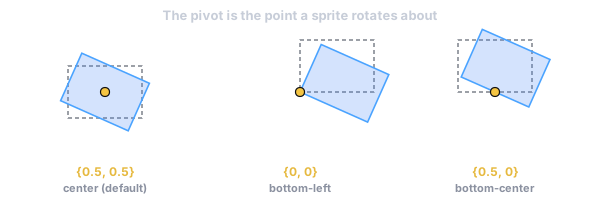
Scale on the Transform multiplies on top of it. pivot is the normalized anchor
(0–1) the sprite rotates and scales about: {0.5, 0.5} is centered, {0, 0} is the
bottom-left corner, {0.5, 0} pins the bottom-center (handy for characters standing on
the ground).
Units & coordinates
Section titled “Units & coordinates”World units are design pixels. Dropping a texture into the viewport spawns a
sprite at the texture’s pixel dimensions (size = { tex.width, tex.height }), and
the editor’s cameras are authored so one world unit is one design pixel
(orthoSize = designHeight / 2). So Sprite.size is in design pixels, and pivot
is a normalized fraction of that size. The world is Y-up — positive Y is up on
screen — which is why pivot: {0, 0} is the bottom-left corner, not the top-left.
Draw order & sorting layers
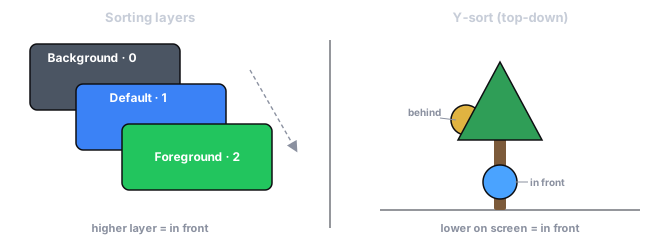
Section titled “Draw order & sorting layers”When sprites overlap, draw order decides what’s on top. Order is set by the sorting
layer (sprite.layer) — a named layer list you define in Project Settings →
Rendering, so the inspector shows a dropdown of Background, Default, Foreground,
etc. instead of a raw number. Lower layers draw first (behind).
sprite.layer = 0; // e.g. "Background"sprite.layer = 2; // e.g. "Foreground" — drawn on topY-sort (top-down occlusion)
Section titled “Y-sort (top-down occlusion)”For top-down games, check a layer under Project Settings → Rendering → Y-sorted
layers and every sprite, shape, and text on that layer draws in world-Y order:
entities lower on screen draw on top, so a character walking below a tree appears in
front of it — no manual layer or z juggling.
Flipping, atlases & scrolling
Section titled “Flipping, atlases & scrolling”- Flip a sprite with
flipX/flipY— e.g. face a character left or right without a separate texture. - Atlases: show one cell of a packed sheet by setting
uvOffsetanduvScaleto the cell’s normalized rectangle. (For frame-by-frame animation, drive these from the Animator instead of by hand.) - Scrolling: animate
uvOffsetover time to scroll a texture (water, conveyor belts), and settileSizeto repeat it across a large sprite.
Texture filtering & wrapping
Section titled “Texture filtering & wrapping”How a texture is sampled is set per texture handle, not per sprite:
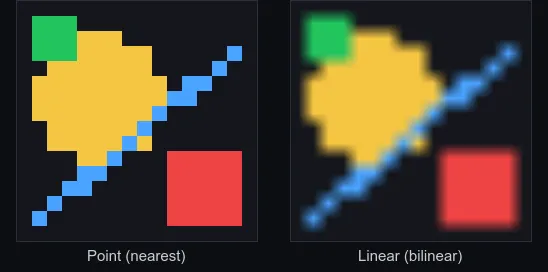
The same tiny texture magnified ~15×. Nearest keeps texel edges hard (pixel art); Linear interpolates between texels for a smooth look (the default).
| Enum | Values | Meaning |
|---|---|---|
TextureFilter |
Nearest, Linear |
Nearest = hard texel edges (pixel art); Linear = smooth interpolation (default). |
TextureWrap |
Repeat, ClampToEdge, MirroredRepeat |
What UVs outside 0–1 sample — tiling repeats, clamp stretches the edge pixel. |
import { TextureFilter, TextureWrap, setTextureFilter, setTextureWrap, setTextureParams } from 'esengine';
setTextureFilter(tex.handle, TextureFilter.Nearest);   // crisp pixel artsetTextureWrap(tex.handle, TextureWrap.Repeat);        // tile outside 0–1 UVs
// The two helpers above each reset the *other* params to their defaults// (ClampToEdge / Linear). To set filter and wrap together, use the full form:setTextureParams(tex.handle, TextureFilter.Nearest, TextureFilter.Nearest,                 TextureWrap.Repeat, TextureWrap.Repeat);
setTextureParams(textureId, minFilter, magFilter, wrapS, wrapT) is the complete
surface — separate minification/magnification filters and per-axis wrap. Repeat
is what makes tileSize tiling and UV-scroll effects seamless.
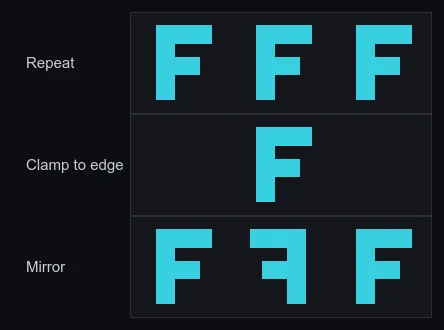
What each wrap mode does with UVs outside the 0–1 range (centre tile = the texture): Repeat tiles it, Clamp to edge stretches the border pixel, and Mirror flips every other copy.
Parallax backgrounds
Section titled “Parallax backgrounds”parallax scales how much a sprite moves relative to the camera: 1 moves with the
world, 0 locks it to the camera (a fixed backdrop), and values in between scroll
slower for depth. Layer a few sprites at 0.2, 0.5, 0.8 for a classic parallax
background.
Custom materials & lighting
Section titled “Custom materials & lighting”Assign sprite.material to draw the sprite with your own shader — a tint, a
dissolve, a distortion — see Materials & Shaders.
To make a sprite respond to Light2D lights, the simplest path is to set
sprite.lit = true — no custom material needed (it’s lit with a flat normal). For
normal maps or a fully custom look, use a Lit-2D material instead. Either way,
see 2D Lighting & Shadows.
Sprite filters (outline, glow, drop shadow)
Section titled “Sprite filters (outline, glow, drop shadow)”For the most common per-sprite effects you don’t need to write a shader —
SpriteFilter builds a ready-made material you assign to sprite.material:
import { SpriteFilter } from 'esengine';
sprite.material = SpriteFilter.createOutline({ color: { r: 1, g: 1, b: 1, a: 1 }, width: 2 });sprite.material = SpriteFilter.createGlow();                        // warm outline presetsprite.material = SpriteFilter.createDropShadow({ offsetX: 3, offsetY: 3, blur: 2 });
Tweak a live filter with setOutlineColor / setOutlineWidth /
setShadowOffset / setShadowBlur (selection pulses, hit flashes). Each call
creates a material — share one handle across sprites that use the same look, and
pass texelSize: { x: 1/texWidth, y: 1/texHeight } for exact pixel widths on
textures that aren’t 512×512.
Shapes without a texture
Section titled “Shapes without a texture”For solid circles, capsules, and rounded rectangles — placeholders, bars, debug
overlays — use ShapeRenderer instead of a texture (ShapeType.Circle,
Capsule, or RoundedRect):
import { ShapeRenderer, ShapeType } from 'esengine';
cmds.spawn()  .insert(Transform, { position: { x: 0, y: 0, z: 0 } })  .insert(ShapeRenderer, {    shapeType: ShapeType.RoundedRect,    size: { x: 200, y: 80 },    cornerRadius: 12,    color: { r: 0.2, g: 0.6, b: 1, a: 1 },  });
ShapeRenderer shares the sorting layer and color conventions with Sprite.
Motion trails
Section titled “Motion trails”TrailRenderer draws a world-space ribbon along an entity’s recent path —
sword swipes, dashes, projectile streaks. Add the component and move the entity;
the engine records the position history and renders the taper for you:
cmds.spawn() .insert(Transform, { position: { x: 0, y: 0, z: 0 } }) .insert(TrailRenderer, { time: 0.4, startWidth: 24, blendMode: 1 }); // additive glow| Field | Default | Description |
|---|---|---|
time |
0.5 |
Seconds each trail point lives before fading out of the tail. |
minVertexDistance |
5 |
Min world distance moved before a new point is recorded (0 = every frame). |
emitting |
true |
false freezes emission — the streak detaches and fades in place. |
startWidth / endWidth |
20 / 0 |
Ribbon width at the head / tail (0 tapers to a line). |
startColor / endColor |
white / white α 0 | Color lerped head → tail; tail alpha 0 is the fade-out. |
texture |
0 |
Texture along the ribbon (U runs head→tail); 0 = vertex colors only. |
blendMode |
0 |
0 Normal, 1 Additive (glow), 2 Multiply. |
layer / material |
0 / 0 |
The usual sorting layer / custom material. |
The Trail resource (Res(Trail)) adds clear(entity) to drop an entity’s
history instantly — e.g. when teleporting, so the trail doesn’t streak across the
map.
Bitmap text in the world
Section titled “Bitmap text in the world”BitmapText renders world-space text from a prebaked bitmap font — damage
numbers, name tags, retro UI. Point font at a BMFont asset (.fnt text or
.bmfont JSON) and set text:
| Field | Default | Description |
|---|---|---|
text |
'' |
The string to draw. |
font |
0 |
The bitmap-font asset (.fnt / .bmfont). |
fontSize |
1 |
Scale over the font’s authored size. |
align |
Left |
Left / Center / Right. |
spacing |
0 |
Extra per-character spacing. |
color |
{1,1,1,1} |
Tint — animatable (flash a damage number). |
layer / parallax |
0 / {1,1} |
Same sorting layer / parallax semantics as Sprite. |
For screen-space UI text (layout, wrapping, SDF sharpness), use the UI Text
widget instead — see UI.
Hit-testing sprites
Section titled “Hit-testing sprites”“Did the click land on this sprite?” is two steps: convert the screen point to
world space, then test it against the sprite’s rectangle. The CameraView
resource does the first (see Camera); for the second the
SDK exports pivot-aware point tests:
| Function | Tests |
|---|---|
pointInWorldRect(px, py, worldX, worldY, worldW, worldH, pivotX, pivotY) |
An axis-aligned rectangle placed by position + pivot (a sprite’s exact footprint when unrotated). |
pointInOBB(…, rotationZ, rotationW) |
The same rectangle rotated — pass the transform quaternion’s z/w; falls back to the rect test when unrotated. |
pointInHitArea(px, py, area) |
A custom HitAreaShape — rect, circle, or polygon. |
import { defineSystem, Query, Res, CameraView, Input, Transform, Sprite, pointInOBB } from 'esengine';
const clickSprites = defineSystem(  [Query(Transform, Sprite), Res(CameraView), Res(Input)],  (q, view, input) => {    if (!input.isMouseButtonPressed(0)) return;    const p = view.screenToWorld(input.mouseX, input.mouseY);    if (!p) return;    for (const [entity, t, s] of q) {      const w = s.size.x * t.worldScale.x, h = s.size.y * t.worldScale.y;      if (pointInOBB(p.x, p.y, t.worldPosition.x, t.worldPosition.y,                     w, h, s.pivot.x, s.pivot.y,                     t.worldRotation.z, t.worldRotation.w)) {        console.log('hit', entity);      }    }  });
For sprites whose clickable region isn’t their rectangle — an irregular character,
a donut-shaped button — describe the region as a HitAreaShape in sprite-local
coordinates and test the localized point:
import { pointInHitArea, type HitAreaShape } from 'esengine';
const hull: HitAreaShape = { type: 'polygon', points: [0, 0, 64, 0, 64, 48, 32, 64, 0, 48] };// For an unrotated sprite, localize by subtracting its origin:const hit = pointInHitArea(p.x - t.worldPosition.x, p.y - t.worldPosition.y, hull);
screenToWorld is also exported standalone (it takes an inverse view-projection
matrix and a viewport rectangle) for code that manages its own camera math — the
CameraView resource is the same function with the active camera filled in. For
interactive UI, don’t hand-roll any of this: Interactable + UIEvents do
picking for you (see UI).
Cache as bitmap
Section titled “Cache as bitmap”CacheAsBitmap supports rendering an entity’s expensive content once into
an offscreen texture and drawing that single quad afterwards — the classic
cache-as-bitmap trade: GPU memory (width × height RGBA) for per-frame draw cost.
It pays when content is costly to draw every frame (many vector paths, lots of
text or shapes) but rarely changes; it does nothing for you if the content
changes every frame — you’d re-render the cache each time and pay the extra blit.
| Field | Default | Description |
|---|---|---|
enabled |
true |
Whether caching is active for this entity. |
dirty |
true |
Set true to request a re-render of the cache. |
width / height |
256 |
Cache texture size in pixels. |
The component is the bookkeeping half — the SDK does not ship a system that
walks the scene and caches subtrees automatically. You drive the refresh with the
exported helpers: a per-entity cache store (getCacheForEntity,
setCacheForEntity, removeCacheForEntity, clearAllCaches) and CacheBitmap,
a thin render-target wrapper (create, beginDraw/endDraw, resize,
release):
import { CacheBitmap, getCacheForEntity, setCacheForEntity, Draw } from 'esengine';
// Refresh (only when dirty):let cache = getCacheForEntity(entity);if (!cache) {  cache = CacheBitmap.create(512, 256);  setCacheForEntity(entity, cache);}CacheBitmap.beginDraw(cache, viewProjection);   // an ortho matrix framing the content// … draw the expensive content once, with Draw / Graphics …CacheBitmap.endDraw();
// Every frame thereafter: one textured quad instead of the whole redraw.Draw.texture(pos, { x: 512, y: 256 }, cache.textureId);
cache.textureId is an ordinary texture handle — it also works as a
Sprite.texture. Under the hood this is a RenderTexture
without a depth buffer.
In the editor
Section titled “In the editor”- Create → Sprite adds a sprite entity, or drag an image from the Content Browser into the viewport to spawn one already textured.
- Every field above is editable in Details; sprites, cameras, and lights show as gizmos in the viewport. See The Editor.
See also
Section titled “See also”- Animation — sprite-sheet flipbooks and tweened properties.
- Custom Drawing — meshes and immediate-mode shapes beyond sprites.
- 2D Lighting & Shadows — normal maps and per-sprite lighting.