2D Lighting & Shadows
Estella lights 2D scenes with Light2D sources and ShadowCaster2D occluders.
A light is just an entity with a Light2D component; a renderer receives light only
when it’s drawn with a Lit-2D material. This keeps lighting opt-in and cheap — most
sprites stay unlit, and the ones you want lit get a lit material.
Adding a light
Section titled “Adding a light”Give an entity a Light2D component and pick a type:
import { defineSystem, Commands, Transform, Light2D, Light2DType } from 'esengine';
const addSun = defineSystem([Commands()], (cmds) => {  cmds.spawn()    .insert(Transform, { position: { x: 0, y: 0, z: 0 } })    .insert(Light2D, {      type: Light2DType.Directional,      color: { r: 1, g: 0.95, b: 0.8, a: 1 },      intensity: 1.2,      direction: { x: -1, y: -1 },    });});
Light2D fields (with defaults):
| Field | Default | Description |
|---|---|---|
type |
Point |
Light2DType: Point, Directional, Ambient, or Spot. |
color |
{1,1,1,1} |
Light color, RGBA 0..1. |
intensity |
1 |
Brightness multiplier. |
radius |
200 |
Falloff reach in world units (Point / Spot). |
direction |
{0,0} |
Aim direction (Directional / Spot). |
innerAngle |
30 |
Spot cone inner angle, degrees (full brightness inside). |
outerAngle |
45 |
Spot cone outer angle, degrees (falls to zero by here). |
shadowSoftness |
0 |
Shadow edge softness (light-source size); 0 = hard edge. |
shadowDistance |
0 |
Directional shadow reach; 0 = no directional shadow. |
enabled |
true |
Turn the light off without removing it. |
Light types
Section titled “Light types”| Type | Behavior |
|---|---|
| Directional | A uniform light from one direction, like the sun — position doesn’t matter, only the aim. |
| Point | Radiates from the entity’s position and falls off to nothing at radius. |
| Spot | A cone from the position along direction, full-bright within innerAngle and fading to the edge at outerAngle, out to radius. |
| Ambient | A flat base light added everywhere, regardless of position — use a low intensity so shaded areas aren’t pure black. |
// A warm point light.insert(Light2D, { type: Light2DType.Point, radius: 320, intensity: 1.5,                   color: { r: 1, g: 0.7, b: 0.3, a: 1 } });
// A flashlight cone.insert(Light2D, { type: Light2DType.Spot, direction: { x: 0, y: -1 },                   innerAngle: 18, outerAngle: 34, radius: 500, intensity: 2 });
// A dim ambient fill so nothing is fully black.insert(Light2D, { type: Light2DType.Ambient, intensity: 0.25 });
Making a renderer receive light
Section titled “Making a renderer receive light”By default a Sprite draws with an unlit material and ignores every light. The
simplest way to light one is the lit flag — no material, no shader:
app.world.spawn() .insert(Transform, { position: { x: 0, y: 0, z: 0 } }) .insert(Sprite, { texture: hero, lit: true });In the editor this is the Lit checkbox on the Sprite component. The sprite is lit with a flat normal — every 2D light type, falloff, and shadow works out of the box.
When you need more than the flag (a tint parameter, a normal map, custom surface logic), use a material whose shader declares the Lit-2D domain. The engine injects the lighting uniforms and helpers, and the vertex stage is optional for 2D shaders — you write only the fragment:
#pragma shader "MyLit"#pragma version 300 es#pragma domain Lit2D
#pragma fragmentprecision mediump float;in vec4 v_color;in vec2 v_texCoord;in highp vec2 v_worldPos;uniform sampler2D u_textures[8];out vec4 fragColor;
// #pragma domain Lit2D makes the engine inject the LightConstants block and the// applyLighting2D() helper — you just call it with your base color and a normal.void main() {  vec4 base = texture(u_textures[0], v_texCoord) * v_color;  vec3 N = vec3(0.0, 0.0, 1.0);                 // flat normal, facing the camera  vec3 lit = applyLighting2D(base.rgb, N, v_worldPos);  fragColor = vec4(lit, base.a);}#pragma end
In the editor, New Material (Lit) in the Content Browser creates exactly this — a ready lit material with a tint and an optional normal map. From code, compile and assign it as in Materials & Shaders:
import { Material, defineSystem, Query, Mut, Sprite } from 'esengine';
const litMat = Material.create({ shader: Material.compileShader(myLitSource) });
const applyLit = defineSystem([Query(Mut(Sprite))], (q) => {  for (const [, sprite] of q) sprite.material = litMat;});
You can also build a lit material visually — set the Material Graph’s domain to
Lit2D — see the material graph section.
Normal maps
Section titled “Normal maps”The N you pass to applyLighting2D is the surface normal. Passing a constant
vec3(0, 0, 1) gives flat, evenly-lit surfaces. For per-pixel relief, sample a
normal map in the shader and use that as N instead — the same base color then
catches highlights and shadow from each light’s direction. Add the normal texture as a
#pragma param … texture on your lit material (see Materials & Shaders).
Casting shadows
Section titled “Casting shadows”Add a ShadowCaster2D to an entity to make it block light and cast a shadow:
import { ShadowCaster2D } from 'esengine';
cmds.spawn()  .insert(Transform, { position: { x: 100, y: 0, z: 0 } })  .insert(Sprite, { /* … a lit material … */ })  .insert(ShadowCaster2D, { size: { x: 64, y: 64 } });
ShadowCaster2D field |
Default | Description |
|---|---|---|
size |
{32,32} |
The occluder’s size in world units. |
enabled |
true |
Toggle shadow casting. |
Shadow quality is controlled on the light, not the caster:
shadowSoftness— the light-source size.0is a crisp hard edge; larger values give a soft penumbra (a bigger, closer light casts softer shadows).shadowDistance— for a Directional light, how far its shadows extend;0leaves a directional light shadow-free.
Linear color space
Section titled “Linear color space”By default the engine renders gamma-space — colors blend as-authored, the way 2D pipelines classically have. A project can switch to the linear-light pipeline: textures decode from sRGB to linear on sample (in hardware), lights and tints blend in linear light, and the finished frame encodes back to sRGB in the final blit.
Physically-correct blending changes how light accumulates: falloffs stop crushing to black, and overlapping lights add like light instead of paint. Unlit art round-trips unchanged — decode followed by encode is an identity — so switching does not repaint your sprites; the difference shows wherever colors mix.
Linear mode is also the door to HDR: where float render targets are available
(WebGPU always; WebGL2 with EXT_color_buffer_float), the post-process chain runs in
half-float, so a light with intensity above 1 pushes real over-range energy into
bloom and tonemap — bright lights glow.
Enable it in Project Settings → Rendering → Color space → Linear. Shaders compile against the mode, so it is fixed at engine boot — the editor prompts for a reload. The setting rides the project manifest: the viewport, Play, and every export — web, desktop, WeChat, playable — boot the same pipeline. Code-first projects pass it at app creation:
const app = createWebApp(module, { colorSpace: 'linear' });In the editor
Section titled “In the editor”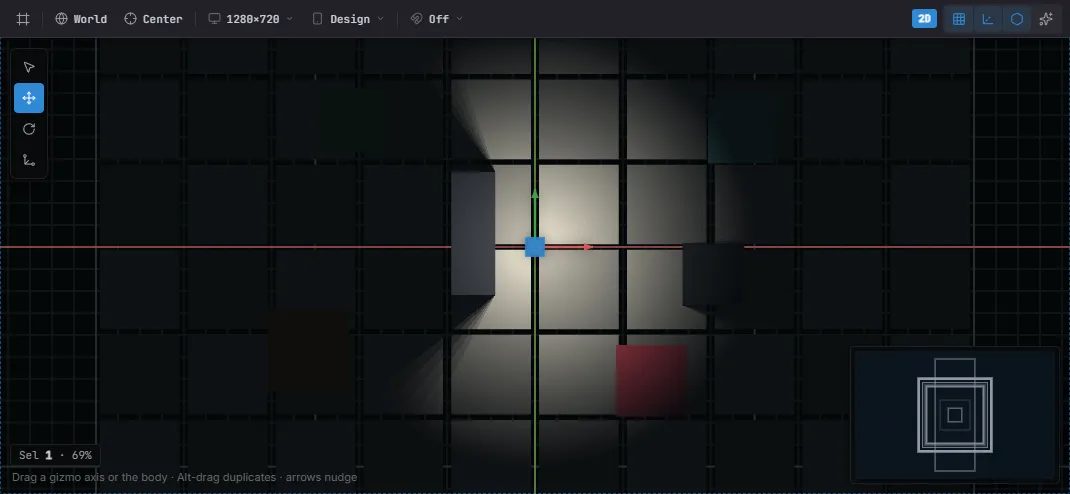
A Light2D previewed in the editor — its reach pool and the shadows the pillars cast (turn on Preview FX to light the scene in edit mode).
- Add a light via Create… → Light, or add a
Light2Dcomponent to an existing entity in the Details panel. - Lights are drawn as gizmos in edit mode — an icon plus the reach circle and the direction / cone — so you can aim and size them by eye. See The Editor.
- Tune
color(a color picker),intensity,radius, and the spot angles live in Details; the results update in the viewport immediately. - All of a light’s visual fields (
color,intensity,radius, the angles, and the shadow settings) are animatable — key them in the Sequencer for flickering torches, day/night cycles, or a pulsing beacon.
See also
Section titled “See also”- Materials & Shaders — lit materials and custom shading.
- Post-processing — bloom and color grading over the lit scene.
- Sprites & Rendering — normal maps that give 2D sprites depth under light.