Camera
Every scene is rendered through a camera: an entity with a Camera component. A
camera controls zoom, projection, and which slice of the world reaches the screen.
This guide covers configuring a camera, following a target, converting between
screen and world space, shaking and blending the view, and running several cameras
at once.
How it works
Section titled “How it works”You can have many camera entities, but one is active at a time. The engine
picks the active camera by isActive + priority (the highest-priority active
camera wins), and renders the world through it into its viewport (a screen
rectangle). For a 2D game the projection is Orthographic, where orthoSize —
the visible half-height in world units — is your zoom: smaller means zoomed in.
Quick start
Section titled “Quick start”Spawn an orthographic camera and make it active:
import { defineSystem, Commands, Transform, Camera, ProjectionType } from 'esengine';
const spawnCamera = defineSystem([Commands()], (cmds) => {  cmds.spawn()    .insert(Transform, { position: { x: 0, y: 0, z: 0 } })    .insert(Camera, {      projectionType: ProjectionType.Orthographic,      orthoSize: 540,        // half-height in world units → zoom      isActive: true,    });});
The Camera component
Section titled “The Camera component”The SDK defaults are tuned for 2D (Orthographic, active, orthoSize 540). Move
the camera by moving its entity’s Transform.
| Property | Type | Default | Description |
|---|---|---|---|
projectionType |
ProjectionType |
Orthographic |
Orthographic (2D) or Perspective. |
orthoSize |
number | 540 |
Visible half-height in world units (Orthographic) — your zoom. Animatable. |
fov |
number | 60 |
Field of view in degrees (Perspective only; 1–179). |
nearPlane |
number | 0.1 |
Near clip distance. |
farPlane |
number | 1000 |
Far clip distance. |
aspectRatio |
number | 1.77 |
Width / height. 0 = auto from the viewport. |
isActive |
boolean | true |
Whether this camera is eligible to be the active one. |
priority |
number | 0 |
Tie-breaker among active cameras (higher wins). |
viewport |
Vec4 | {0,0,1,1} |
Screen rect x, y, w, h in 0–1 (split-screen / PiP). |
clearFlags |
ClearFlags |
ColorAndDepth |
What to clear first: Nothing / Color / Depth / ColorAndDepth. |
pixelPerfect |
boolean | false |
Snap to the world pixel grid for crisp pixel art (Orthographic). |
showFrustum |
boolean | false |
Editor-only: draw the camera’s frustum gizmo. |
Zoom & projection
Section titled “Zoom & projection”orthoSize is the zoom control — halve it to double the on-screen scale. Because
it’s animatable, the smoothest way to zoom is a tween:
import { defineSystem, Res, Tween, TweenTarget } from 'esengine';
const zoomIn = defineSystem([Res(Tween)], (tween) => {  tween.to(cameraEntity, TweenTarget.CameraOrthoSize, 270, 0.5);   // zoom to 2×});
Use Perspective only for pseudo-3D layered scenes; leave 2D games on
Orthographic so sizes stay constant with depth.
Design-resolution fit
Section titled “Design-resolution fit”In a shipped game the main camera usually does not render its raw orthoSize.
Each frame the engine resolves a fit source and, when one is active, letterboxes
the project’s design resolution (default 1920×1080) into the actual screen aspect —
the visible half-height is computed from designResolution.y / 2 and a scale mode,
so world units stay design pixels on every device. The fit source is, in order:
- the
ScreenScalingresource (Project Settings → Display → Camera fit), when itsscaleModeis a real mode (≥ 0); - else the scene’s
Canvascomponent, if one exists; - else none — the camera renders its raw
orthoSize.
The default orthoSize of 540 is exactly designResolution.y / 2, so the fitted
and unfitted views agree at the design aspect. Scale modes, worked letterbox
examples, and the ScreenScaling fields are covered in
Screen & Design Resolution.
Follow a target
Section titled “Follow a target”Add a FollowTarget to the camera and point it at an entity. The follow is a
frame-rate-independent damped move with a dead zone, so the camera drifts smoothly
and ignores tiny movements:
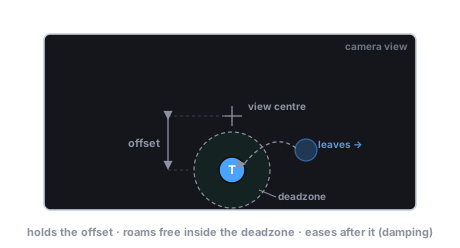
import { defineSystem, Query, Commands, Camera, FollowTarget } from 'esengine';
const follow = defineSystem([Query(Camera), Commands()], (cameras, cmds) => { for (const [cameraEntity] of cameras) { cmds.entity(cameraEntity).insert(FollowTarget, { target: playerEntity, // the Entity to follow offsetY: 40, deadzone: 24, damping: 0.25, }); }});| Property | Type | Default | Description |
|---|---|---|---|
target |
Entity | -1 |
Entity to follow (-1 = none). |
offsetX |
number | 0 |
World-space X offset from the target. |
offsetY |
number | 0 |
World-space Y offset from the target. |
deadzone |
number | 0 |
Radius (world units) the target may roam before the camera moves. |
damping |
number | 0.25 |
Smoothing time-constant in seconds (larger = slower; 0 = snap). |
The data shape is exported as the FollowTargetData type. The follow system writes
the camera’s Transform directly (so the director blends already-followed views)
and runs in play mode only — the editor’s navigation view is never dragged
around by it.
Screen ↔ world coordinates
Section titled “Screen ↔ world coordinates”Read the CameraView resource to convert between the two spaces — for placing
entities under the cursor, or testing what’s visible. Each method returns null
when there is no active camera:
import { defineSystem, Res, CameraView, Input } from 'esengine';
const pick = defineSystem([Res(CameraView), Res(Input)], (view, input) => { const world = view.screenToWorld(input.mouseX, input.mouseY); // { x, y } | null const screen = view.worldToScreen(x, y); // { x, y } | null const mouse = view.getWorldMousePosition(); // { x, y } | null const bounds = view.getWorldBounds(); // { left, right, bottom, top } | null});| Method | Returns | Description |
|---|---|---|
screenToWorld(sx, sy) |
{x, y} | null |
Screen pixel → world position. |
worldToScreen(wx, wy) |
{x, y} | null |
World position → screen pixel. |
getWorldMousePosition() |
{x, y} | null |
The cursor in world space. |
getWorldBounds() |
{left, right, bottom, top} | null |
The visible world rectangle. |
Camera shake
Section titled “Camera shake”shakeCamera adds a decaying perturbation to the rendered view only — never to
a Transform, so the camera always recovers and the scene stays clean:
import { shakeCamera } from 'esengine';
shakeCamera(app, { amplitude: 12, rotation: 0, frequency: 22, duration: 0.4 });
Both shakeCamera and setViewTarget accept either the App (host code) or the
CameraDirector resource state — inside a system, pass what Res(CameraDirector)
gives you:
import { defineSystem, Res, Input, CameraDirector, shakeCamera } from 'esengine';
const shakeOnHit = defineSystem([Res(Input), Res(CameraDirector)], (input, director) => { if (input.isKeyPressed('Space')) shakeCamera(director, { amplitude: 16 });});| Option | Default | Description |
|---|---|---|
amplitude |
12 |
Peak positional offset (world units). |
rotation |
0 |
Peak rotational shake (radians). |
frequency |
22 |
Oscillations per second. |
duration |
0.4 |
Seconds to decay to zero. |
Blending between cameras
Section titled “Blending between cameras”setViewTarget switches the active view to another camera entity, optionally
blending over time seconds instead of cutting — for cinematic hand-offs:
import { setViewTarget, BlendCurve } from 'esengine';
// Cut instantly:setViewTarget(app, cutsceneCamera);// Or ease over 1.5s:setViewTarget(app, cutsceneCamera, { time: 1.5, curve: BlendCurve.EaseInOut });
BlendCurve values are Linear, EaseIn, EaseOut, and EaseInOut. time <= 0
(or no prior view) is an instant cut. Position, zoom, and rotation interpolate;
discrete fields (projection, viewport) snap at the midpoint.
The camera director
Section titled “The camera director”setViewTarget and shakeCamera are the API of the camera director — a
per-app resource (CameraDirector) that resolves one main point of view each
frame from the full-frame camera candidates: the committed view target (or the
active/priority camera), blended toward a new target while a transition is in
flight, with shakes applied on top of the rendered view only. Its state
(CameraDirectorState) is readable; treat it as read-only and mutate through
setViewTarget / shakeCamera:
| Field | Type | Default | Description |
|---|---|---|---|
target |
number | -1 |
Committed view-target entity; -1 = fall back to the isActive / highest-priority pick. |
blending |
boolean | false |
A view-target blend is currently in flight. |
duration / curve |
number | 0 / EaseInOut |
Length (seconds) and easing of the active blend. |
currentMain |
CameraPOV | null |
null |
The last resolved main POV, pre-shake — also what screen↔world conversion uses. |
shakes |
ActiveShake[] |
[] |
Active transient shakes (pushed by shakeCamera, dropped when they decay out). |
The remaining fields (hasPending, pendingTarget, pendingTime, pendingCurve,
from, startTime, shakeSeq) are the director’s internal request/blend
bookkeeping written by setViewTarget.
import { defineSystem, Res, CameraDirector } from 'esengine';
const watchDirector = defineSystem([Res(CameraDirector)], (director) => {  if (director.blending) { /* e.g. suppress player input during the hand-off */ }  const pov = director.currentMain;   // CameraPOV | null — the view being rendered  if (pov) { /* pov.x, pov.y, pov.orthoSize, ... */ }});
CameraPOV
Section titled “CameraPOV”A CameraPOV is a camera’s authored view parameters as one plain snapshot —
the unit the director blends and the shape stored in currentMain:
| Field | Type | Description |
|---|---|---|
entity |
number | Source camera entity, or -1 for a synthetic POV (the editor view). |
isActive |
boolean | The authoritative “this is the main camera” flag. |
x / y / z |
number | Camera position (world units). |
rotation |
number | Z rotation in radians. |
projection |
number | A ProjectionType value. |
orthoSize |
number | Authored ortho half-height (world units). |
fov |
number | Field of view in degrees (Perspective). |
near / far |
number | Clip distances. |
viewport |
{x, y, z, w} |
Screen rect in 0–1 (z/w are width/height). |
clearFlags |
number | A ClearFlags value. |
priority |
number | Tie-breaker among active cameras. |
pixelPerfect |
boolean | Pixel-grid snapping flag. |
During a blend, continuous fields (position, rotation via the shortest angular
path, orthoSize, fov, near/far) interpolate; discrete fields (projection,
pixelPerfect) flip at the midpoint, and viewport / clearFlags / priority
take the target’s values.
Matching the canvas aspect
Section titled “Matching the canvas aspect”updateCameraAspectRatio(world, aspect) stamps aspectRatio onto every
Camera component in the world. The shipped runtimes call it at boot with the
real canvas’s width / height, keeping the authored field in sync with the actual
surface (rendering itself derives aspect from the live viewport each frame):
import { updateCameraAspectRatio } from 'esengine';
updateCameraAspectRatio(app.world, canvas.width / canvas.height);
Multiple cameras & split-screen
Section titled “Multiple cameras & split-screen”With several Camera entities, isActive + priority decide which is live. Give
each camera a sub-rectangle via viewport to share the screen — e.g. two-player
split-screen, left and right halves:
.insert(Camera, { viewport: { x: 0, y: 0, w: 0.5, h: 1 }, isActive: true }); // left.insert(Camera, { viewport: { x: 0.5, y: 0, w: 0.5, h: 1 }, isActive: true }); // rightBest practices
Section titled “Best practices”- Drive zoom through
orthoSize, not Transform scale — scaling the camera entity distorts rendering. - Follow with a dead zone so the camera doesn’t jitter on small movements;
raise
dampingfor a lazier, cinematic feel. - Shake, don’t move: use
shakeCamerafor impacts so the view always recovers. - Enable
pixelPerfectfor pixel-art games to kill sub-pixel shimmer. - Prefer blending (
setViewTargetwithtime) over teleporting the camera for scene and cutscene transitions.
See also
Section titled “See also”- Screen & Design Resolution — the design-resolution
fit, scale modes,
ScreenScaling, andpixelPerfectin depth. - Animation — tween
orthoSizefor smooth zooms. - Input —
screenToWorldwith the mouse for picking. - UI — UI renders in screen space, independent of the camera.