Animation
Estella has three animation systems, each for a different job:
- Sprite animation — frame-by-frame sprite-sheet playback (
SpriteAnimator). - Tweens — interpolate any property over time with easing (
Tween). - Animator state machine — character animation driven by parameters (
Animator).
They compose: a state machine can drive sprite clips, and tweens can juice a UI element while a sprite loops.
Sprite animation
Section titled “Sprite animation”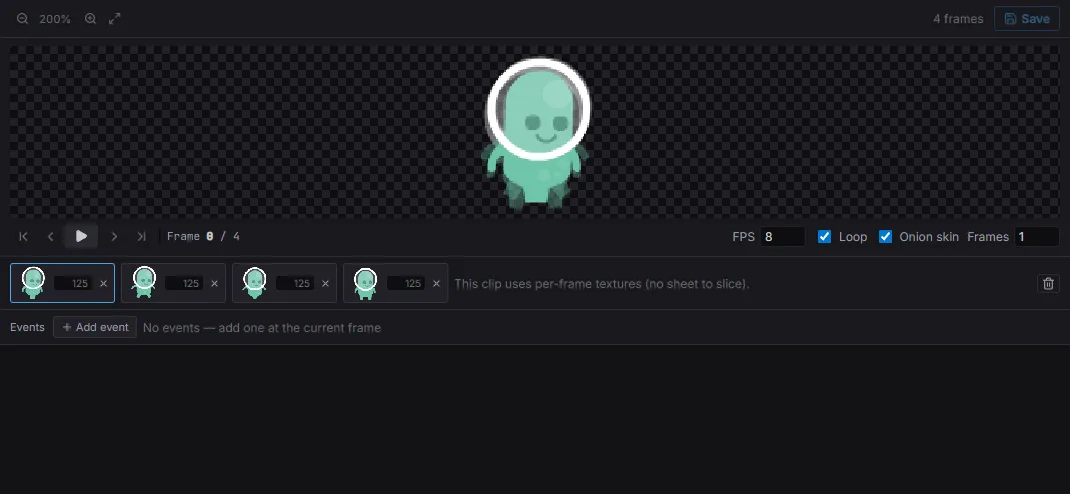
The flipbook editor: a 4-frame walk clip, per-frame durations, and a live preview with FPS / loop / onion-skin.
The SpriteAnimator component plays named sprite-sheet clips (authored as
anim-clip assets). Switch clips by writing the component through a Mut query:
import { defineSystem, Query, Mut, SpriteAnimator } from 'esengine';
const setClip = defineSystem([Query(Mut(SpriteAnimator))], (q) => { for (const [entity, animator] of q) { animator.clip = 'walk'; animator.speed = 1.5; animator.playing = true; }});| Property | Type | Default | Description |
|---|---|---|---|
clip |
asset | '' |
Current clip (an anim-clip asset name). |
speed |
number | 1 |
Playback speed multiplier. |
playing |
boolean | true |
Whether playback is advancing. |
loop |
boolean | true |
Loop the clip vs. hold the last frame. |
enabled |
boolean | true |
Disable to freeze the animator. |
finished |
boolean | false |
Read-only: latched when a one-shot clip completes. Raising playing on a finished animator replays from frame 0. |
currentFrame |
number | 0 |
Read-only: the frame index being shown. |
frameTimer |
number | 0 |
Read-only: time accumulated on the current frame. |
For finer control, the SpriteAnimation resource jumps to a specific frame or a
named label and registers clips at runtime:
import { defineSystem, Query, Mut, Res, SpriteAnimator, SpriteAnimation } from 'esengine';
const jump = defineSystem([Query(Mut(SpriteAnimator)), Res(SpriteAnimation)], (q, sprites) => { for (const [entity, animator] of q) { sprites.gotoFrame(animator, 0, true); // frame index, and play sprites.gotoLabel(animator, 'attack', true); // named label, and play }});| Method | Description |
|---|---|
gotoFrame(animator, index, andPlay?) |
Jump to a frame index (optionally start playing). |
gotoLabel(animator, label, andPlay?) |
Jump to a named label in the clip. |
registerClip(clip) |
Register a SpriteAnimClip at runtime. |
getClip(name) |
Look up a registered clip. |
Frame events
Section titled “Frame events”Clips carry frame events (SpriteAnimEvent — { frame, name, data? }) that
fire when playback reaches a frame: a footstep sound, the hit frame of an attack,
the moment a coin flips. Author them on the Events track of the Flipbook
editor — pick a frame, Add event, name it; the frame strip marks which frames
carry one. Then subscribe:
import { defineSystem, Res, SpriteAnimation } from 'esengine';
const listen = defineSystem([Res(SpriteAnimation)], (anim) => { anim.onEvent(playerEntity, (e) => { if (e.name === 'footstep') audio.playSFX('sfx/step.wav'); });});| Method | Description |
|---|---|
onEvent(entity, handler) |
Listen to one entity’s frame events. Returns an unsubscribe function. |
onEventGlobal(handler) |
Listen to every entity’s — the handler receives the entity too. |
Authoring clips in the editor
Section titled “Authoring clips in the editor”Clips are .esanim assets you author visually — no JSON by hand:
- Right-click a texture in the Content Browser and choose Create Sprite Animation. The Flipbook editor opens with the sheet under a slicing grid (the cell size is guessed from the image; adjust cell width/height, margin, and spacing in the toolbar).
- Click or drag across cells to append frames. The frame strip below shows
each frame’s thumbnail with an editable duration (ms; empty =
1000 / FPS), drag to reorder, and a live looping preview. - Save, then right-click the
.esanim→ Create Animated Sprite (or drag it into the viewport). You get aSprite+SpriteAnimatorentity posed at frame 0 — it plays in Play mode with zero code.
Selecting an animated sprite loops its flipbook in the viewport while editing (toggle with the Preview FX show flag). If the clip is open in the Flipbook editor at the same time, frame edits animate live as you make them.
Re-slicing the grid moves every frame consistently — frames reference grid cells, not pixel rectangles. Frames that fall outside the current grid are flagged red in the strip.
Clips from code
Section titled “Clips from code”The .esanim document is plain data, so a clip can also be built at runtime:
createAnimClip starts a sheet-sliced clip, you append { cell } frames,
parseAnimClipData resolves it into a runtime SpriteAnimClip, and
registerClip makes the name available to every SpriteAnimator:
import {  defineSystem, Res, Assets, SpriteAnimation,  createAnimClip, parseAnimClipData,} from 'esengine';
const registerRun = defineSystem([Res(Assets), Res(SpriteAnimation)], async (assets, sprites) => {  const tex = await assets.loadTexture('textures/run-sheet.png');
  // A 32×32 grid over the sheet; frames reference grid cells (row-major).  const data = createAnimClip('textures/run-sheet.png', 32, 32, tex.width, tex.height);  data.fps = 10;  for (let cell = 0; cell < 6; cell++) data.frames.push({ cell });
const handles = new Map([['textures/run-sheet.png', tex.handle]]); sprites.registerClip(parseAnimClipData('run', data, handles)); // Any SpriteAnimator can now set clip = 'run'.});| Helper | Description |
|---|---|
createAnimClip(texture, cellWidth, cellHeight, pageWidth, pageHeight) |
A fresh sheet-sliced AnimClipAssetData (fps 12, loop: true, margin/spacing 0, no frames yet). |
parseAnimClipData(name, data, textureHandles) |
Resolve asset data into a runtime SpriteAnimClip — each cell frame gets its texture handle and UV window. |
parseAnimClipAsset(json) / serializeAnimClip(data) |
Parse / write the .esanim JSON document (the pair round-trips). |
animClipCellRect(sheet, cell) / animClipCellUv(sheet, cell) |
Pixel rect / UV window of a grid cell — what a Sprite shows for that frame. |
Driving clips from a state machine — no code
Section titled “Driving clips from a state machine — no code”The FSM/BT built-ins drive flipbooks as data. An action’s
optional argument carries the clip, so idle/run/attack switching is pure
.esfsm on the existing state-machine canvas:
| Name | Kind | Description |
|---|---|---|
spriteAnim.play |
action | Play. With a clip argument, switch to that clip (rewinds to frame 0). Safe on onUpdate — same-clip play while playing is a no-op. |
spriteAnim.restart |
action | Unconditional rewind + play (re-trigger a one-shot mid-flight). |
spriteAnim.stop |
action | Pause playback. |
spriteAnim.finished |
condition | True once a one-shot clip completed — onEnter: spriteAnim.play + a spriteAnim.finished transition is a self-contained attack state. |
Tweens
Section titled “Tweens”The Tween resource interpolates a property from one value to another over a
duration. to(entity, target, from, to, duration, options?) returns a handle:
import { defineSystem, Res, Tween, TweenTarget, EasingType, LoopMode } from 'esengine';
const animate = defineSystem([Res(Tween)], (tween) => {  tween.to(entity, TweenTarget.PositionX, 0, 200, 1.0, {    easing: EasingType.EaseInOutQuad,    delay: 0.2,    loop: LoopMode.PingPong,    loopCount: 3,          // -1 = forever  });});
Targets
Section titled “Targets”TweenTarget selects the property to drive:
| Group | Values |
|---|---|
| Position | PositionX, PositionY, PositionZ |
| Scale | ScaleX, ScaleY |
| Rotation | RotationZ |
| Color | ColorR, ColorG, ColorB, ColorA |
| Size | SizeX, SizeY |
| Camera | CameraOrthoSize |
Options
Section titled “Options”| Option | Type | Default | Description |
|---|---|---|---|
easing |
EasingType |
Linear |
Easing curve (see below). |
delay |
number | 0 |
Seconds to wait before starting. |
loop |
LoopMode |
None |
None / Restart / PingPong. |
loopCount |
number | 0 |
Number of loops; -1 = forever. |
EasingType covers Linear, the quad/cubic/back/elastic families
(EaseIn* / EaseOut* / EaseInOut*), EaseOutBounce, Step, and CubicBezier
— use a custom bezier with the handle’s .bezier(p1x, p1y, p2x, p2y).
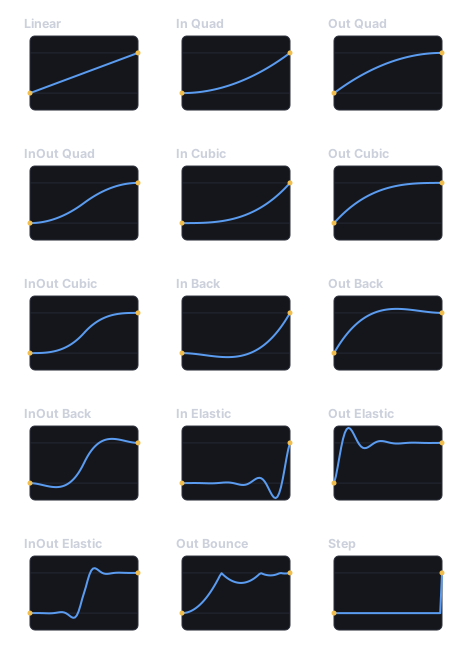
Each easing plotted (progress t left→right, eased value bottom→top) — these are the engine’s exact curves. Back and Elastic overshoot past the 0–1 band; Step holds until the end.
Sequencing & control
Section titled “Sequencing & control”The returned TweenHandle chains and controls playback:
// Chain: run one after another (a squash-and-stretch pop).tween.to(e, TweenTarget.ScaleX, 1, 1.4, 0.15)  .then(tween.to(e, TweenTarget.ScaleX, 1.4, 1, 0.15))  .bezier(0.2, 0, 0, 1);
tween.parallel([...]);      // run several at once (a group)tween.sequence([...]);      // run tween factories in ordertween.delay(0.5);           // a timed gap
tween.cancel(handle); // stop onetween.cancelAll(entity); // stop everything on an entity| Method | Description |
|---|---|
to(entity, target, from, to, duration, opts?) |
Tween a component property; returns a TweenHandle. |
value(from, to, duration, cb, opts?) |
Tween a plain number, delivered to cb each frame. |
parallel(tweens) |
Run several tweens together as a group. |
sequence(factories) |
Run tween factories one after another. |
delay(seconds) |
An empty timed gap (for use in sequences). |
cancel(handle) / cancelAll(entity) |
Stop one tween, or all on an entity. |
TweenHandle has .then(next), .bezier(...), .pause(), .resume(), and
.cancel().
Composition handles
Section titled “Composition handles”tween.parallel returns a TweenGroup and tween.sequence a TweenSequence —
parent-level handles over their members. Both expose state (a TweenState),
pause() / resume() / cancel() that fan out to every member, and
onComplete(cb):
const popX = tween.to(e, TweenTarget.ScaleX, 1, 1.3, 0.2);const popY = tween.to(e, TweenTarget.ScaleY, 1, 1.3, 0.2);tween.parallel([popX, popY]).onComplete(() => spawnSparkles());
tween.sequence([  () => tween.to(e, TweenTarget.PositionY, 0, 60, 0.3),  () => tween.delay(0.2),  () => tween.to(e, TweenTarget.PositionY, 60, 0, 0.3),]).onComplete(() => landDust());
Always create groups and sequences through the Tween resource — the
resource registers them with its internal poller (TweenCompositionManager),
which is what fires onComplete and advances a sequence to its next factory. A
hand-constructed new TweenGroup(...) is never polled.
tween.value(...) and tween.delay(...) return a ValueTweenHandle — the same
control surface (state, .pause() / .resume() / .cancel(), .bezier(...))
plus .then(next), which chains another value tween or anything
pausable/resumable (a group, a sequence). TweenHandle.then likewise accepts a
ValueTweenHandle, so property tweens and value tweens mix freely in one chain.
Reach for the shorthand helpers (tween.parallel / tween.sequence /
tween.delay / handle .then) first; the classes are what those calls hand
back — you only name TweenGroup / TweenSequence / ValueTweenHandle when
storing a handle to pause, cancel, or observe the composition later.
Animator state machine
Section titled “Animator state machine”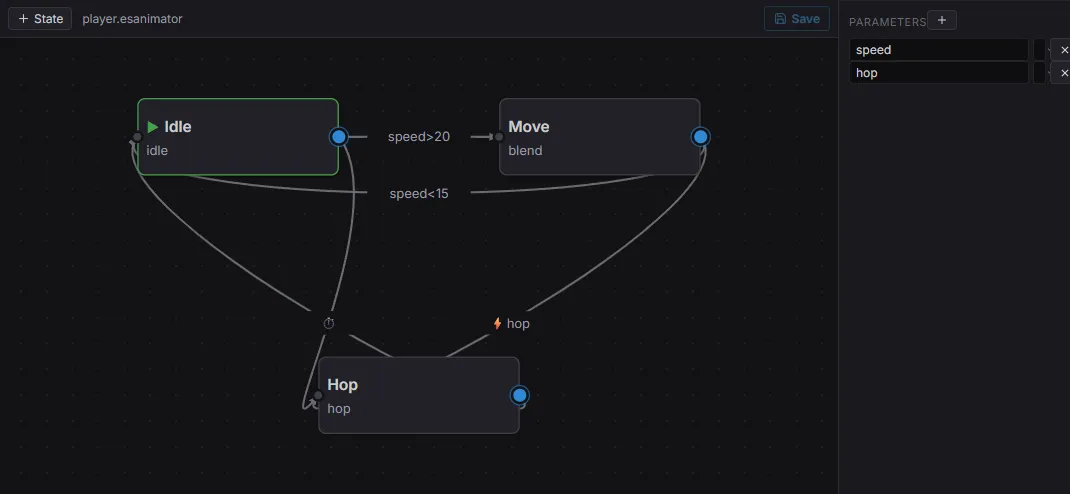
The animator: states (Idle / Move / Hop), transitions with conditions (speed>20, the hop trigger), and the Parameters panel that drives them.
For character animation, an animator controller holds states, transitions, and
1D blend trees driven by named parameters. Author it in the editor (or
register one in code), attach an Animator component naming the controller, then
set parameters each frame through Res(AnimatorController) — the controller
resolves the current state, clip, and blend.
A controller is an .esanimator asset: create one from the Content Browser’s
New menu, double-click to open the graph editor above — states with positions,
transitions with conditions, and a Parameters panel — and point the Animator
component’s controller field at it with the asset picker. The scene preloads it,
so it is registered before the first tick. Assigning a plain string instead
resolves against controllers registerController(...) put there from code; both
kinds coexist.
import { defineSystem, Query, Res, Animator, AnimatorController } from 'esengine';
const drive = defineSystem([Query(Animator), Res(AnimatorController)], (q, anim) => {  for (const [entity] of q) {    anim.setFloat(entity, 'speed', 4.2);     // drives a 1D blend / transition    anim.setBool(entity, 'grounded', true);    anim.setTrigger(entity, 'jump');         // one-shot; resetTrigger to clear    const speed = anim.getFloat(entity, 'speed');  }});
Animator field |
Type | Default | Description |
|---|---|---|---|
controller |
string | '' |
An .esanimator asset ref (what the editor writes) or a name passed to registerController in code. |
currentState |
string | '' |
Active state, as a /-separated path for nested machines (seeded from the controller’s initial state). |
enabled |
boolean | true |
Disable to freeze the state machine. |
AnimatorController method |
Description |
|---|---|
setFloat(entity, name, value) |
Set a float parameter (blends / transition conditions). |
setBool(entity, name, value) |
Set a bool parameter. |
setTrigger(entity, name) |
Fire a one-shot trigger. |
resetTrigger(entity, name) |
Clear a trigger before it’s consumed. |
getFloat(entity, name) / getBool(entity, name) |
Read a parameter back. |
The controller can drive both sprite and Spine animations, so one state machine handles a whole character.
Parameters come in three types (AnimatorParamType): 'float', 'bool', and
'trigger'. Conditions compare them with gt / lt / eq / neq (numeric,
with a value), true / false (bool), or trigger (fires once and is
consumed). There is no separate int type — drive whole numbers through a float
parameter and eq / neq.
Blend trees
Section titled “Blend trees”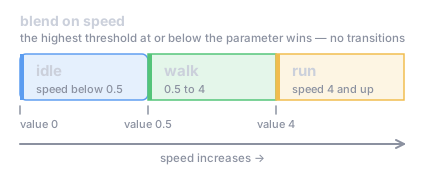
A 1D blend: a float parameter picks the clip whose threshold is the highest one at or below it — here idle / walk / run as speed rises, with no transitions between them.
A state can carry a 1D blend instead of a single clip: a float parameter
selects between AnimatorBlendThreshold stops. Because the sprite channel plays
one clip at a time, this is a selection by threshold — the stop with the
greatest value at or below the parameter wins (below all stops, the first one
plays) — not a weighted pose blend. Each threshold is
{ value, clip, speed?, loop? }; per-threshold speed / loop override the
state’s own. The selection re-evaluates every frame, so a rising speed
parameter walks idle→walk→run with no transitions:
import { defineSystem, Res, AnimatorController, type AnimatorControllerDef } from 'esengine';
const movement: AnimatorControllerDef = {  parameters: [{ name: 'speed', type: 'float', default: 0 }],  initialState: 'move',  states: [{    name: 'move',    blend: {      parameter: 'speed',      thresholds: [        { value: 0,   clip: 'idle' },        { value: 0.5, clip: 'walk' },        { value: 4,   clip: 'run', speed: 1.2 },      ],    },    transitions: [],  }],};
const setup = defineSystem([Res(AnimatorController)], (anim) => {  anim.registerController('movement', movement);});
The pure helper selectBlendClip(blend, value) returns the threshold a value
selects — handy for tooling or tests.
For skeletal characters, a state can instead carry a spine motion
(AnimatorSpineMotion, { animation, loop? }): on entry the controller sets
that Spine animation (loop defaults true) and leaves
track playback and mixing to the Spine runtime — it never touches
SpriteAnimator. States are exclusive: exactly one of clip, blend, spine,
or stateMachine.
Sub-state machines
Section titled “Sub-state machines”A state carrying a stateMachine (AnimatorSubMachine) is a container: it
plays no motion of its own. On entry the machine descends into the sub-machine’s
initialState; the container’s own transitions are the exit edges,
evaluated from every leaf inside it. A sub-machine can declare its own
anyStateTransitions, checked from all of its sub-states. Animator.currentState
holds the full /-separated path (STATE_PATH_SEP), e.g. locomotion/run:
import { defineSystem, Res, AnimatorController, type AnimatorControllerDef } from 'esengine';
const player: AnimatorControllerDef = {  parameters: [    { name: 'speed', type: 'float', default: 0 },    { name: 'jump', type: 'trigger' },  ],  initialState: 'locomotion',  states: [    {      name: 'locomotion',                    // container: no motion of its own      stateMachine: {        initialState: 'idle',        states: [          { name: 'idle', clip: 'idle', transitions: [            { to: 'run', conditions: [{ param: 'speed', op: 'gt', value: 0.1 }] },          ] },          { name: 'run', clip: 'run', transitions: [            { to: 'idle', conditions: [{ param: 'speed', op: 'lt', value: 0.1 }] },          ] },        ],      },      // Exit edges — leave the whole machine from idle OR run.      transitions: [{ to: 'jump', conditions: [{ param: 'jump', op: 'trigger' }] }],    },    { name: 'jump', clip: 'jump', loop: false, transitions: [      { to: 'locomotion', conditions: [], hasExitTime: true },   // back in at idle    ] },  ],};
const setup = defineSystem([Res(AnimatorController)], (anim) => {  anim.registerController('player', player);});
Entering locomotion lands on locomotion/idle; the jump trigger exits from
either leaf; when the one-shot jump clip ends, hasExitTime re-enters the
container at its initial state. Transition priority, highest first: top-level
any-state → each enclosing machine’s any-state (outermost in) → the leaf’s own
transitions → container exit edges (innermost out).
The path machinery is exposed as pure functions (an AnimatorScope is the shape
shared by the top-level controller and every sub-machine):
import { enterStatePath, leafStateOf, evaluateAnimatorPath } from 'esengine';
enterStatePath(player, 'locomotion'); // ['locomotion', 'idle']leafStateOf(player, 'locomotion/run')?.clip; // 'run'evaluateAnimatorPath(player, 'locomotion/idle', { speed: 3 }, new Set());// → { nextPath: 'locomotion/run', consumedTriggers: [] }| Helper | Description |
|---|---|
enterStatePath(scope, name) |
Descend from a state to its concrete leaf; returns the path segments. |
leafStateOf(def, path) |
The motion-bearing leaf state of a path, or null. |
evaluateAnimatorPath(def, path, params, triggers, clipFinished?) |
One pure evaluation step over a path → { nextPath, consumedTriggers }. |
STATE_PATH_SEP |
The path separator, '/'. |
Choosing the right tool
Section titled “Choosing the right tool”See also
Section titled “See also”- Spine Animation — skeletal animation, also driveable by the state machine.
- Timeline — keyframed cutscenes and sequenced events.
- Camera — tween
CameraOrthoSizefor smooth zooms.