Timeline
A timeline is a Sequencer animation — tracks of keyframes over time that move a
Transform, swap sprites, fire audio, toggle entities, or drive Spine. You author it
in the editor’s Sequencer, attach it with a TimelinePlayer component, and control
playback through the Timeline resource. Because one timeline drives many things at
once, it’s the tool for cutscenes and scripted sequences.
Attach a timeline
Section titled “Attach a timeline”The TimelinePlayer component points an entity at a timeline asset. Usually set in
the editor; in code, insert it with Commands:
import { defineSystem, Commands, TimelinePlayer } from 'esengine';
const attach = defineSystem([Commands()], (cmds) => { cmds.spawn().insert(TimelinePlayer, { timeline: 'timelines/intro.estimeline', playing: true, speed: 1.0, wrapMode: 'once', });});| Property | Type | Default | Description |
|---|---|---|---|
timeline |
asset | '' |
The timeline asset (.estimeline). |
playing |
boolean | false |
The play flag — raise to play, lower to pause. Raising it on a finished clip replays from the top. |
speed |
number | 1 |
Playback rate multiplier. |
wrapMode |
string | 'once' |
'once', 'loop', or 'pingPong' (camelCase — other values silently play once). |
finished |
boolean | false |
Latched true when a 'once' clip completes; cleared on the next play. Runtime, read-only. |
The component flags are the playback control: the engine reconciles them into
its internal clock every frame, so anything that flips playing — your code, the
inspector, an AI action — drives the
clip through the same channel.
Control playback
Section titled “Control playback”Read the Timeline resource to drive an entity’s timeline:
import { defineSystem, Query, Res, TimelinePlayer, Timeline } from 'esengine';
const control = defineSystem([Query(TimelinePlayer), Res(Timeline)], (q, timeline) => { for (const [entity] of q) { timeline.play(entity); timeline.pause(entity); timeline.stop(entity); timeline.setTime(entity, 1.5); // seek to 1.5s const t = timeline.getCurrentTime(entity); const playing = timeline.isPlaying(entity); }});| Method | Description |
|---|---|
play(entity) |
Start or resume playback (a finished clip replays from the top). |
pause(entity) |
Pause, keeping the current time. |
stop(entity) |
Stop, reset to the start, and clear the finished latch. |
setTime(entity, seconds) |
Seek to a time (scrubs all tracks). |
getCurrentTime(entity) |
Current playhead time in seconds. |
isPlaying(entity) |
Whether it’s currently playing. |
These methods write through to the TimelinePlayer flags — timeline.play(e) and
player.playing = true are the same operation on the same channel.
Track types
Section titled “Track types”A timeline is a set of tracks evaluated together each frame:
| Track | TrackType |
Drives |
|---|---|---|
| Property | Property |
Keyframed component fields — position / rotation / scale and any numeric dot-path. |
| Sprite frames | AnimFrames |
Swap sprite-sheet frames over time. |
| Sprite clip | SpriteAnim |
Start a named anim-clip at a time. |
| Audio | Audio |
Fire one-shot sounds at keyframes. |
| Activation | Activation |
Toggle entities on/off over ranges. |
| Spine | Spine |
Play Spine animations as clips. |
| Marker | Marker |
Named time markers. |
| Custom event | CustomEvent |
Named events with a payload, for your own systems. |
Author in the Sequencer
Section titled “Author in the Sequencer”Double-click an .estimeline (or open the timeline of a selected entity) to author
it in the Sequencer — the editor for keyframe animation. The dope sheet lays
every track and its keys along a shared, scrubbable playhead; add tracks, drag keys,
then Save.
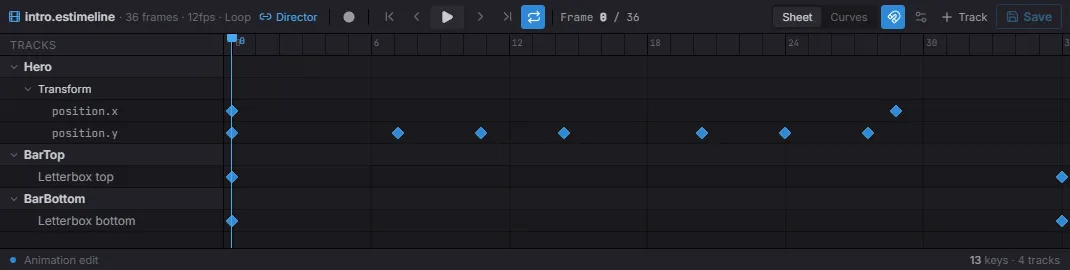
The dope sheet: one row per track (here a Transform’s position.x / position.y plus two letterbox activation tracks), keyframes as diamonds, a scrubbable playhead, and the transport up top.
Switch to the Curves tab to shape the interpolation between keys — drag the value curves and their tangent handles for eases the dope sheet can’t express:
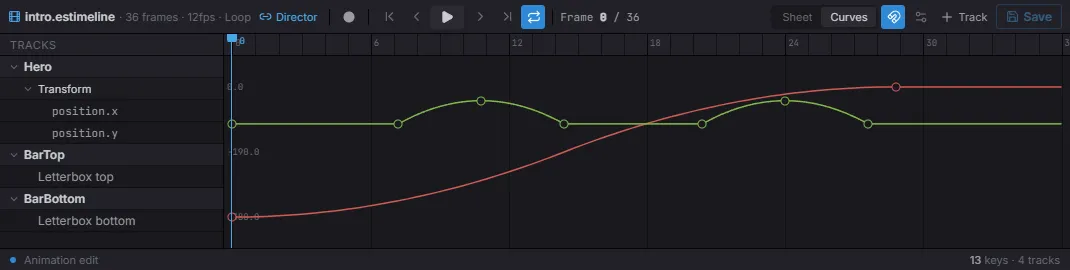
The curve editor: each keyframed channel becomes an editable curve (here position.x easing in, position.y bobbing), with per-key tangent handles.
Timelines from code
Section titled “Timelines from code”An .estimeline document is plain data — the TimelineAsset type plus the
TrackType / InterpType / WrapMode constants let you build one entirely in
code. Register it with registerTimelineAsset(path, asset), and any
TimelinePlayer whose timeline names that same path plays it like an authored
asset:
import {  defineSystem, Commands, registerTimelineAsset, TimelinePlayer,  TrackType, InterpType, WrapMode, type TimelineAsset,} from 'esengine';
const slideIn: TimelineAsset = {  version: '1.1',  type: 'timeline',  duration: 2,  wrapMode: WrapMode.Once,  tracks: [{    type: TrackType.Property,    name: 'Slide in',    childPath: '',                       // '' = the player entity itself    component: 'Transform',    channels: [{      property: 'position.x',      keyframes: [        { time: 0, value: -200, inTangent: 0, outTangent: 0, interpolation: InterpType.EaseOut },        { time: 2, value: 0, inTangent: 0, outTangent: 0 },      ],    }],  }],};
const attach = defineSystem([Commands()], (cmds) => {  registerTimelineAsset('code/slide-in', slideIn);  cmds.spawn().insert(TimelinePlayer, {    timeline: 'code/slide-in',    playing: true,    wrapMode: 'once',  });});
A Keyframe is { time, value, inTangent, outTangent, interpolation? }. The
segment starting at a keyframe uses that keyframe’s interpolation:
Hermite (the default — tangent-driven curves), Linear, Step, EaseIn,
EaseOut, or EaseInOut. A property track resolves its target entity by
childPath (child names separated by /; empty = the player entity) and writes
the channel’s dot-path field on the named component.
Wrap modes
Section titled “Wrap modes”Playback uses the player component’s wrapMode string; the numeric
WrapMode constant lives on the asset and in the pure evaluation API. The
mapping and behavior:
WrapMode |
Player string | Behavior past the end |
|---|---|---|
WrapMode.Once (0) |
'once' |
Clamp at duration, stop, latch finished. |
WrapMode.Loop (1) |
'loop' |
Wrap around (time % duration). |
WrapMode.PingPong (2) |
'pingPong' |
Play forward then backward each cycle. |
applyWrapMode(time, duration, mode) is the pure mapping itself — it returns
{ time, stopped } for an absolute clock time.
Sampling and serializing
Section titled “Sampling and serializing”The evaluator is pure TypeScript, shared by playback and the editor’s scrub — you can call it yourself:
| Function | Description |
|---|---|
sampleTimelineInWorld(asset, time, world, rootEntity, opts?) |
Evaluate every property track at time and write the results into the world (the scrub operation). |
sampleTimeline(asset, time, rootEntity, deps, opts?) |
Same, with injected SampleDeps (world / component lookup / child resolver) — for tests and tooling. |
evaluateChannel(channel, time) |
Value of one property channel at time; endpoints clamp. |
serializeTimelineAsset(asset) |
The asset as a JSON-ready object (the .estimeline document shape). |
serializeTimelineToJson(asset, indent?) |
Pretty-printed .estimeline JSON string (indent defaults 2). |
Sampling covers property tracks; event-like tracks (audio, markers, custom events) fire edge-detected during playback, not on a sample.
Best practices
Section titled “Best practices”- Author in the Sequencer — the timeline asset holds the tracks; code just plays and seeks it.
wrapMode: 'once'for cutscenes,'loop'for ambient/idle sequences.- Scrub with
setTimeto preview or sync a cutscene to gameplay state. - Use a timeline (not tweens) when many properties/entities animate in lockstep; reach for tweens for one-off single-property juice.
See also
Section titled “See also”- Animation — tweens and the animator state machine.
- Spine Animation — timelines can drive Spine clips.